







What are third-party cookies and how do they work?
Third-party cookies can track you across the web more than you might expect, logging your activity so advertisers can target you with personalized content. If you’d rather prioritize privacy, learn more about how cookies work and how to use a private browser to help block trackers before they place cookies on your device.

2025
Consumer
Security Innovator





Have you ever looked at a pair of shoes online, closed the tab, and then seen those same shoes appear everywhere you browse? That’s third-party tracking cookies at work. These small data files are stored on your device when you visit a website and can continue tracking your activity across other sites after you leave.
Companies use the data collected by these cookies to personalize content and serve targeted ads. And while this is a legitimate marketing practice, it can feel invasive.
Learn more about how tracking cookies work and how you can block them to keep your digital life more private.
What are third-party cookies?
Third-party cookies are small data files created by a website that’s different to the one you’re visiting — typically an advertising network, analytics provider, or social media platform that’s embedded somewhere on the page. These cookies allow those third parties to follow you across multiple websites, essentially tracking your online journey.
Their primary purpose is to log interactions, such as pages viewed, ads clicked, or searches performed, so the third party can deliver targeted ads, measure campaign performance, or analyze your behavior across the web. Because this tracking happens across sites, third-party cookies are seen by some users as a major internet privacy concern.
First-party vs. third-party cookies
Both first-party and third-party cookies store small pieces of data in your browser, but they differ in who creates them, how they’re used, and how they affect your privacy:
- Who creates them: First-party cookies are managed by the website you’re visiting. Third-party cookies are placed by external services embedded on the page, such as ad networks, analytics tools, or social media widgets.
- What they’re used for: First-party cookies support core site functions like staying logged in, saving preferences, and keeping items in your shopping cart. Third-party cookies track activity across multiple websites to power advertising, recommendations, and audience insights.
- Privacy impact: First-party cookies are limited to a single site and don’t follow you elsewhere. Third-party cookies can link your activity across the web, which is why they’ve faced increased privacy scrutiny.
- Browser support: First-party cookies remain widely supported. But many browsers already block third-party cookies by default, and others, including Google Chrome, are in the process of phasing them out or restricting their use, with timelines still evolving.
- Data control: First-party cookies keep data within the site you’re directly using. Third-party cookies may share data with outside companies, including advertisers and tracking partners.
Because first-party cookies are site-specific and don’t track you across the web, they’re generally considered more privacy-friendly. It’s also worth noting that there’s a lesser-known category called second-party cookies, which are essentially first-party cookies shared between trusted partner organizations.
How third-party cookies work
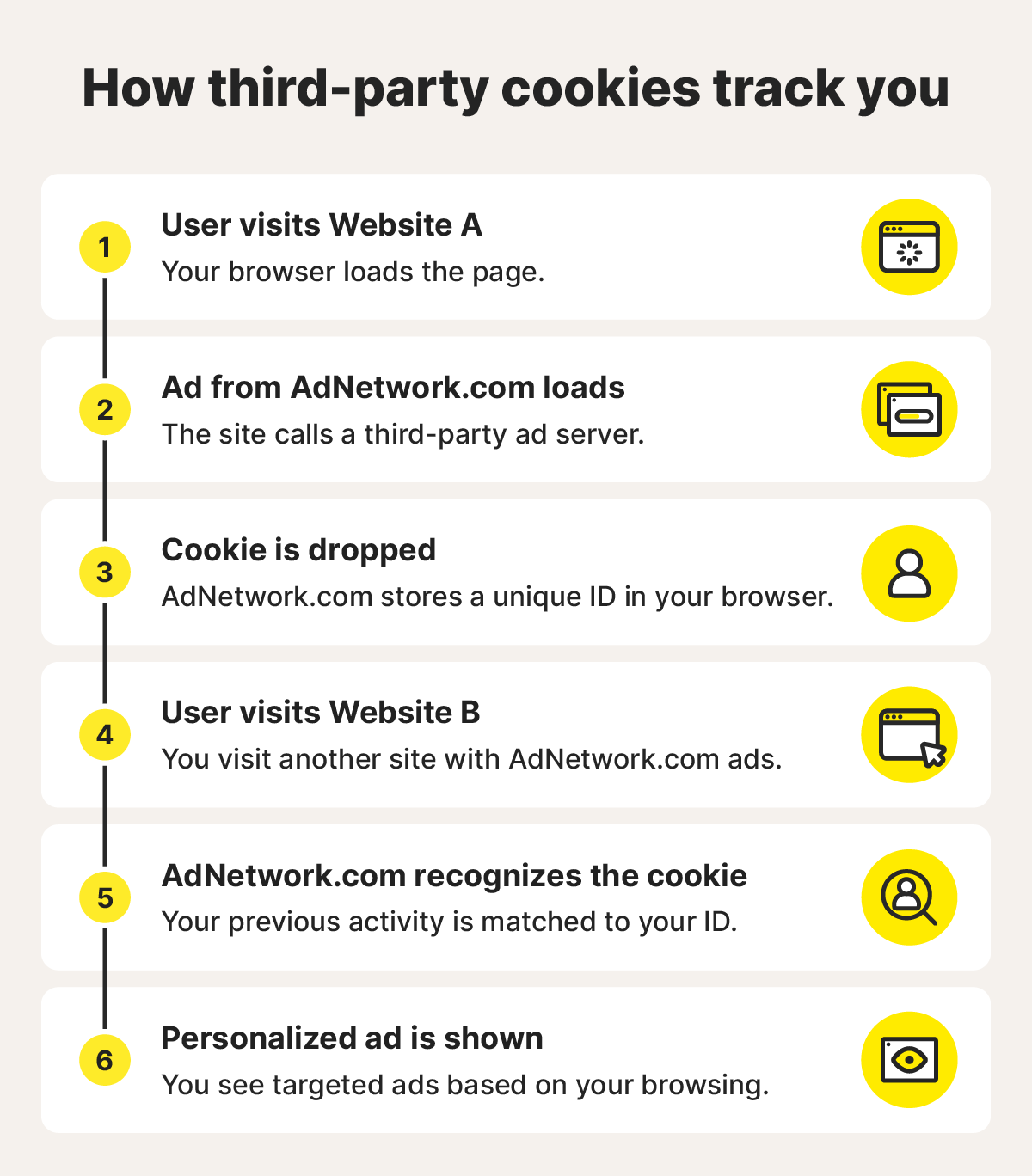
Third-party cookies appear when a website page loads content from an external source — such as ad banners, social media buttons, tracking pixels, or analytics tools running in the background. When these elements load, they can place small tracking cookies in your browser, helping the third party identify you on other sites using the same tools.
This process is handled by your browser automatically. The cookie may be set through a script, an invisible tracking pixel, or embedded code on the page — often without any visible sign to the user.
Examples of services that use third-party cookies
Many everyday tools rely on third-party cookies, often working behind the scenes while you browse. These services use cookies to understand who’s visiting a site, what they’re doing, and how to tailor ads or features across the web.
Here are some of the most common examples:
- Google Ads: Tracks your browsing behavior across partner sites to personalize ads and measure conversions.
- Meta Pixel: Connects your website activity with Facebook accounts to improve ad targeting and retargeting.
- LinkedIn Insight Tag: Captures page views, job-related interests, and conversions for LinkedIn ad campaigns.
- Analytics platforms: Collect site-to-site browsing patterns to help businesses understand traffic sources and engagement.
- Chat widgets: Recognize returning visitors, track conversation history, and sync data across multiple websites.
- Social sharing buttons: Log interactions and can follow users across pages where the widget appears.
How to check if a website uses third-party cookies
It’s possible to peek under the hood to see which cookies a site is using, though the steps vary slightly depending on what internet browser you use.
In Google Chrome
- Press F12 or right-click and select Inspect to open Developer Tools.
- Head to the Application tab, open the Cookies section, and look at the domains listed.
- Any domain that isn’t the site you're currently visiting counts as a third party.
In Microsoft Edge
- Open Settings.
- Choose Site permissions, then Cookies and site data.
- Select See all cookies and site data to get a full list of what's stored.
- Again, any domain that isn’t the site you're currently visiting counts as a third party.
Firefox offers a similar view in its Developer Tools under Storage.
If you’d rather skip the detective work, Norton AntiTrack simplifies the whole process, helping you quickly understand what’s being stored, what’s tracking you, and what you want to allow or block.
Are third-party cookies safe?
Third-party cookies are commonly used to personalize ads and help companies measure how websites perform. On their own, they don’t usually store sensitive information, but they do enable extensive tracking and the creation of detailed profiles about your online behavior on external servers.
If those systems are breached — or if cookies are stolen through attacks like session hijacking — accounts and personal data can be exposed.
Key risks include:
- Cross-site tracking that builds detailed behavioral profiles.
- Data sharing with companies you’ve never directly interacted with.
- Session hijacking if cookies are stolen or exposed.
- Malvertising which abuses online ad infrastructure to deliver malware.
To reduce these risks, you can block third-party cookies entirely, allow them selectively, or use a privacy-focused browser, like Norton Private Browser, to control trackers and manage cookie permissions.
Should you block or enable third-party cookies?
Most people are better off blocking third-party cookies. They track your activity across multiple websites and often share data with outside companies. Keeping them disabled by default gives you more privacy and fewer surprises, and you can always turn them back on if a specific site requires it.
Ultimately, it comes down to personal preference. But if you’ve been spending time debating whether to block third-party cookies, blocking them is usually the safer, more privacy-protective choice.
How to block cookies on your browser (Chrome, Safari, Edge)
You can block cookies on your browser by opening your settings or preferences and adjusting how each site is allowed to store data. Every major browser gives you quick controls to turn cookies off, allow them, or manage them site by site.
Here’s how to find those settings:
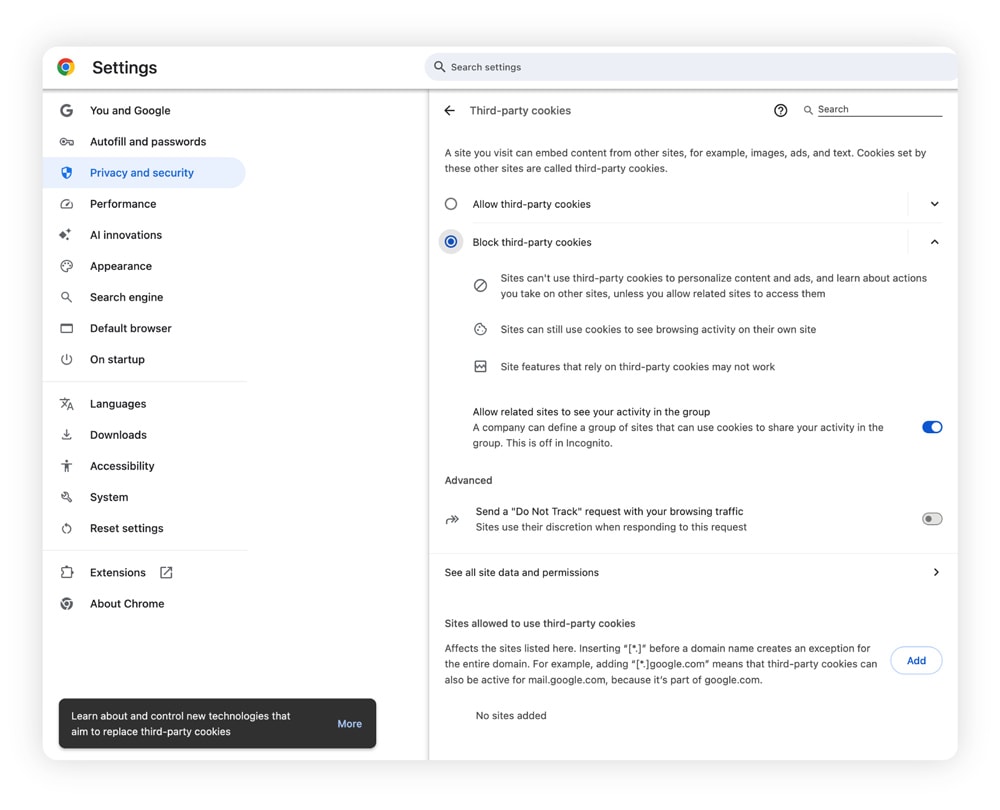
- Google Chrome: Open Chrome settings > Privacy and security > Third-party cookies. Here, you can block all third-party cookies or allow them for specific sites.
- Safari (Mac): Open Safari > Preferences > Privacy. From here, you can block cross-site tracking and manage cookies.
- Microsoft Edge: Open Edge settings > Privacy, search, and services > Cookies. Here, you can block third-party cookies and control what gets stored.
Pros and cons of disabling third-party cookies
Blocking third-party cookies gives you more privacy by default, but it can also affect how some tools behave. Here’s what to expect:
Pros
- Stronger privacy: Fewer third-party cookies mean less tracking across websites.
- Reduced data sharing: Fewer outside companies gain access to your browsing activity.
- Less profiling: You’ll see fewer ads personalized to your behavior.
Cons
- Feature limitations: Chat widgets, social buttons, or embedded tools may not work as intended.
- Less relevant ads: Ads you see across the internet will probably feel more generic and less suited to your interests.
- Login disruptions: You may need to sign in again or lose certain cross-site conveniences.
How to enable third-party cookies
If you ever need to turn third-party cookies back on for a website you trust, you can do it in just a few taps or clicks. Here’s how to allow them on the most common devices and browsers.
How to enable third-party cookies on Chrome (desktop)
- Open Chrome.
- Go to Settings > Privacy and security > Third-party cookies.
- Select Allow third-party cookies for the sites you trust.
How to allow third-party cookies on Mac (Safari)
- Open Safari.
- Go to Settings > Privacy.
- Turn off Prevent cross-site tracking.
How to allow third-party cookies on iPhone (Safari)
- Open Settings on your iPhone.
- Search Safari.
- Turn off Prevent Cross-Site Tracking.
Safari blocks a lot of cross-site tracking by default. If a site you trust requires cookies to function, disabling Prevent Cross-Site Tracking usually resolves the issue.
Pros and cons of enabling third-party cookies
Turning on third-party cookies can make some parts of the web feel smoother, but it also opens the door to more tracking. Here's what happens when you allow them:
Pros
- Personalized ads: Ads are more tailored to your browsing history, making them more relevant to your interests.
- Added convenience: Logins and preferences can carry across related platforms for a more seamless browsing experience.
- Better analytics: Third-party cookies help sites measure performance and support free content.
Cons
- Reduced privacy: Your activity can be tracked across multiple websites.
- Broader data sharing: Information may be shared with companies you never interact with directly.
- Security risks: Malicious or poorly secured trackers can misuse cookies for profiling or session hijacking.
The future of third-party cookies
Third-party cookie tracking isn't a thing of the past just yet. As of early 2026, advertisers, analytics platforms, and social tools still rely heavily on these cookies to understand audiences and keep campaigns running.
Safari and Firefox already block them by default, but Chrome has delayed a full phase-out more than once. Google continues to test restrictions through its Privacy Sandbox, yet a complete shutdown remains slow and uncertain.
As companies move away from third-party cookies, they’re shifting toward first-party data instead. For you, that likely means more requests for your email address, more prompts to join loyalty programs, and more “members-only” content. While this approach is more transparent, it also signals a push to build more direct and permanent profiles of who you are.
Don’t let cookies take a bite out of your privacy
You don’t have to wait for the web to become more private — you can take control now with Norton Private Browser. It blocks ad trackers and third-party cookies by default, helps protect against phishing and malicious sites, and reduces the data companies can collect about you as you browse. Best of all, it works quietly in the background, giving you stronger privacy and security without slowing you down.
FAQs
What do privacy laws and browsers say about third-party cookies?
Most modern privacy laws emphasize clearer consent and stricter limits on how data is shared across sites. At the same time, major browsers now restrict cross-site tracking by default. Even so, who can see your search activity still depends on your browser settings, your internet provider, and any privacy tools you use.
Can websites still track me without third-party cookies?
Yes, websites can use techniques such as device fingerprinting, login-based tracking, IP address matching, and first-party cookies. Blocking third-party cookies significantly reduces web tracking, but it doesn't eliminate it entirely.
Is it better to block or clear cookies?
Blocking third-party cookies is usually the better long-term approach if you prioritize privacy over convenience. Clearing cookies wipes the slate clean, but it doesn’t prevent new cookies accumulating and enabling future tracking.
What happens when third-party cookies go away?
As third-party cookies are phased out, websites will increasingly ask for email addresses or direct consent to maintain user relationships. Tracking won’t disappear, but it’s likely to shift toward more transparent, privacy-focused methods with greater user control.
Editors’ note: Our articles offer educational information and are written to raise awareness about important topics in Cyber Safety. Norton products and services may not protect against every type of threat, fraud, or crime we write about. For more details about how we research, write, and review our articles, see our Editorial Policy.







Want more?
Follow us for all the latest news, tips, and updates.