






How to block apps on an iPhone (5 simple methods)
You hand your iPhone to your kiddo so they can watch a harmless cartoon. Fifteen minutes later, they’ve signed up for a sketchy free trial and are somehow live-streaming themselves on an app you didn’t know existed. Luckily, in-built iPhone settings like Guided Access (which locks your screen to a single app) and Screen Time (which sets specific app time limits) can help your family stay on task with minimal input.

- Method 1: How to block apps using time limits
- Method 2: How to permanently block apps
- Method 3: How to block apps using Downtime
- Method 4: How to use Guided Access to lock your phone to a single app
- Method 5: How to use third-party apps for better control
- Can I block apps from being downloaded?
- Why you might want to block apps on your iPhone
- Best practices for app blocking control
- Take control of your family time
- FAQs
Screens have quietly taken over our time, focus, and kids’ attention. Globally, people average just over six and a half hours of screen time each day. If you’re trying to get more done, protect your privacy, or shield your children from inappropriate content, you’re in the right place.
Keep reading to learn how to block apps that waste your time, threaten your data, or expose your kids to content they have no business seeing.
Method 1: How to block apps using time limits
If your goal is to restrict the amount of time that can be spent on specific apps, then using Apple’s built-in Screen Time tool to set time limits is a quick and easy way to do so.
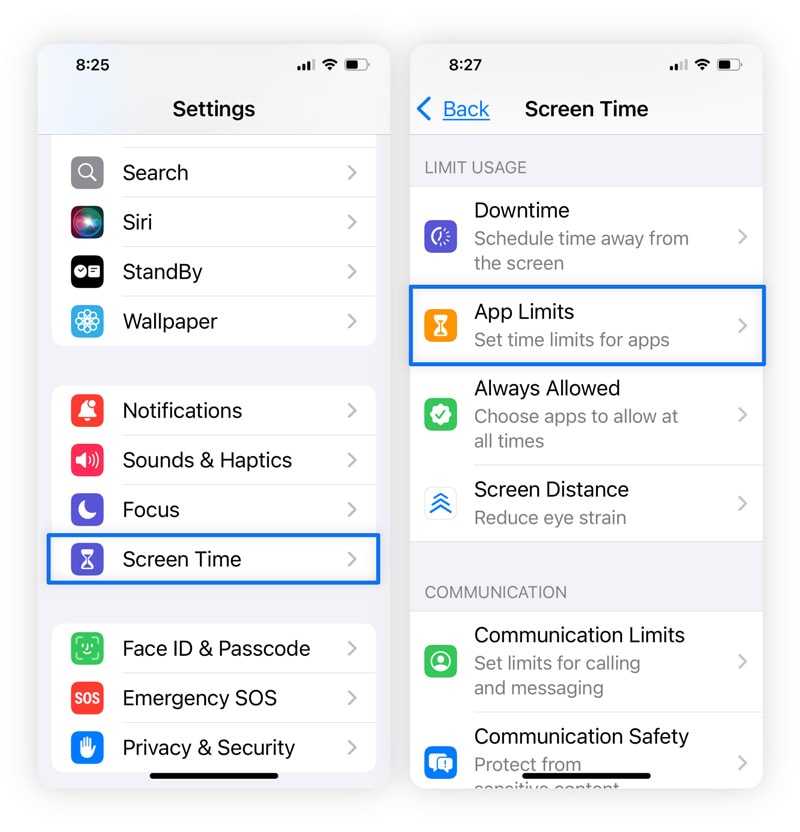
1. Go to the Settings > Screen Time > App Limits.
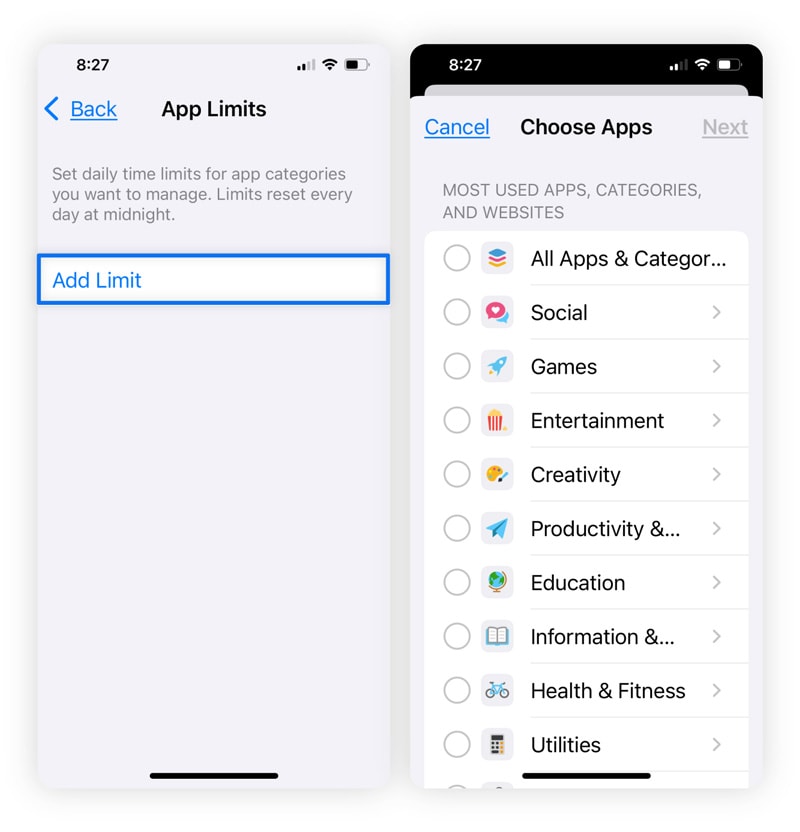
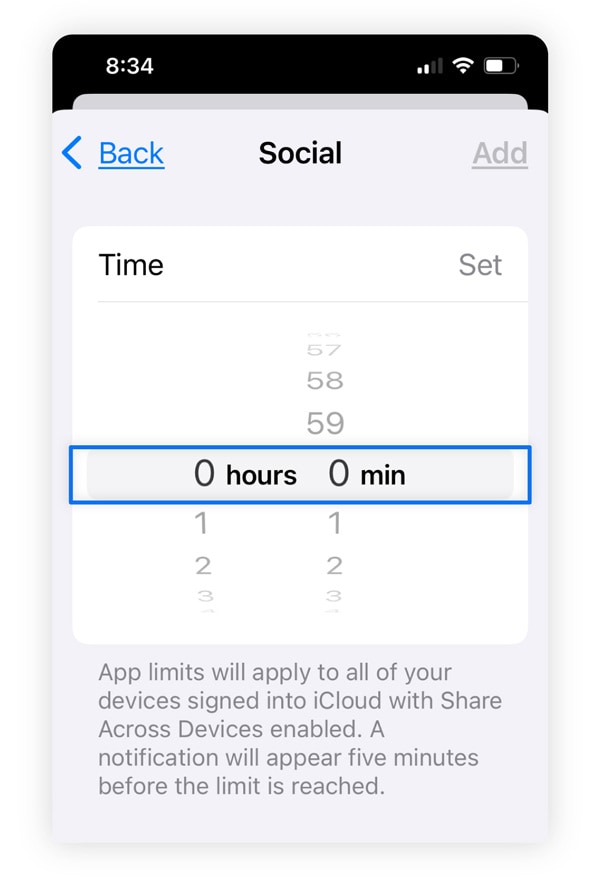
2. Tap Add Limit, choose the apps you want to block, or select an entire category, such as Social, to block all related apps at once.
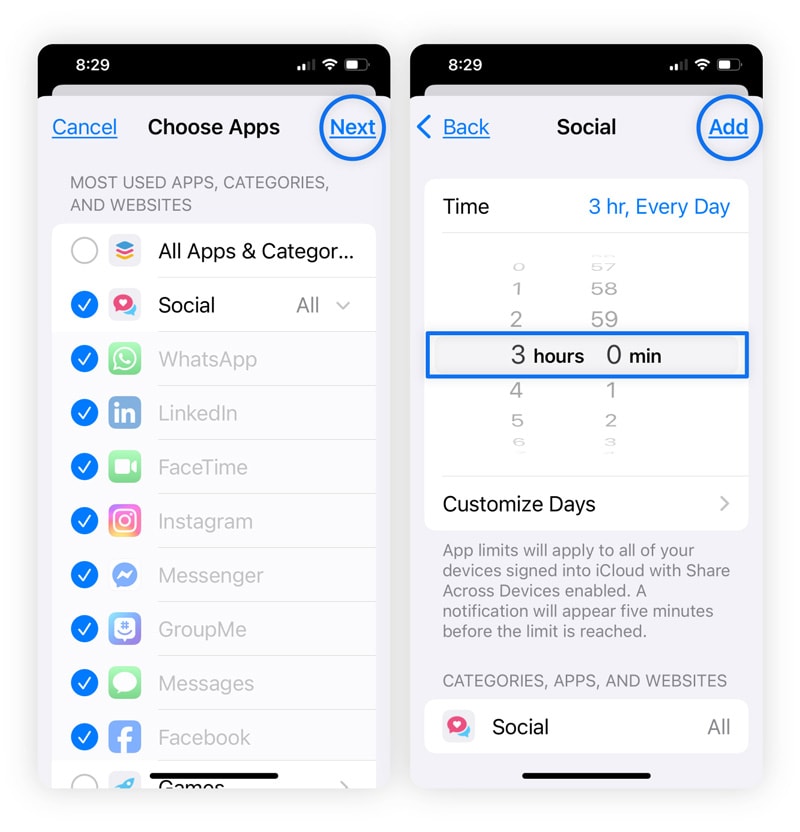
3. Tap Next, select a time limit for the app or app category, and tap Add.
You can also share these limits across all of your connected Apple devices. While in Screen Time, scroll to the bottom and tap Share Across Devices to set time limits on your iPad, iPhone, and Mac computer.
Method 2: How to permanently block apps
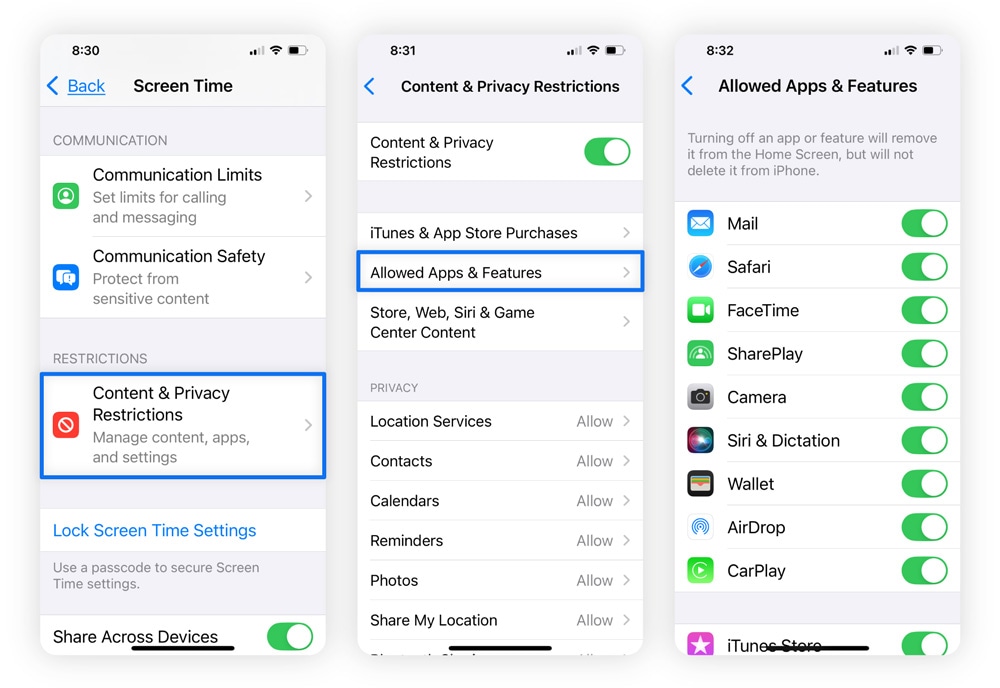
You can permanently block Apple’s built-in preinstalled apps directly through Screen Time by following these steps:
- Go to Screen Time > Content & Privacy Restrictions > Allowed Apps & Features.
- Toggle off any built-in apps you want to block. This hides the app by removing its icon from your Home Screen and keeps it blocked until you turn it back on.
You can’t “disable” third-party apps the same way as Apple’s built-in apps, but you can block yourself from accessing them by following the steps for blocking apps using time limits, and setting the time to 0 hours 0 minutes.
Method 3: How to block apps using Downtime
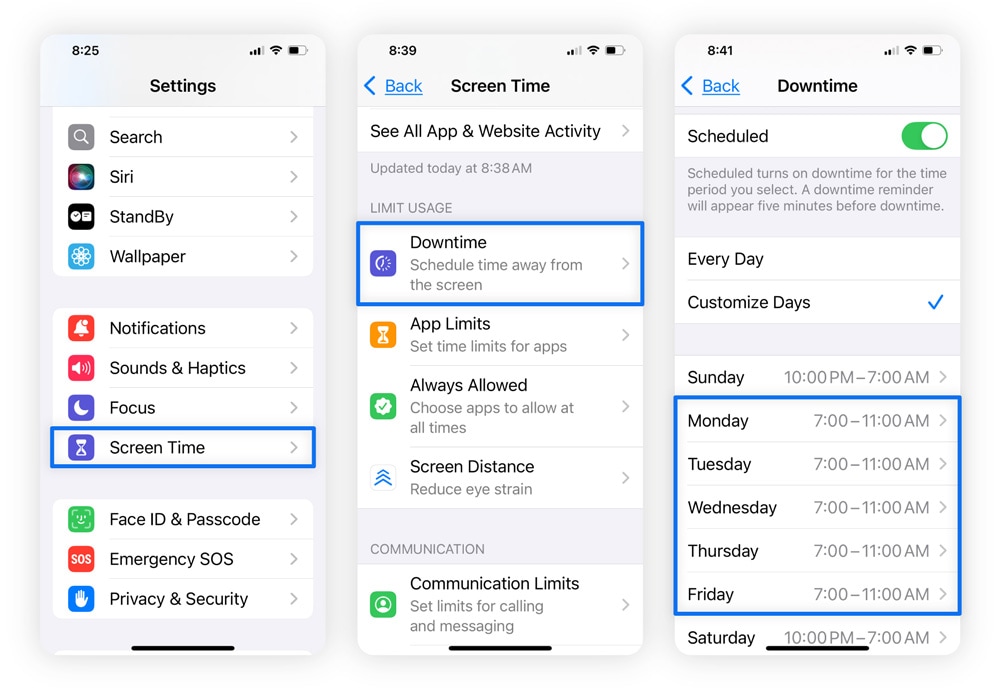
Downtime lets you create a blackout schedule during which only approved apps are available. It’s useful when you need firm, distraction-free boundaries.
To enable Downtime schedules, simply go to Screen Time > Downtime and toggle on Scheduled.
From there, set the hours you want apps to be inaccessible — for example, blocking access during work hours or focus periods such as 7:00 – 11:00, Monday–Friday.
Method 4: How to use Guided Access to lock your phone to a single app
Guided Access is an iOS feature that locks your device to a single app — helpful when you hand your phone to a child to play a game or let a coworker use your calculator without giving them access to the rest of your phone.
1. Go to Settings > Accessibility and toggle on Guided Access. Then, set a passcode to prevent anyone from exiting the app without permission.
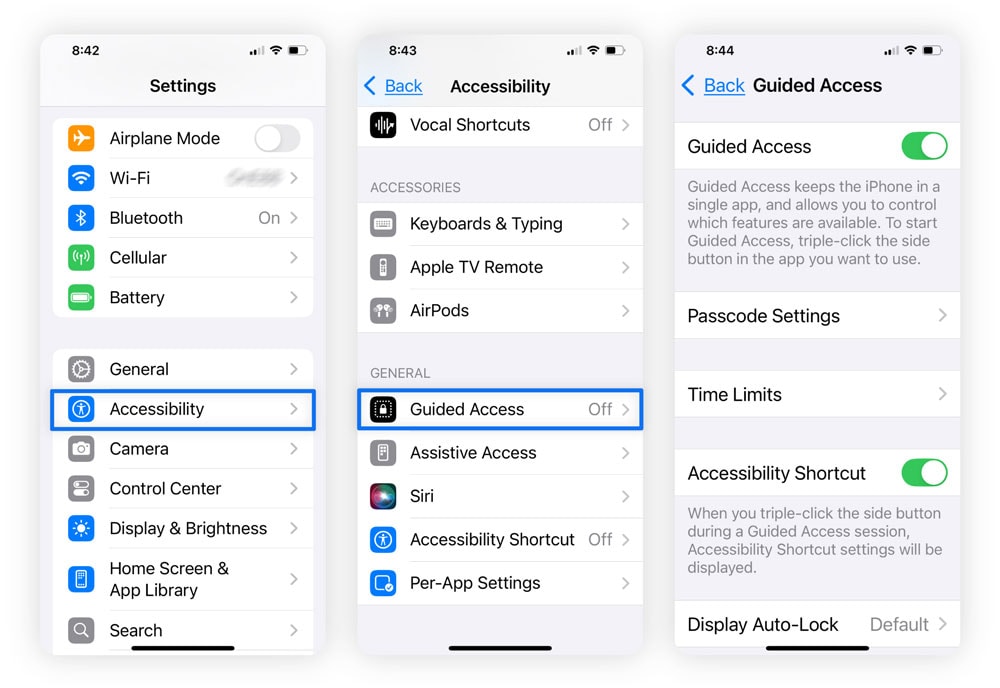
2. Next, head to the app you want to use. Press the Home Button three times and tap Guided Access. Your iPhone will now be restricted to that app only.
3. To disable Guided Access, press the Home Button three times again and enter your passcode.
Method 5: How to use third-party apps for better control
Third-party parental-control apps can be essential when built-in tools fall short. On iOS, App Limits are all too easy to bypass when time runs out, because users can simply tap Ignore Limit to keep using the app — or just remove the limit altogether.
If you want real, enforceable controls, third-party apps like Norton Family go far beyond basic time limits. They provide a comprehensive set of parental-control and device-management tools that let you monitor, manage, and block app use across all your devices by allowing you to:
- Control what gets downloaded, preventing access to unwanted or unsafe apps.
- Restrict or block specific apps, even if they’re already installed.
- Filter out distracting apps and websites, helping create healthier screen-time habits.
Can I block apps from being downloaded?
It is possible to permanently remove third-party apps and prevent them from being downloaded again. Here’s how to do it:
- First, manually delete any unwanted third-party apps from your Home Screen by pressing and holding the app icon until a menu appears, then tapping Remove App > Delete App.
- Then, go to Settings > Screen Time > Content & Privacy Restrictions.
- Tap iTunes & App Store Purchase > Installing Apps > Don’t Allow.
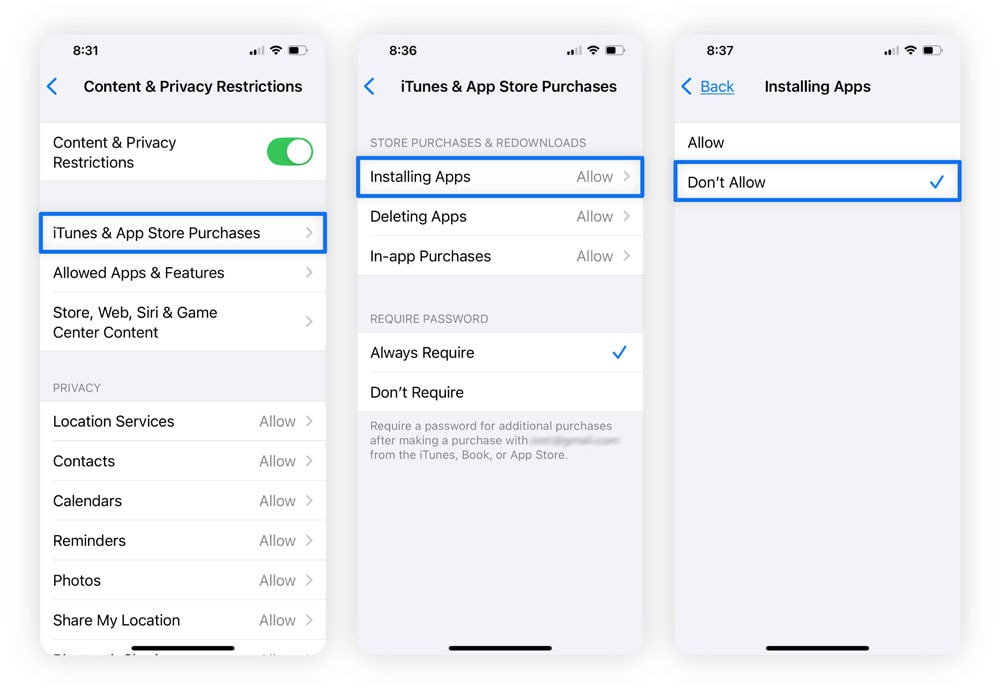
If you also want to prevent in-app purchases, select In-app Purchases and tap Don’t Allow.
Why you might want to block apps on your iPhone
There are plenty of reasons to block apps on your iPhone — from protecting your kids to safeguarding your own sanity. Here are some of the most common:
- Protect your kids from explicit material: Using parental controls allows you to easily block sites or apps that hide unfiltered chats or adult content behind harmless-looking icons.
- Prevent accidental lockouts: Hand your phone to a child for “one minute,” and a flurry of random taps can lock you out for hours. Blocking apps helps prevent these passcode mishaps.
- Avoid surprise credit-card charges: Some apps and games make it easy to tap “buy” without realizing it. Blocking or restricting them helps stop accidental purchases.
- Reclaim focus and build discipline: App blocks act as guardrails, helping you stay productive during work or study sessions by reducing digital distractions.
- Cut screen time for better sleep and clarity: Endless scrolling fuels anxiety and disrupts sleep. One study in Frontiers in Psychiatry found that just an hour of screen time before bed can increase the risk of insomnia by 59%. Blocking apps can help restore balance.
Best practices for app blocking control
If you’re serious about blocking apps and want consistent results, a few smart strategies can make a big difference:
- Choose tools that fit your needs: Apple’s Screen Time covers the basics, but if you need stronger controls — such as cross-device lockdowns or limits that can’t be overridden — third-party solutions may offer more reliable enforcement.
- Set a schedule: Manual blocking is easy to forget. Recurring daily or weekly limits that match your routine help you stay consistent without relying on willpower.
- Create different block lists: Build tailored lists for specific scenarios, such as work mode, family time, or when your kids are using the device, so you don’t have to reconfigure settings each time.
- Lock down your phone with a strong passcode: Pick a passcode that isn’t easy to guess. And if you’re struggling with self-discipline, let someone else set the code so you can’t override your own restrictions.
Take control of your family time
Distractions, data leaks, and inappropriate content can slip through when kids browse freely. But once parental controls are in place, there’s a way to get even more control over your family’s digital life, so you can focus on things that matter most.
Norton Family Assistant helps you stay in control of your family’s administrative tasks automatically. By collecting the most important updates from your family’s email inboxes, calendars, and even school platforms into one clear view, you won’t need to spend the mental energy on routine logistics. Spend your family time doing the fun stuff, not admin, with the help of Norton Family Assistant.
FAQs
How do I block in-app purchases on my iPhone?
To prevent in-app purchases, go to Settings > Screen Time > Content & Privacy Restrictions > iTunes & App Store Purchases. Then tap In-app Purchases > Don’t Allow.
Does Apple have an app blocker?
Yes, Apple offers several built-in ways to block or restrict apps, including Screen Time, Focus Mode, and Guided Access, depending on the level of control you need. However, without robust device-level restrictions, these app blocking methods can usually be easily bypassed.
Can I block apps without deleting them?
Yes, to block apps without deleting them, go to Settings > Screentime > App Limits. Choose Add Limit, then select the app(s) you want to block. Set the timer to 0 minutes 0 seconds to block access to the app.
Can you delete app usage history on an iPhone?
Yes, you can delete App Store usage history by tapping your profile in the App Store, selecting Personalized Recommendations, and choosing Clear App Usage Data. To clear Screen Time activity, go to Settings > Screen Time and turn off App & Website Activity.
Can I temporarily block social media apps?
You can temporarily block social media apps (or other app categories) using App Limits by going to Screen Time > App Limits > Add Limit, selecting the Social category, and setting the timer to 0 hours 0 minutes.
Editors’ note: Our articles offer educational information and are written to raise awareness about important topics in Cyber Safety. Norton products and services may not protect against every type of threat, fraud, or crime we write about. For more details about how we research, write, and review our articles, see our Editorial Policy.






Want more?
Follow us for all the latest news, tips, and updates.