



How to block inappropriate content: 10 simple strategies
There are myriad ways to block inappropriate content on your kids’ device — from installing dedicated apps to adjusting device, browser, and platform settings. Learn 10 simple ways to block inappropriate content and how Norton Family can help keep your kids safer online.

2025
PCMag
60X Winner



- 1. Use parental control apps for device-level control
- 2. Turn on SafeSearch
- 3. Enable Microsoft Family Safety
- 4. Use Apple Screen Time for iOS devices
- 5. Switch on Google Family Link
- 6. Enable Restricted Mode in YouTube
- 7. Configure privacy settings for social media apps
- 8. Set up content filters on your home Wi-Fi router
- 9. Use ISP content filters
- 10. Configure a family-safe DNS service
- Best practices for blocking inappropriate content
- Tips for talking to your kids about inappropriate content
- Blocking inappropriate content is easy with Norton
- FAQs
One innocent search or mistyped URL, and suddenly the “safe” internet doesn’t feel so safe anymore. That’s the reality families face today. When it comes to your kids, you can’t watch over their shoulder every second, and you can’t rely on the internet to police itself, either.
Fortunately, there are steps you can take to reduce the chances of inappropriate content appearing on your child’s screen. Options range from adjusting device settings and enabling network-wide filters on your home Wi-Fi to using parental control apps.
Keep reading to learn how to block inappropriate content, support a healthier online experience for your child, and give yourself greater peace of mind.
1. Use parental control apps for device-level control
Parental controls apps can help you manage what your child can view across multiple devices. These apps go beyond the basic built-in device settings.
Offerings vary, but they usually let you block explicit websites, manage screen time, and monitor search activity from a centralized dashboard. One advantage of apps is that they often work across Windows, Android, and iOS devices.
There are multiple parental control apps to choose from, including:
- Norton Family: A user-friendly tool that gives parents a single place to manage online safety. Instead of juggling a half-dozen apps, you can set screen time limits, filter content, see search activity, and use location related features all from a single dashboard.
- Net Nanny: Offers web filtering and screen time tools designed to help parents manage their child’s online experience.
- Qustodio: Qustodio offers parental control features that may include web filtering, screen time management, activity reports, and, on supported devices, call and SMS monitoring.
Using parental control apps is recommended for parents who want all-in-one protection across multiple devices and platforms with real-time alerts.
2. Turn on SafeSearch
Most major search engines, such as Google and Bing, come with a built-in SafeSearch feature that can help filter explicit or adult content from search results.
SafeSearch won’t block everything, but it can serve as a simple first line of defense for kids who use search engines to explore the web.
Turn on SafeSearch in Google
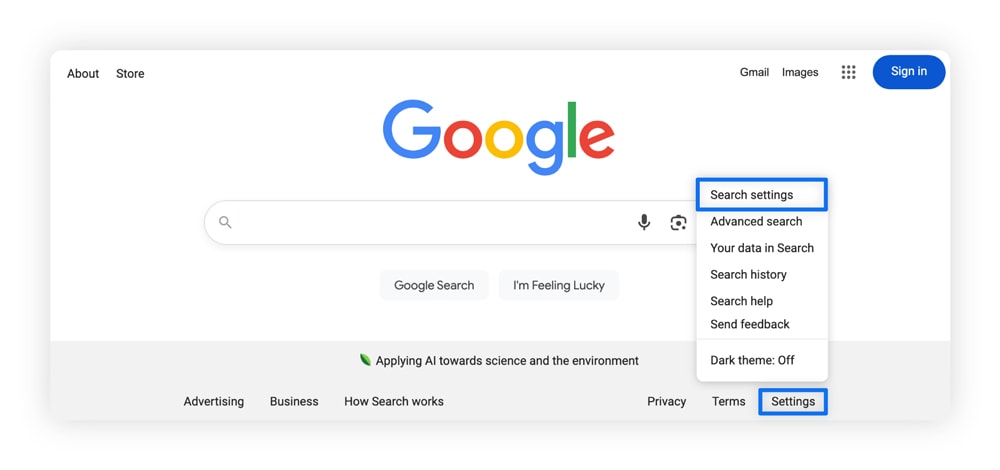
Here’s how to turn on SafeSearch in Google:
- Go to Google.com.
- Click Settings in the lower right corner.
- Tap Search settings when the pop-up menu appears.
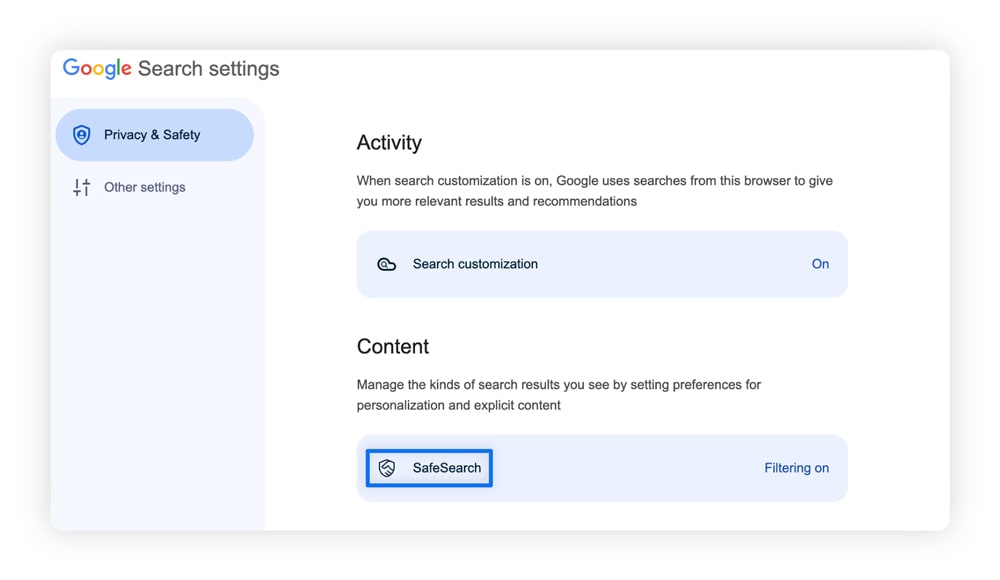
4. Select SafeSearch, then choose Filter to help block explicit images, text, and links from search results.
Turn on SafeSearch in Bing
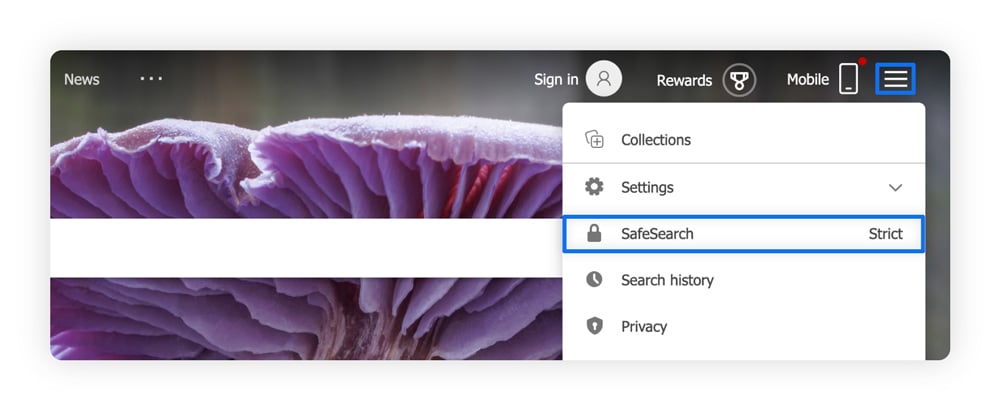
Here’s how to turn on SafeSearch in Bing:
- Go to Bing.com.
- Click the hamburger menu icon ≡ in the upper right corner.
- Select SafeSearch.
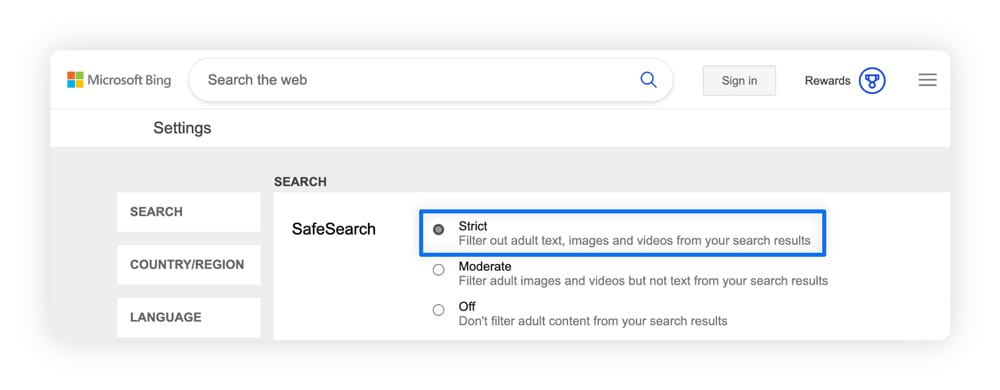
4. Select Strict to help filter explicit content from search results.
Once you turn on SafeSearch, it remains on until you change the setting. But it’s not a complete solution. It only filters results within supported search engines like Google or Bing. Explicit content can still appear elsewhere online. It also won’t stop a child from typing in a web address directly or changing the search settings themselves.
Using SafeSearch is recommended for families with younger kids who are just starting to browse online and primarily use Google or Bing for schoolwork or general browsing.
That’s why parental control tools that offer more control can be a better fit.
3. Enable Microsoft Family Safety
Microsoft Family Safety is a free set of parental controls for Windows that can help you manage your child’s device use. It includes tools for screen time limits, content filtering, and activity monitoring. It’s also compatible with Android, iOS, and Xbox consoles.
You can download Microsoft Family Safety from Google Play, Apple’s App Store, or the Microsoft Store.
Once you have the app, here’s how to set it up:
- Sign in to your Microsoft account.
- Create a Family Group.
- Add your child’s Microsoft account using their email address. If they have no account, you can create one.
- Choose their role. Make your child a Member, not an Organizer.
- Select Invite.
Once they accept your email invitation, you’ll see their profile display in your dashboard, where you can set up parental controls.
Microsoft Family Safety can be a good fit for families using Windows PCs or Xbox devices who want simple, built-in tools without a third-party app.
4. Use Apple Screen Time for iOS devices
Apple Screen Time is a built-in feature for iPhone, iPad, and Mac that helps parents monitor device use, set app and web limits, and block inappropriate content.
To turn on Apple Screen Time:
- Open the Settings app.
- Select Screen Time.
From there, you can set content filters and use Downtime to create schedules that limit when your child can use their device.
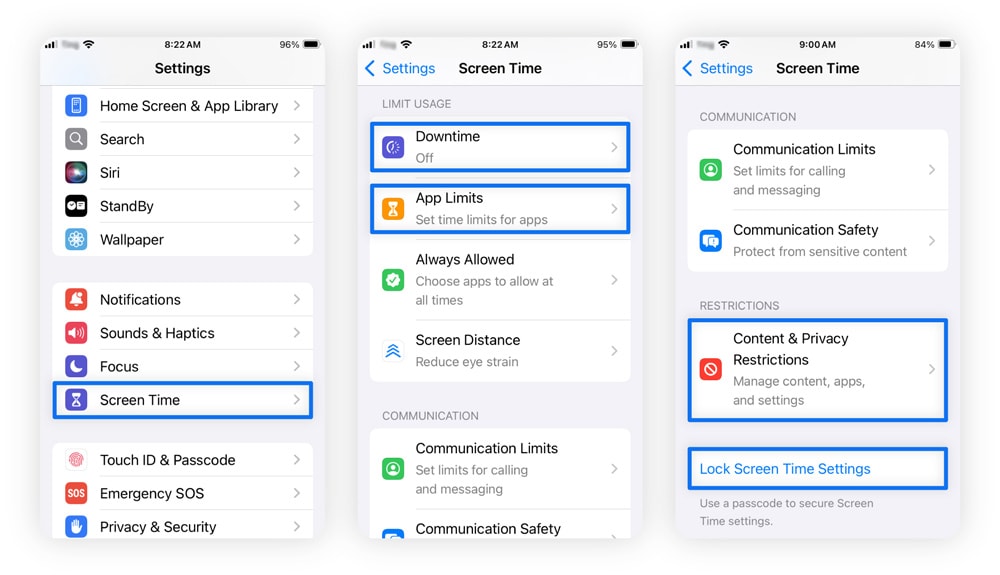
You can use Content & Privacy Restrictions to block apps and content, and App Limits to restrict how much time your child spends on specific apps. Once you’ve set these up, tap Lock Screen Time Settings to create a passcode so your child can’t override your settings.
Apple Screen Time is great for managing products across the Apple ecosystem for parents who want built-in, easy-to-manage controls. For families who want to manage online safety across Apple, Android, and Windows devices from one place, Norton Family offers a centralized dashboard.
5. Switch on Google Family Link
Google Family Link is a free parental control app that connects your Google account with your child’s and helps you manage their digital experience across supported Android and Chromebook devices.
Download the app on Google Play or the Apple App Store. Then create a Google account for your child (or add supervision to their existing one) and connect it to your family group to manage settings.
From there, you can use Family Link to to:
- Block or approve apps.
- Set screen time limits and a device bedtime.
- Manage some Google Play content controls.
- Check your child’s location on an Android device or compatible Fitbit.
Google Family Link is best for families who mainly use Google services and devices, such as Androids, Chromebooks, Google Search, YouTube, and Chrome, and want account-based controls tied directly to their child’s Google profile.
6. Enable Restricted Mode in YouTube
YouTube’s Restricted Mode is a built-in setting that allows you to hide potentially mature or explicit content from search results, recommendations, and comments. It isn’t foolproof and may not catch everything, but can help reduce the chances of your child seeing content you’d rather they avoid.
Here’s how to enable it:
- Tap your profile in the upper-right corner.
- Choose Restricted Mode from the dropdown menu.
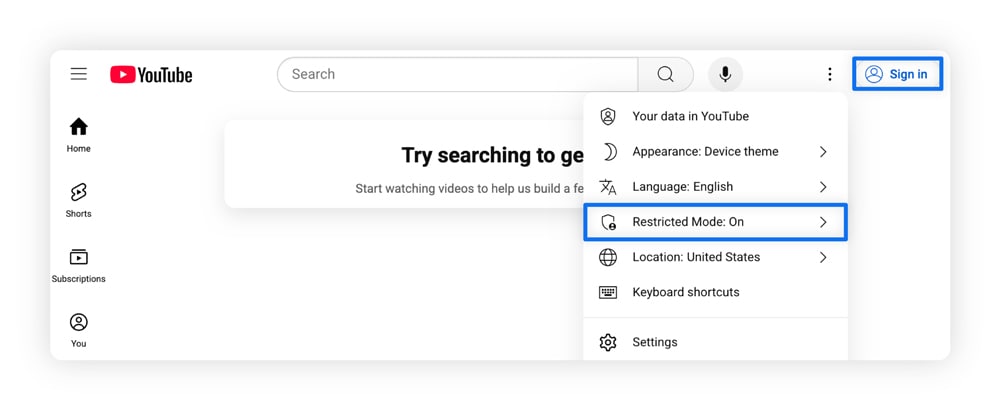
3. Toggle on Activate Restricted Mode.
4. Select Lock Restricted Mode on this browser if you want to prevent changes on that browser.
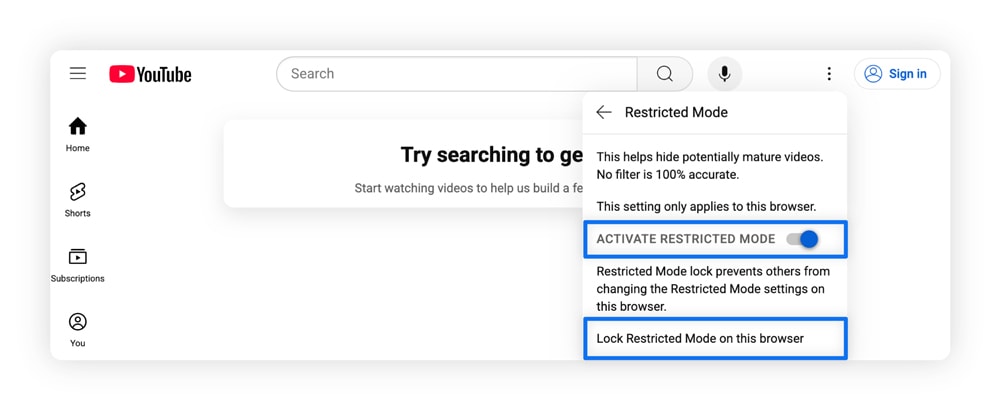
Restricted Mode applies to the browser or device where it’s turned on. If your child uses YouTube on multiple devices or accounts, you may need to enable it in each location.
This option might be the best fit if your child primarily watches YouTube on a shared browser or device.
Adjust ad topics on YouTube
To adjust some of the ad topics that appear across Google services, go to Google’s My Ad Center and review your settings. From there you can limit certain sensitive ads categories.
If inappropriate ads slip through, you can choose the Stop seeing this ad option to signal that you are not interested in similar content. However, these settings may only help you see fewer ads about selected topics. They don’t fully block them.
7. Configure privacy settings for social media apps
Configuring privacy settings for social media apps such as Instagram, Facebook, Snapchat, and TikTok can help create a safer experience for your child. In each app, go to Settings and then look for options such as Privacy, Safety, or Family Center.
From there, you may be able to make your child’s account more private, limit who can contact them, manage blocked accounts, and control how others interact with their content.
Some social media platforms also offer parental tools that link your account with your child’s so you can manage certain safety settings from one place. For example, Instagram and Snapchat offer Family Center, and TikTok offers family Pairing. Features vary by platform but often include privacy controls, screen time tools and visibility into some account settings.
Some services also offer child focused safety features, such as:
- Messenger Kids: Meta’s free kids focused messaging app provides parent managed controls through the Parent Dashboard. It’s a separate app available on Google Play and the Apple App Store. This is especially helpful with Facebook scams and other digital threats on the rise.
- YouTube Kids: Built for younger children with parental controls and an algorithm designed to push content tailored for their age.
- TikTok Kids Mode: TikTok offers both a Restricted Mode and a specific Under 13 Experience (Kids Mode). Restricted Mode is a toggle in settings for any user to limit inappropriate content, while the Under 13 Experience is an automatic, highly restricted, read-only version for younger users in the USA. It also hides the TikTok shop tab, so your kids won’t be able to make unauthorized purchases.
Social media companies build for engagement, using algorithms to push whatever keeps users watching with little regard for who is watching. This means that children can still be inadvertently exposed to harmful or inappropriate content.
That’s why adjusting your privacy settings and tightening your social media security can help prevent your child from getting scammed, cyberbullied, or something worse.
Configuring privacy settings is recommended for parents of preteens or teens who already use apps like Instagram, TikTok, or Snapchat and need stronger privacy and communication controls.
8. Set up content filters on your home Wi-Fi router
Setting up content filters on your router can help block inappropriate websites from reaching your family’s devices. It’s a smart (and often overlooked) way to create a safer internet experience at home.
Router level controls apply to everything connected to your Wi-Fi, such as:
- Tablets.
- Smart TVs.
- Guests’ devices.
- PCs and laptops.
- Gaming consoles.
Because these controls work at network level, you can protect multiple devices at once instead of setting filters on each one individually.
Here’s how set up router-level content filters:
- Open your browser and enter your router’s IP address or web address into the search bar. The IP address will typically be found on the back of the router or included in the set up guide. It’s a series of numbers. For example: 192.168.0.1.
- Sign in with your router’s username and password.
- Find the content filtering section and turn it on. It’s usually labeled Security, Parental Controls, or Advanced Settings.
- Choose your filtering levels. You can block specific websites, restrict entire categories, or create custom block lists depending on your router setup.
Blocking at the router level is great for home coverage, but once your kid leaves your household network and switches to another (such as mobile data or a friend’s Wi-Fi), the router filter won’t work.
There can also be a downside for parents, since router-level filters also block content for everyone on the network. In some cases, you may be able to adjust settings, create exceptions, or temporarily disable filtering when needed. Content filters at the router level are recommended for families who want broad, automatic protection for every device connected to their home network without installing extra apps.
9. Use ISP content filters
Some internet service providers offer parental controls or content-filtering tools that can help limit access to certain websites or categories of content before they reach devices on your home network. Similar to router-level protection, these tools can help protect multiple connected devices at once, though features may vary by provider. Contact your ISP to find out if they offer this service.
ISP-based filtering can be convenient because it may be managed through your provider’s app or dashboard. However, some services offer only broad categories or limited customization, which may not give parents as much control as a dedicated parental control app.
Parental control tools that provide more customizable options can be a better approach.
Using ISP content filters is recommended for parents who prefer a simple, low-maintenance option managed through their internet provider’s dashboard.
10. Configure a family-safe DNS service
A family-safe, secure DNS service can help block unsafe websites before they load, which adds another layer of security. Instead of your ISP simply connecting you to the domain, it will check the web address against a database of unsafe sites and block it before the page loads.
Here’s how to set it up:
- Pick a family-friendly DNS provider.
- Sign in to your router’s dashboard.
- Find the DNS Settings section.
- Replace your current DNS addresses with the ones provided by your chosen service.
- Save your changes.
Using a filtering DNS service is recommended for families who want faster, safer browsing and an added layer of privacy across all connected devices.
One thing to watch out for: tech-savvy kids may be able to override your DNS settings unless you lock down passcodes or device permissions.
Best practices for blocking inappropriate content
The internet changes fast, so blocking inappropriate content isn’t something you can set once and forget. Tools and settings that worked a few months ago may need to be updated today.
If you want to protect your children from predators, scammers, and other online threats, having a solid system goes a long way. Here’s what that can look like:
- Check your settings frequently. Schedule monthly reviews to make sure filters, parental controls, and app permissions are up to date.
- Know what’s on their devices. Review new apps and platforms before your child downloads them. Check privacy settings, and understand each platform’s safety features.
- Set clear household rules. Decide when, where, and how devices can be used. Establishing clear boundaries sets the tone for how kids use the internet.
- Use one control hub. A single dashboard for screen time, search activity, and other settings can make it easier to manage devices without juggling multiple apps.
Parental controls can help you enforce boundaries, but they can’t replace active parenting. Talk with your child about questionable sites, concerning content, and online risks so that your approach can grow with them over time.
Tips for talking to your kids about inappropriate content
There’s not a script to follow when it comes to talking to your children about inappropriate content. A better approach is to set up guardrails that match their age and online habits.The goal is to make these conversations feel normal, ongoing and easy to revisit.
Below are a few tips that can help:
- Keep it age-appropriate: Younger kids don’t need detailed explanations. Simple language works best, so try using terms like “some things aren’t made for kids” or “that’s not safe for you.”
- Make it ongoing: Your child’s habits can change over time, so the way you talk about digital safety should change too. Try to make these conversations calm and routine.
- Focus on safety, not shame: If your child comes across inappropriate content, try to respond without judgement. Framing the conversation around safety and smart choices can make them more likely to come to you again.
- Use real-life examples (when appropriate): Pop-up ads, violent video clips, or other content can become teachable moments.
- Give them a plan: Make sure your child knows what to do if they see something harmful, such as closing the page, putting the device down, and telling a trusted adult.
- Educate them: Talking about cyberbullying, identity theft, scams, and phishing can help children recognise the warning signs online.
Having regular talks with your kids about internet safety can go a long way. This may not prevent every exposure, but it can help your child feel safer, more prepared, and comfortable coming to you when things go wrong.
Blocking inappropriate content is easy with Norton
As you’ve seen, there are several ways to block inappropriate content, including built-in features, third-party apps, and router-level controls. But juggling all of those separately can quickly turn into a full-time job.
Norton Family brings key parental controls into a single dashboard, helping you set limits, block harmful sites, and stay informed about your child’s online activity. It can also help alert you when your kid tries to access restricted content. With School Time, you can create a list of educational sites your child can access during school hours while limiting distracting sites.
FAQs
How do I permanently block inappropriate content?
There’s no single way to permanently block all inappropriate content. A stronger approach is to use a combination of controls at the device, browser/search, and network levels. This can include tools like Apple’s Screen Time, setting up content filters on your home Wi-Fi, and using a parental control app such as Norton Family.
Can a VPN block adult content?
Some VPNs can help block adult content, but only if they include built-in content filtering or family features. A standard VPN mainly encrypts your connection and helps protect privacy. It does not automatically block explicit content.
How to see what my kids search for online?
You can manually search their browsing history by device, check their activity using your home’s Wi-Fi router, or view what they’ve been looking at using parental control apps such as Microsoft Family Safety.
Editors' note: Our articles offer educational information and are written to raise awareness about important topics in Cyber Safety. Norton products and services may not protect against every type of threat, fraud, or crime we write about. For more details about how we research, write, and review our articles, see our Editorial Policy.






Want more?
Follow us for all the latest news, tips, and updates.