






How to free up RAM on PC or Mac
Is your computer slowing down, struggling to complete simple tasks, and causing programs to crash? If so, it may be low on RAM. Discover how to clear your memory and free up RAM on your computer. Then, get Norton Utilities Ultimate to help keep your computer running at peak efficiency.

2025
Consumer
Security Innovator





Key takeaways
- To free up RAM, close unused browser tabs, update software, clear your RAM cache, remove unused apps and extensions, and restart your device.
- On Windows, check Task Manager for memory hogs and turn off background apps.
- On Mac, use Activity Monitor to spot heavy memory users.
When your device's memory is maxed out, even basic tasks like typing, closing tabs, or opening applications can be painfully slow. To get your device back to its baseline, you’ll need to clear your RAM or increase its capacity. Follow along to learn how to clear RAM now and help prevent future RAM slowdowns.
What is RAM?
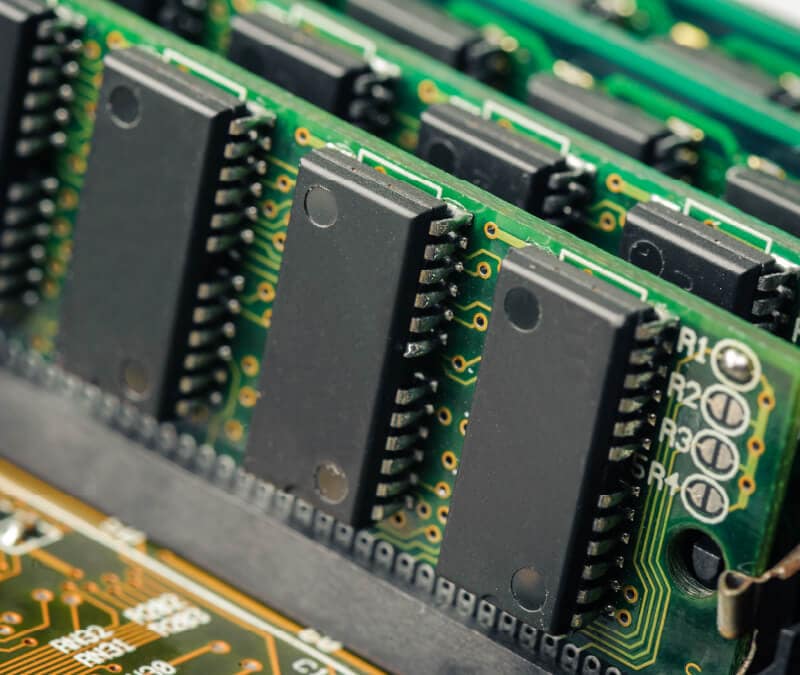
RAM stands for Random Access Memory and is essentially a computer's short-term memory where it stores its active, moment-to-moment processes. RAM is stored in a memory chip on your computer’s motherboard, which operates as the primary memory hub of your device.
More RAM means more multitasking power. Here’s why:
- RAM is the ultimate multitasker, allowing you to be active on one program while simultaneously loading up another. For instance, RAM is what lets you stream “Stranger Things” on your Netflix app, while checking the cast’s Wikipedia pages in your browser (assuming you also have a good internet connection).
- With more RAM, your computer can handle more intensive tasks and more tasks at once. For instance, RAM is what allows you to join a Zoom call, while keeping your 30 browser tabs open and editing images in Photoshop at the same time (not that you’d ever work in Photoshop while in a Zoom call…).
When your computer is slow, it may be because your programs take up more space than your RAM can handle, so freeing up RAM is also essential to good computer speed. Full RAM usage can make your computer slower, cause programs to crash, result in error messages, and make it impossible to run multiple apps at the same time.
How to clean RAM on Windows and Mac
Clean your RAM by closing out unneeded browser tabs and applications, rebooting your device, and taking additional steps to free up system resources. These steps can help enhance memory and improve performance on both Mac and Windows computers.
Freeing up RAM typically means making more memory available immediately by closing apps or restarting your device. Reducing memory usage focuses on preventing RAM from filling up again. The most effective RAM optimization involves a combination of both.
Keep reading to learn how to effectively free up existing RAM and reduce memory usage going forward.
Reduce browser tabs
Browser tabs can slow down your computer if you open too many and have insufficient RAM to support them. Each open tab consumes RAM to keep the page ready for you, and many websites feature videos, animations, and tracking scripts that can consume hundreds of megabytes each.

Standard to mid-range computers typically come with 8–16 GB of RAM, and you may start to notice slowdowns once you reach 50 or more open tabs. High-end machines are now more accessible, with some offering up to 64 GB of RAM. These systems can handle hundreds of media-heavy pages at once, though any computer can eventually crash if tabs are never closed.
If you need to keep track of many pages for shopping, studying, work, or research, you still have options. Bookmark the pages you plan to revisit, or use tab-management extensions like OneTab to store them without consuming excessive memory.
Restart your device
Since RAM stores short-term data used by programs that are currently running, restarting your device helps clear it out. Background applications you may not even realize are open can continue using memory, and a restart shuts those processes down and gives your RAM a chance to reset.
Restarting also clears your virtual memory — the hard-drive space your computer uses when RAM fills up — so you begin again with a completely clean slate.
Clear RAM cache
Your RAM cache is temporary data that apps and processes store in your device’s memory. It helps your system operate faster, but too much cached data can leave less memory available for other tasks.
To clear RAM cache on Windows and free up active memory usage:
- Press Ctrl + Shift + Esc to open Task Manager.
- Sort by Memory to see which apps are using the most RAM.
- Select unnecessary processes and click End Task to free up memory.

4. To fully flush cache files, press Windows + R, type “cleanmgr” and hit Enter. Then, select your main drive (usually C:), check Temporary files, and click OK.
5. Restart your computer to clear all cached RAM.
To clear RAM cache on Mac:
- Go to Launchpad and search for Activity Monitor.
- Navigate to the Memory tab and tap the arrow next to the Memory column to identify apps that use the most RAM.

3. Double-click on any offending programs and click Quit. If any apps are unresponsive, you may need to Force Quit.

4. Restart your Mac to completely flush cached RAM.
Close or uninstall unused applications
You likely have software on your computer that you no longer use, along with bloatware — preloaded programs you may never have even opened. Now that you’ve identified which applications use the most RAM in the Processes tab, you can remove the heavy users you don’t need. This frees up system resources and helps your computer run more smoothly.
To locate and uninstall programs on Windows:
- Click Start and navigate to Settings > Apps > Installed apps.
- Go to the three-dot menu and click Uninstall to remove applications.

To locate and uninstall programs on Mac:
- Go to Finder > Applications.
- Locate the app you want to remove.
- Drag it to the Trash, or right-click and select Move to Trash.
- Open the Trash and click Empty to complete the uninstallation.
Disable startup programs
Many programs automatically launch when you boot up your computer and run in the background, claiming RAM before you have a chance to get rolling. These startup programs can significantly slow down your boot time and devour memory. Disabling unnecessary startup items means more RAM is available to the programs you want to use from the moment you log in.
To disable startup programs on Windows:
- Press Ctrl + Shift + Esc.
- When the Task Manager opens, navigate to the Startup apps tab.
- Scan the list for programs with a high startup impact, click any program you don't need right away, and choose Disable.

To disable startup programs on Mac:
- Click the Apple menu and select System Settings.
- Type “login items & extensions” into the search bar.
- Toggle off programs you don't want to sync data or check for software updates whenever your computer is on.

Scan for and remove malware
Malware threatens your overall device security and can also consume a significant amount of your RAM. Like other background programs, cryptominers, spyware, adware, and other software can consume memory and CPU resources without your knowledge.
If you notice unfamiliar or rarely used programs consuming large amounts of memory, run a malware scan to rule out infection, and remove any threats if your device really does have malware.
Scan for malware with Norton:
- Open the Norton 360 app.
- Choose which scan to run. A Quick Scan is fast and works for routine checks. If you’ve noticed signs of an infection, such as slow computer performance, frequent crashes, unfamiliar programs, a loud fan, or overheating, run a Full Scan.
Try less resource-intensive browsers
Popular web browsers like Chrome and Firefox use up a lot of RAM because they run each tab and extension as a separate process. But lighter alternatives like Edge, Firefox Lite, and Norton Neo are known to reduce memory usage and improve multitasking performance since they consolidate processes and use less memory per tab and extension — or, in the case of Neo, use a tab-less browsing design.

Delete unused extensions
Those little icons at the top of your browser that boost functionality may use up more memory than you think. That’s because they run continuously in the background, store data, and sometimes perform complex tasks.
To remove browser extensions:
- Chrome: Click Menu (three vertical dots) > Extensions > Manage Extensions. Then, click Remove to get rid of extensions you don’t need.
- Firefox: Click Menu (the horizontal lines) > Extensions and themes > Extensions. Then, click the three dots and select Remove.
- Safari: Go to Safari > Settings… > Extensions. Select the extension and click Uninstall.
Update software and drivers
Outdated software and drivers allow your operating system to communicate with and make use of your computer’s hardware. If outdated, they may mismanage memory or run inefficient code. Install updates to maximize compatibility and reduce resource consumption.
To update software and drivers on Windows:
- Press the Windows key + I to access Settings.
- Select Windows Update (or Update & Security).
- Click Check for updates and install any available updates, including optional updates. These sometimes contain critical hardware updates.
To update software and drivers on Mac:
- Click the Apple menu > System Settings… > General > Software Update.
- If an update is available, choose Upgrade Now.
Use optimization software
With optimization software, RAM cleanup isn’t your burden to bear alone. Norton Utilities Ultimate actively frees up memory by closing unnecessary background processes and optimizing system resources in real time. It also eliminates junk files, old apps, and other clutter that can indirectly hog RAM, helping ensure your computer can keep up with you.
Bonus methods to clear RAM on Windows
If you’re using a PC and the general tips above didn’t take care of your RAM issues, try the following tips to free up RAM on Windows 11.
Limit effects and animations
The effects and animations your computer displays can use up quite a bit of RAM. If you’re struggling to free up RAM and prefer to prioritize performance over visual effects, consider adjusting these settings.
To turn off visual effects and animations on Windows:
- Click File Explorer in your taskbar or via the Start button.
- Look to the left side panel of the window and right-click This PC.
- Select Properties.
- Click Advanced System Settings, then navigate to the Advanced tab at the top.

5. Click the Settings button under the Performance section of the Advanced tab.

6. Select Adjust for best performance if you want to disable all animations, or choose which visual effects you want to keep or disable.

Add more memory
If all else fails, you can always consider physically installing more RAM. RAM is physical memory that can only be added by installing physical sticks in your computer.
To add more memory to Windows:
- Determine your computer's RAM type and maximum capacity (check your motherboard specs or use system information tools).
- Purchase compatible RAM sticks from a reputable retailer.
- Shut down your computer and unplug it completely.
- Open your computer case (desktop) or access panel (laptop).
- Insert the RAM stick into an empty slot on your motherboard, ensuring it clicks firmly into place.
- Restart your computer and verify that the new RAM is recognized.
While this option can be expensive depending on the device you use and how much RAM you want to install, it might be your only viable option if you’re constantly running low on memory, you regularly engage in memory-intensive activities like video editing or gaming, your computer uses more than 80% of available RAM during normal use, and nothing else has resolved the issue.
Bonus methods to clear RAM on Mac
Mac computers automatically manage RAM using a virtual memory system that dynamically allocates memory, compresses data in RAM, and uses the storage drive when physical memory is full. However, if you decide to play a more active role in RAM management, there are a few steps you can take.
Keep Finder clean
Each Finder window needs RAM to display content and the interface. Rather than opening several windows at once, you can change your settings to ensure your new folders open as tabs instead of new windows. This reduces memory demands so your Mac has more available RAM for other essential applications.
To adjust your Finder preferences:
- Click somewhere on your desktop so that you see the Finder dropdown appear at the top left of your screen on your toolbar.
- Click the Finder dropdown and navigate to Settings… > General.
- If unchecked, check the Open folders in tabs instead of new windows box.

To merge your Finder windows:
- Click Windows in the toolbar at the top of your screen.
- Choose Merge All Windows.

Use the Terminal to clear inactive RAM
The Mac operating system holds onto "inactive" RAM — memory from recently closed apps that sit in the reserves for faster reopening. Unfortunately, it also consumes memory and can slow down Mac performance when attempting to complete more demanding tasks.
To purge inactive RAM:
- Tap the Command + Space keys to open the Spotlight Search.
- Type Terminal and hit Enter.
- In the Terminal window, type: sudo purge.
- Press Enter and input your administrator password.
- Wait a few seconds while the command executes.

How to free up RAM on Android and iPhone
Mobile devices also need RAM optimization, especially if you've installed a lot of apps, opened numerous tabs, and customized the appearance. Here’s a quick overview of how to free up RAM on mobile.
Restart your phone
Just like computers, smartphones accumulate temporary files and can get bogged down by cached data and background processes. However, they can generally handle this clutter better than computers and are designed to stay on for weeks at a time. However, when they do become overwhelmed, a simple restart can often resolve the issue.
Close background apps
Apps running in the background continue using RAM even when you're not actively using them. While both iOS and Android are designed to manage background apps automatically, manually closing apps you're not using can free up additional memory, especially on older devices.
Close background apps by swiping up from the bottom of the screen and flicking away the apps you want to close.
Uninstall or disable unused apps
Apps you never use still consume RAM at startup and through background processes. Often, these come pre-installed. Removing them frees up memory and storage space.
To uninstall or disable apps:
- iPhone: Press and hold an app icon on your home screen. Then, tap Remove App > Delete App.
- Android: Go to Settings > Apps. Select the app you want to remove, and tap Uninstall. For bloatware you can't uninstall, tap Disable to prevent it from running.
Clear app cache
Apps store temporary data in cache memory to load faster, but over time, it can grow too large and slow down your smartphone. Clearing the app cache removes this temporary data without deleting your personal information or app settings.
Clear app cache:
- iPhone: Go to Settings > General > iPhone Storage and tap Offload Unused Apps.
- Android: Go to Settings > Apps and select an app. Then, tap Storage or Storage & cache > Clear Cache.
Limit widgets and animations
Widgets and live wallpapers are always active — updating information and displaying animations. Unfortunately, these customizations consume their fair share of memory. Reduce these to free up RAM.
Limit widgets, animations, and motion within the user interface:
- iPhone:
- Remove widgets by pressing and holding a widget on the home screen and tapping Remove Widget.
- Reduce animations by going to Settings > Accessibility > Motion and toggling on Reduce Motion.
- Android:
- Remove widgets by pressing and holding, then dragging them to Remove.
- Reduce animations by enabling Developer Options (tap Build Number 7 times in Settings > About Phone).
- Go to Settings > System > Developer to adjust the Window animation scale, Transition animation scale, and Animator duration scale to 0.5x or off.
Install software updates
Phone operating system updates include memory management improvements, bug fixes, compatibility maintenance, and performance optimizations that can reduce RAM usage. Delaying updates means missing out on these efficiency gains.
How to update your mobile OS:
- iPhone: Go to Settings > General > Software Update. Tap Update Now to begin installing.
- Android: Go to Settings > System > System Update. Follow the prompts to install available updates.
How to check RAM usage
Before you can optimize RAM, you need to understand how much you're using and what's consuming it. Learn how to check which programs and processes are consuming the most RAM.
- On Windows: Press Ctrl + Shift + Esc to open the Task Manager. Click the Performance tab. Navigate to the Memory tab to see overall RAM usage and the Processes tab to see application-level memory consumption.
- On Mac: Open the Activity Monitor and click the Memory tab to see RAM usage and determine which apps are the biggest consumers.
- On iPhone: iOS doesn't provide a built-in RAM monitor in Settings. But you can go to Settings > General > iPhone Storage to check which apps use the most resources.
- On Android: Go to Settings > About Phone > RAM. If that doesn’t work, your Android may show memory under Settings > Developer Options > Memory.
Keep your computer running smoothly
If you don't want to deal with the hassle of manual maintenance, use dedicated optimization software to keep your device in top shape. Norton Utilities Ultimate can help speed up and clean up your devices by disabling unnecessary background programs, clearing junk files, and removing unwanted software. Enjoy a cleaner, faster machine with Norton Utilities Ultimate.
FAQs
Why is my RAM usage so high?
High RAM usage is typically caused by multiple memory-intensive programs running simultaneously. These might include video editors, 3D renderers, or video games. However, other issues, like many open tabs, bloatware, memory leaks, and background processes, can also contribute.
Is 70% RAM usage too high?
A 70% RAM usage is within a normal range if you’re running demanding programs or multitasking. But if your computer starts to feel sluggish, it may be a sign that background apps or memory-hogging processes are consuming more than they should. When not in use, RAM usage should stay below 50%. But healthy ranges may fluctuate by device type and age.
Which programs use the most RAM?
Programs that frequently use a lot of RAM often include browsers like Chrome, photo and video editing software, music streaming platforms, video games, and video conferencing apps.
Do browser settings affect RAM usage?
Browser settings, such as tabbed browsing, extensions, and content pre-loading, can lead to higher RAM consumption. You can usually get around this by tweaking your favorite browser’s settings or installing a cutting-edge browser with tabless browsing or built-in memory-saving modes.
How do I know if freeing up RAM worked?
You should see lower memory usage in Task Manager (Windows) or Activity Monitor (Mac), fewer slowdowns when switching between apps, and improved responsiveness. If RAM usage remains consistently high (above 80% or so during normal use), it may indicate that your workloads are too heavy or you need extra memory.
Editors’ note: Our articles offer educational information and are written to raise awareness about important topics in Cyber Safety. Norton products and services may not protect against every type of threat, fraud, or crime we write about. For more details about how we research, write, and review our articles, see our Editorial Policy.








Want more?
Follow us for all the latest news, tips, and updates.