







How to stop apps from running in the background: iPhone and Android
Phone always low on battery? You may be running more apps than you think. In this article, I’ll show you how to save battery life and boost performance by stopping apps from running in the background — and how device performance optimization software can help keep your devices running smoothly.

2025
Consumer
Security Innovator





- What is a background app refresh?
- How to turn off Background App Refresh on your iPhone or iPad
- How to shut off background data usage on your Samsung Galaxy
- How to stop apps from running in the background on your Google Pixel
- How to see which apps are running in the background
- Other ways to improve smartphone performance
- Keep your device running smoothly with Norton Utilities Ultimate
- FAQs
If you’re like me, you use your phone to check your email, listen to podcasts, map your routes, and read the news — until it dies, that is. The problem isn’t that iPhone and Android phones can’t handle jumping from app to app. The problem is that most people don’t stop apps from running in the background once they finish using them.
Background apps can still use battery and processing power even when they’re not open. If you find that your phone battery is draining fast and your phone’s performance slows, there’s a good chance that background apps are at fault.
In this article, I’ll show you how to close background apps on both iPhone and Android devices.
What is a background app refresh?
Background apps aren’t just sitting there — they’re refreshing regularly. A background app refresh is when an app automatically updates and fetches new content even when you’re not actively using it.
For example, your email app may be checking the server for new messages, your messaging app may be looking for new texts, and your maps app may be updating your location.
If you’re trying to stay up to date to the second, background app refresh can be your best friend. But if you’re sitting at home on a Saturday or taking a stroll around your neighborhood, then constant Google Maps refreshes might not be helping you, and can contribute to a slower performance and warmer phone.
Pros of background app refresh |
Cons of background app refresh |
|---|---|
Creates a smoother user experience |
Drains battery faster |
Speeds up app load times |
Can cause overheating |
Allows for location-tracking |
May slow down performance |
Enables real-time notifications |
Uses mobile data by default |
Constant connection |
May compromise your location info |
How to turn off Background App Refresh on your iPhone or iPad
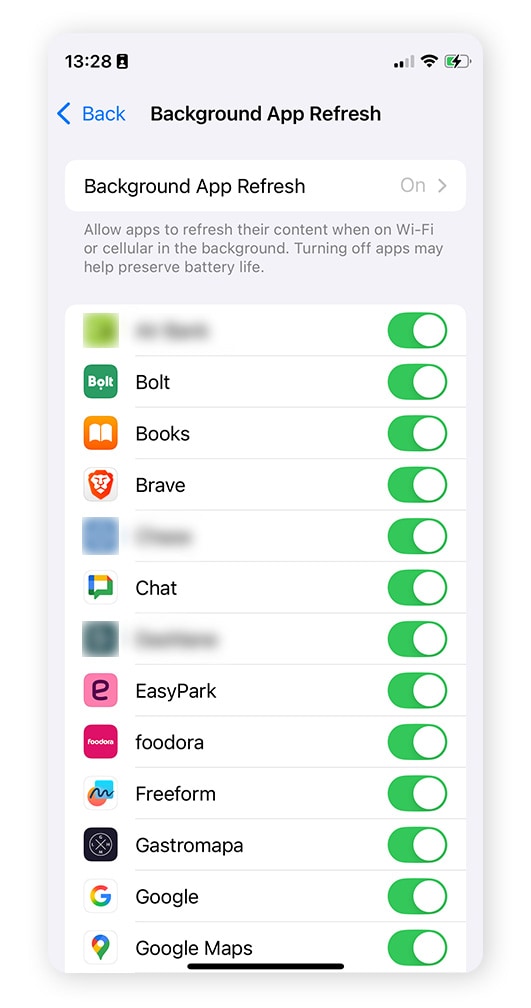
To turn off Background App Refresh on your iPhone or iPad, follow these steps:
- Open Settings.
- Tap General.
- Select Background App Refresh.
- To close all apps running in the background, select Off.
- To disable specific apps, toggle the switches next to each app.
How to shut off background data usage on your Samsung Galaxy
If you have a Samsung Galaxy, you can limit background activity in your settings. Here’s how to stop apps from using data in the background:
- Open your Settings app and tap Connections.
- Select Data usage and tap Data saver.
- To allow some apps to keep refreshing, select Allowed to use data while Data saver is on.
- Tap the three vertical dots and choose Show system apps.
- Toggle the apps that you’d like to keep refreshing.
To help keep your Galaxy fast and clutter-free, use Norton Utilities Ultimate for Android. This comprehensive tool automatically cleans up junk, monitors key areas of device health, and refreshes your phone to help keep it running like new.
How to stop apps from running in the background on your Google Pixel
Google gives you a few ways to reduce background activity on Pixel phones. Here are two common options:
- Open Settings.
- Tap Network & internet.
- Select Data Saver.
If you want to turn off apps running in the background even when you’re connected to WiFi, here’s how to do it:
- Open Settings.
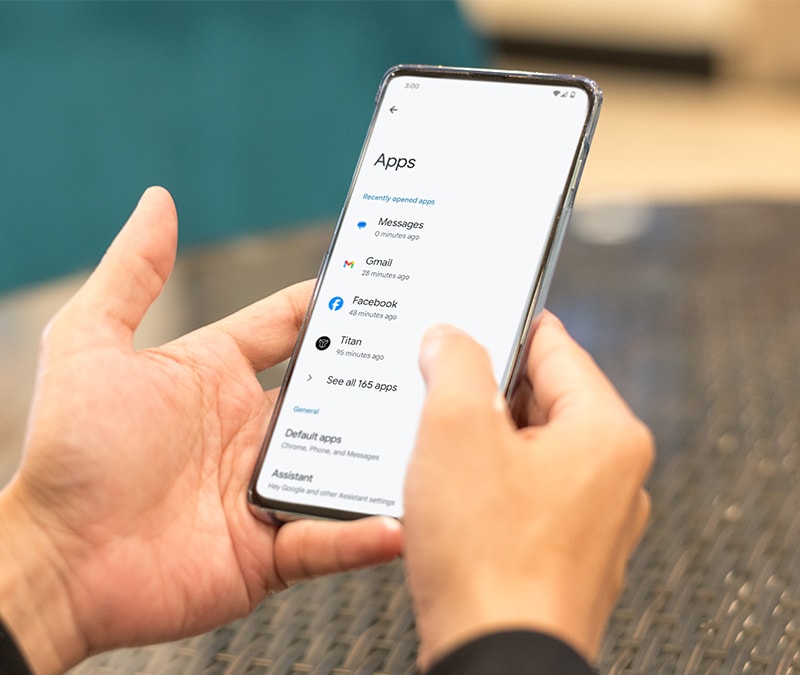
- Tap Apps.
- Choose See all apps.
- Find the app you want to prevent refreshing and select App battery usage.
- Toggle off Allow background usage, (or choose a more restrictive option, depending on your Pixel/Android version).
How to see which apps are running in the background
If you’re wondering exactly which apps are responsible for reducing your phone’s battery life and speed — or you’re concerned about scareware — you’re in luck. Both iPhone and Android operating systems provide straightforward ways to see which apps are running in the background. This section breaks it down by device.
iPhone
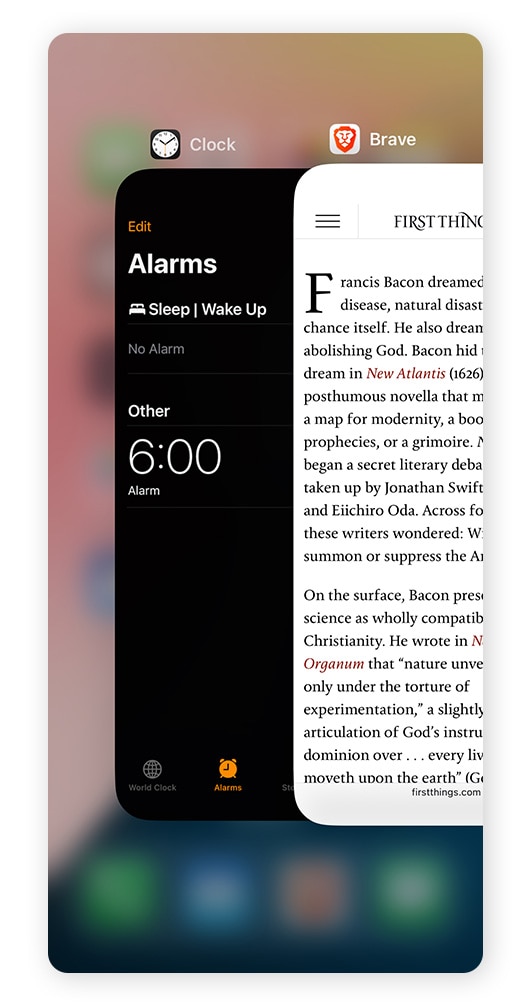
The iPhone’s App Switcher tells you which apps are open in the background. To open it, swipe up from the bottom of the screen and hold your finger in the middle until you see a carousel of your currently open apps.
Samsung Galaxy
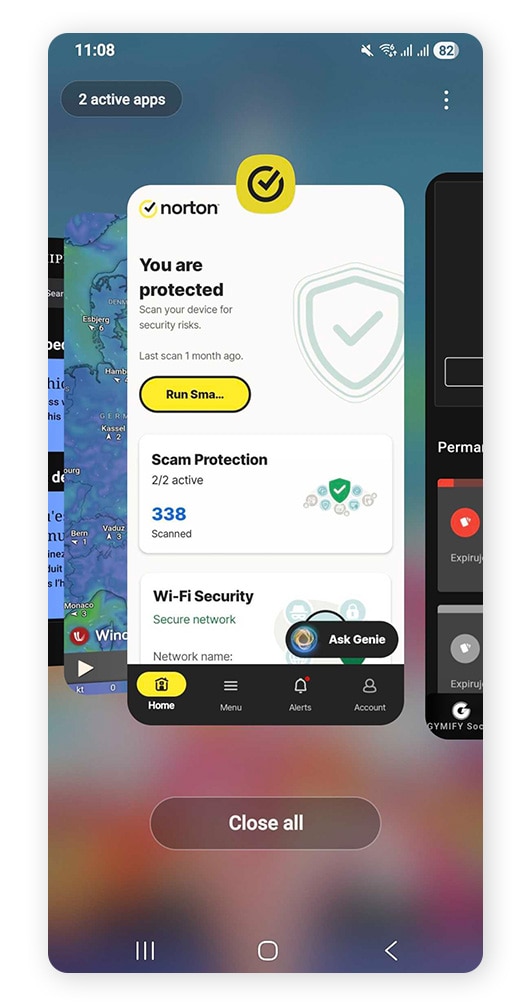
To see which apps are running in the background on your Samsung Galaxy, swipe up from the bottom of the Home screen or tap ||| . You can then swipe up on an app to close it or hit Close all.
Google Pixel
The process for seeing which apps are running in the background on a Pixel is similar to an iPhone. To view your open apps, swipe up from the bottom and hold until a carousel of apps appears. From there, swipe left or right on your screen to scroll through your open apps. Then swipe up on an app to close it.
Other ways to improve smartphone performance
In addition to managing your background apps, there are a number of ways to improve your smartphone performance and preserve its battery life:
- Restart your device regularly: Restarts close background apps and clear RAM, which can boost your phone’s speed and protect you if someone is watching you through background apps.
- Delete apps you don’t use: By uninstalling unused apps — or using Norton Utilities Ultimate to do that for you — you’ll free up space for things you actually need.
- Clear your app cache: Clearing your app cache on Androids and iPhones is a good way to free up RAM.
- Install software updates: Regularly updating your smartphone will keep apps running smoothly and help protect your data.
- Free up storage space: Deleting duplicates of images and videos will improve your phone’s performance.
- Delete cookies: Deleting cookies from your iPhone can free up RAM, and when you remove cookies from your Android, you can limit annoying pop-up ads.
Keep your device running smoothly with Norton Utilities Ultimate
If you don’t want your device to get clogged up with background app activity, unused files, and junk, download Norton Utilities Ultimate. It helps clean up clutter, protect privacy, and reduce resource-hungry activity so your phone can keep running smoothly.
That way, your phone is ready to go when you need it.
FAQs
How can I check which apps are running in the background?
To check which apps are running in the background on your iPhone or Google Pixel, swipe up and hold your finger in the middle of the screen until an app carousel appears. On Samsung Galaxy, simply swipe up or tap the three vertical lines in the bottom left corner.
Does stopping background app refresh save battery?
Yes. Stopping background app refresh limits app data usage, which saves battery by reducing your phone’s activity so you only spend energy on apps you’re actively using.
Which apps need background refresh to function properly?
Apps such as email, fitness tracking, and navigation may use background access to stay updated. But they’ll usually still work if it’s off. Core functions (such as calls, SMS, alarms, and system updates) are handled by built in systems services — not regular apps that need to run non-stop in the background, so you don’t need to worry about them.
Editors’ note: Our articles offer educational information and are written to raise awareness about important topics in Cyber Safety. Norton products and services may not protect against every type of threat, fraud, or crime we write about. For more details about how we research, write, and review our articles, see our Editorial Policy.






Want more?
Follow us for all the latest news, tips, and updates.