







How to check for viruses on iPhone + steps to fix it
Think iPhones are immune to viruses? Think again. While iPhones are often perceived to be less vulnerable than other devices, they can be infected by malware if you’re not careful. Keep reading to learn how to check for viruses on your iPhone. Then get a powerful iOS security app to help keep your phone malware-free and running smoothly.







- 1. Assess performance for signs of malware
- 2. Check for unfamiliar apps
- 3. Review your data usage
- 4. Monitor your power consumption
- 5. Look out for pop-ups
- 6. Check if your device is jailbroken
- 7. Review your storage
- 8. Run mobile antivirus software
- How to get rid of viruses on an iPhone
- Protect your iPhone from security threats
- FAQs
Yes, despite what you may have heard, iPhones can get malware. Traditional computer viruses are rare on iOS, but you can still be hit by other types of malware, including spammy pop-ups, activity-tracking spyware, or even exploits that target vulnerabilities in iOS itself.
In fact, Apple patched dozens of vulnerabilities in iOS 26 in September 2025 alone. This included a pretty severe defect that allowed attackers to eavesdrop when connected to the same Wi-Fi network.
Read on to learn how to check for a virus on your iPhone and get tips to keep your device protected and your online activity private.
1. Assess performance for signs of malware
The first step in checking if your iPhone is infected with a virus is to look for common red flags, such as sluggish performance, unexplained changes, or unusual battery drain. While iOS is designed to be stable, malware or rogue apps can cause some significant performance issues.
And it’s easy to dismiss these warning signs as normal aging or bugs that’ll automatically be fixed with an iOS software update, only to discover later that malware was the culprit. One glitch is normal, but if you’re seeing several issues at once, that’s a red flag worth digging into.
Here are some common signs of a virus on your iPhone:
- Your device is sluggish: Common symptoms include apps that are slow to load, scrolling that feels choppy, and your keyboard getting stuck when texting.
- Unexplained changes: Your home screen changed without your knowledge, or new apps appeared that you never downloaded.
- Crashing: Apps close unexpectedly, your iPhone randomly restarts, or you're seeing frequent loading signs.
- Overheating: Your iPhone feels hot to the touch during light use, like texting or browsing, especially around the back near the camera.
Sometimes what looks like a virus isn’t malware at all. One user noticed their phone was overheating, apps kept crashing, and messages were being sent from their Apple ID without their knowledge.
Turns out, someone had gained access to their iCloud account and was hiding under a device name that looked legitimate. Once they removed the unknown device and changed their password, all the issues stopped.
2. Check for unfamiliar apps
Fake apps are one of the most common ways malware can reach an iPhone. While Apple’s App Store is generally secure, some apps still slip through. These apps may be outright malware or scammy apps designed to trick you into paying for bogus subscriptions or unwanted in-app purchases.
If children use your phone, this is especially important — scam apps often target younger users with flashy social media ads promising free games or special features.
To detect spyware, check whether the app appears in Apple’s official App Store. If it’s not there, it may have come from a third-party app store and snuck in with another download.
You can delete apps from your home screen by tapping and holding the app icon, selecting Remove app, and then tapping Delete app to confirm.
Remember that legitimate iOS apps (and features) can sometimes be misused if someone gains access to your Apple ID. For instance, Apple patched a shortcuts vulnerability (CVE-2024-23204) in early 2024 that allowed shortcuts to access photos, contacts, files, and clipboard data without permission.
Although that flaw has been fixed, built-in apps like Shortcuts, Home, Fitness, and Calendar can still expose more data than expected if permissions are left open.
3. Review your data usage
Strange spikes in data usage may indicate that your iPhone has been infected with a virus, so review how much data you’ve been using to see when the spike occurred and what caused it.
Viruses can quietly use excessive data by sending information to remote servers, downloading extra content, running hidden ads, or even joining botnets.
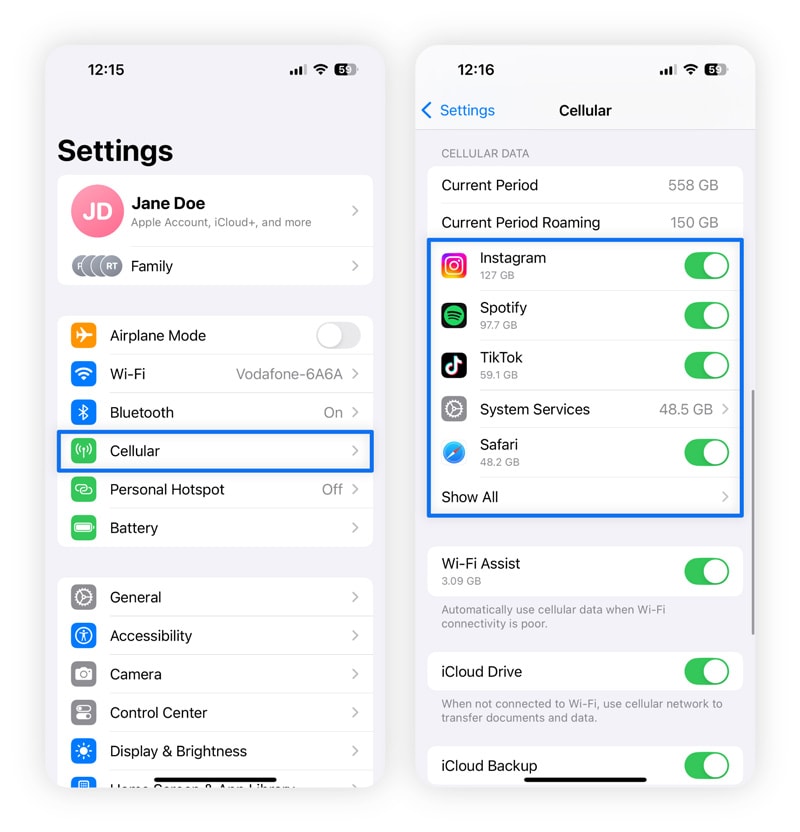
To check your data usage, go to Settings, then Cellular, and scroll down to see which apps are consuming the most data. Also, monitor your Wi-Fi usage, as unusual spikes there can indicate the same issues. Look for three red flags:
- Unfamiliar apps using large amounts of data.
- Sudden spikes in data usage in apps you regularly use.
- Background data usage in apps that shouldn’t have access to data.
Any unexplained jump in data usage is worth investigating.
4. Monitor your power consumption
Power consumption can also fluctuate wildly if your phone’s been infected by a virus. While batteries naturally degrade over time, it’s unusual for a relatively new phone's battery to drain in less than a day with regular use.
Your battery could be draining quickly for several legitimate reasons: you’re streaming something via Bluetooth, your personal hotspot is active, your screen is too bright, or too many background apps are running.
But an iPhone virus can siphon off your battery’s energy for its own nefarious purposes. Viruses often drain your battery by continuously searching your storage, running hidden processes, or transmitting data to remote servers without your knowledge. Check the cause of your power consumption for other indicators that your phone may have a virus.
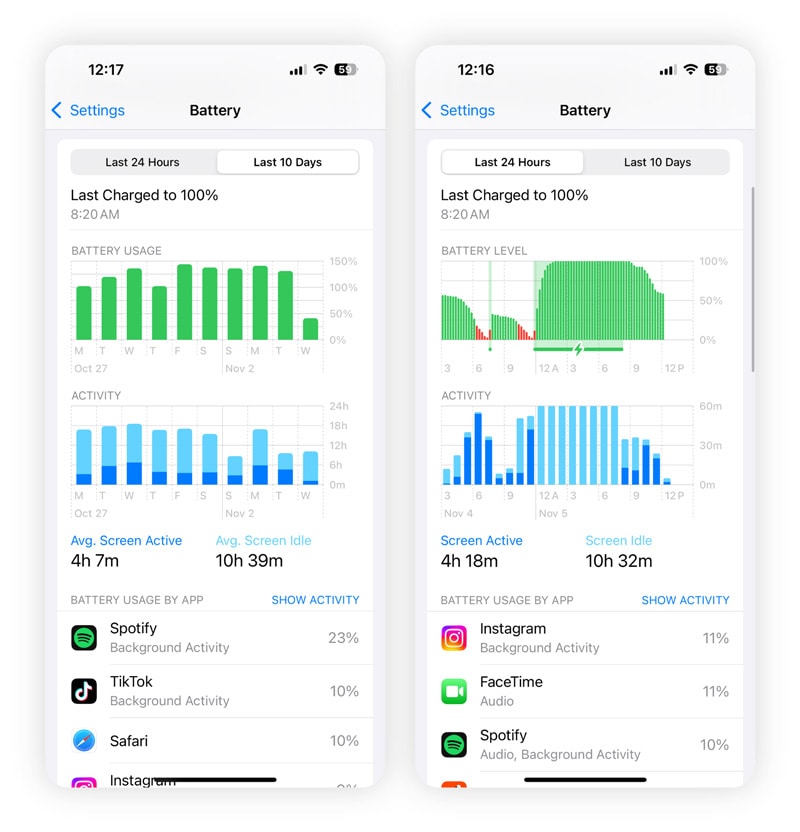
To check which apps are using the most battery, go to Settings, then Battery. Scroll down to see a breakdown of battery usage by app, including activity in the last 24 hours and the last 10 days. Look for unfamiliar apps, unusually high usage, or background activity that doesn’t match your normal usage patterns.
5. Look out for pop-ups
Pop-ups don’t just happen on computers; they also happen on phones, especially when visiting low-protection sites or gaming apps. If you’re getting more pop-ups than usual, your iPhone could be infected with adware.
These can generate revenue for attackers by showing ads, redirecting your browser to sponsored sites, or even collecting browsing data.
Some examples of shady pop-ups are:
- Fake virus alerts: Any message claiming your iPhone is infected is a fake virus alert and is designed to trick you into downloading malicious apps or sharing personal information.
- Prize or scam alerts: Pop-ups claiming you’ve won a free iPhone or other prizes.
- Ad-heavy interruptions: Full-screen ads or banners that appear unexpectedly while browsing.
- Data requests: Pop-ups asking for personal information like passwords, credit card details, or login credentials.
You can start by getting rid of pop-up ads on your iPhone. To do this, turn on Block Pop-ups in Safari’s settings. For extra protection against scam sites, go to Privacy & Security and turn on Fraudulent Website Warning as well.
But if you have a virus, removing pop-ups likely won’t get rid of it. In this case, use a virus removal tool to identify the virus and remove it.
6. Check if your device is jailbroken
iOS is a closed ecosystem, which makes viruses rare, unless your iPhone is jailbroken. Jailbreaking removes the built-in restrictions that normally keep apps in check and allows installations only from Apple’s App Store. While this may seem appealing, it also makes your phone much more vulnerable to malware — we don’t recommend jailbreaking your iPhone.
If you bought your iPhone second-hand, the chances it’s been jailbroken are higher, especially if it didn’t come directly from Apple or an authorized retailer.
You can check if your phone is jailbroken by searching for hidden apps like Cydia, which can be used only on jailbroken iPhones, and for missing default apps. If you don't see the Safari, Podcasts, or Mail apps, your iPhone may be jailbroken.
Jailbroken phones might also come with pre-installed root certificates that can intercept your web traffic. You can check this in your iPhone’s Settings. Go to General, then About, and finally, Certificate Trust Settings.
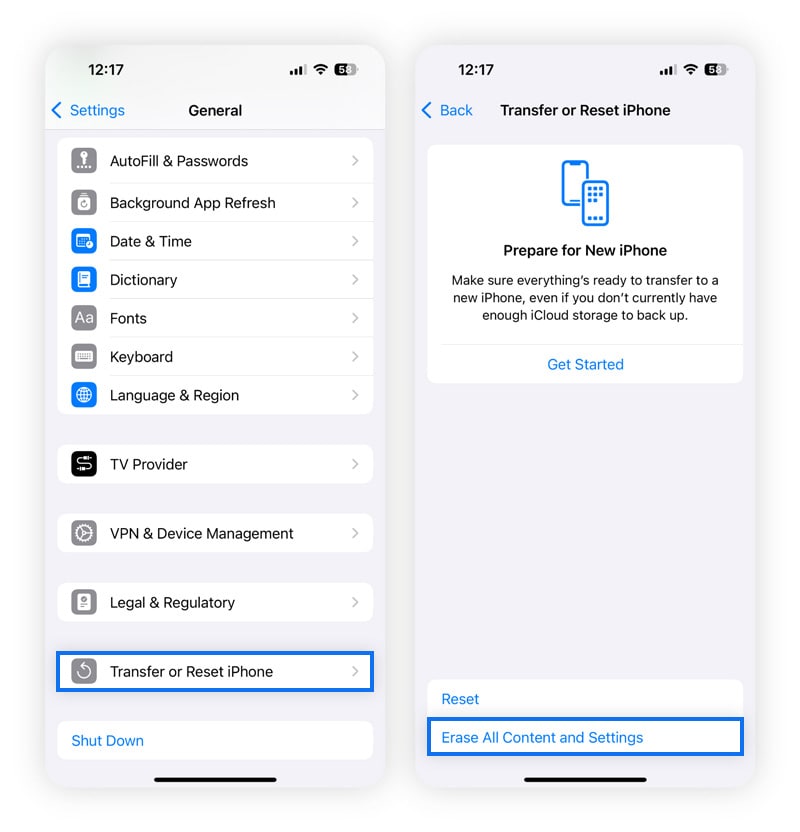
If you’re worried your phone might be jailbroken, the best way to reverse this process is by restoring your iPhone to factory settings (go to Settings > General > Transfer or Reset iPhone > Erase All Content and Settings). Just make sure you back up all your data first so you don’t lose it.
7. Review your storage
Suspicious apps or files can quietly eat up space on your iPhone without your knowledge. Malware usually hides in large files, unknown caches, or files disguised with system-like names such as Safari_files.dmg.
And as these files usually hide in downloads and system logs, they aren’t easy to spot.
To check for potential issues, go to Settings > General > iPhone Storage and review your storage. You can also clear the cache to delete malware hidden in temporary files.
If your storage remains bloated even after removing unnecessary apps and files, then the best option is a factory reset. However, don’t restore from a full data backup as this can reintroduce the malware again. Back up only the essentials like contacts and photos.
8. Run mobile antivirus software
The easiest and most reliable method of finding and removing iPhone malware is to use mobile antivirus software. Find a dedicated iOS-compatible app from a trusted security provider, such as Norton 360 Deluxe.
Trusted antivirus apps will have good ratings and reviews, and unless they’re new, they’ll show a significant number of downloads. Watch out for unknown brands and unrated apps that could be fake.
If you're in a high-risk profession like journalism, activism, or politics, you might be targeted by sophisticated spyware like Pegasus. In these cases, enabling Apple’s Lockdown Mode along with using antivirus software can give you extra protection.
How to get rid of viruses on an iPhone
If you notice unusual behavior or slow performance, taking quick action can help protect your data and get your phone back to normal. Here’s a step-by-step approach on how to remove viruses from your iPhone:
- Restart your device: A simple restart can sometimes resolve issues caused by rogue processes or temporary glitches resulting from malware.
- Update iOS: Make sure your iPhone is running the latest version of iOS as software updates and security patches fix vulnerabilities that malware could exploit.
- Clear browser history and data: Malicious websites or scripts can leave behind data that causes repeated pop-ups or redirects. In Safari, go to Settings > Safari > Clear History and Website Data to clear your cache and cookies.
- Delete suspicious apps: Check for unfamiliar or suspicious apps that you didn’t install. Also, review app permissions to make sure no app has more access than necessary.
- Use the Safety Check feature: iOS has a Safety Check to review who has access to your Apple ID or app activity. This also includes an Emergency Reset option that lets you reset all access and change your password if you suspect someone has hacked into your account.
- Get mobile antivirus software: Antivirus apps can help detect phishing attempts, scam apps, and suspicious links. Use one from a trusted developer and run a full scan of your device.
If suspicious behavior persists despite these steps, performing a factory reset can be your final option to remove deeply embedded malware. Back up only essential data like photos and contacts, then go to Settings > General > Transfer or Reset iPhone > Erase All Content and Settings. This wipes your device clean and restores it to its factory settings.
Protect your iPhone from security threats
Apple has one of the strongest built-in defenses, but it’s not infallible. The best protection against iPhone viruses is to stop them before they reach you. This includes blocking phishing sites, detecting unsafe Wi-Fi, and flagging suspicious calendar invites.
Norton 360 Deluxe takes this preventative approach. It monitors your internet connections in real time, blocks malicious websites across all your apps and browsers, and alerts you to compromised Wi-Fi networks or suspicious calendar invites.
It also includes AI-powered scam protection to spot advanced SMS and web scams, Dark Web Monitoring to warn you if your personal data is leaked, and a VPN to keep your browsing more private on public Wi-Fi.
FAQs
Can iPhones get viruses from websites?
Yes, iPhones can get infected through malicious websites. However, true iPhone viruses are rare, because Apple sandboxes individual apps in their own protected spaces to prevent malware from spreading. Your risk increases if you've jailbroken your iPhone (which removes Apple's built-in protections) or if you connect to compromised Wi-Fi networks that can intercept your data.
What do viruses do to your iPhone?
Viruses and malware on iPhones can steal your personal data like passwords and banking info, drain your battery by running background processes, and flood you with unwanted pop-up ads. They might also track your browsing habits or send spam messages from your device.
How can you avoid iPhone viruses?
Here are some important steps to take to help avoid viruses: download apps only from reputable developers or Apple’s App Store, enable automatic iOS updates, don’t jailbreak your phone, and use specialized mobile security software like Norton 360 Deluxe.
How do I run a security scan on my iPhone?
iPhones don't have a built-in virus scanner, but if you're on iOS 16 or later, you can use Apple's Safety Check feature to review permissions and connected devices.
Editors’ note: Our articles offer educational information and are written to raise awareness about important topics in Cyber Safety. Norton products and services may not protect against every type of threat, fraud, or crime we write about. For more details about how we research, write, and review our articles, see our Editorial Policy.







Want more?
Follow us for all the latest news, tips, and updates.