




How to tell if your phone is tapped and what to do about it
You might think you're having a private conversation, but if your phone is tapped, someone could be monitoring every word you say, hoping to steal personal or financial information. Learn the warning signs that someone might be listening in, and get a mobile security app to help protect your devices against spyware and other threats.

2025
Certified

2025
Top Rated Product




Your phone conversations might not be as private as you think. When Hugh Grant accused The Sun tabloid of illegally tapping his phone and bugging his car, it reminded the world just how easily personal conversations can be invaded. But you don’t have to be a Hollywood celebrity to be at risk.
People like you can have their phones tapped, too, whether by family or friends with bad intentions or hackers looking to steal your personal data without you realizing. And, while your personal conversations might not fuel front-page headlines like celebrity phone tapping stories, information stolen by hackers could be used to commit identity theft, financial fraud, or account takeovers.
In this post, we’ll cover the signs your phone is tapped, how to check for spyware or unusual activity, and easy steps you can take to secure your device and protect your privacy.
Signs your phone is tapped
If someone taps your phone, you may notice subtle clues, like strange sounds interrupting your calls, a quickly draining battery, visual glitches, and more. While one or two of these red flags could have a harmless explanation, many issues arising together, especially if they come on suddenly, could mean you’re dealing with a phone tap.
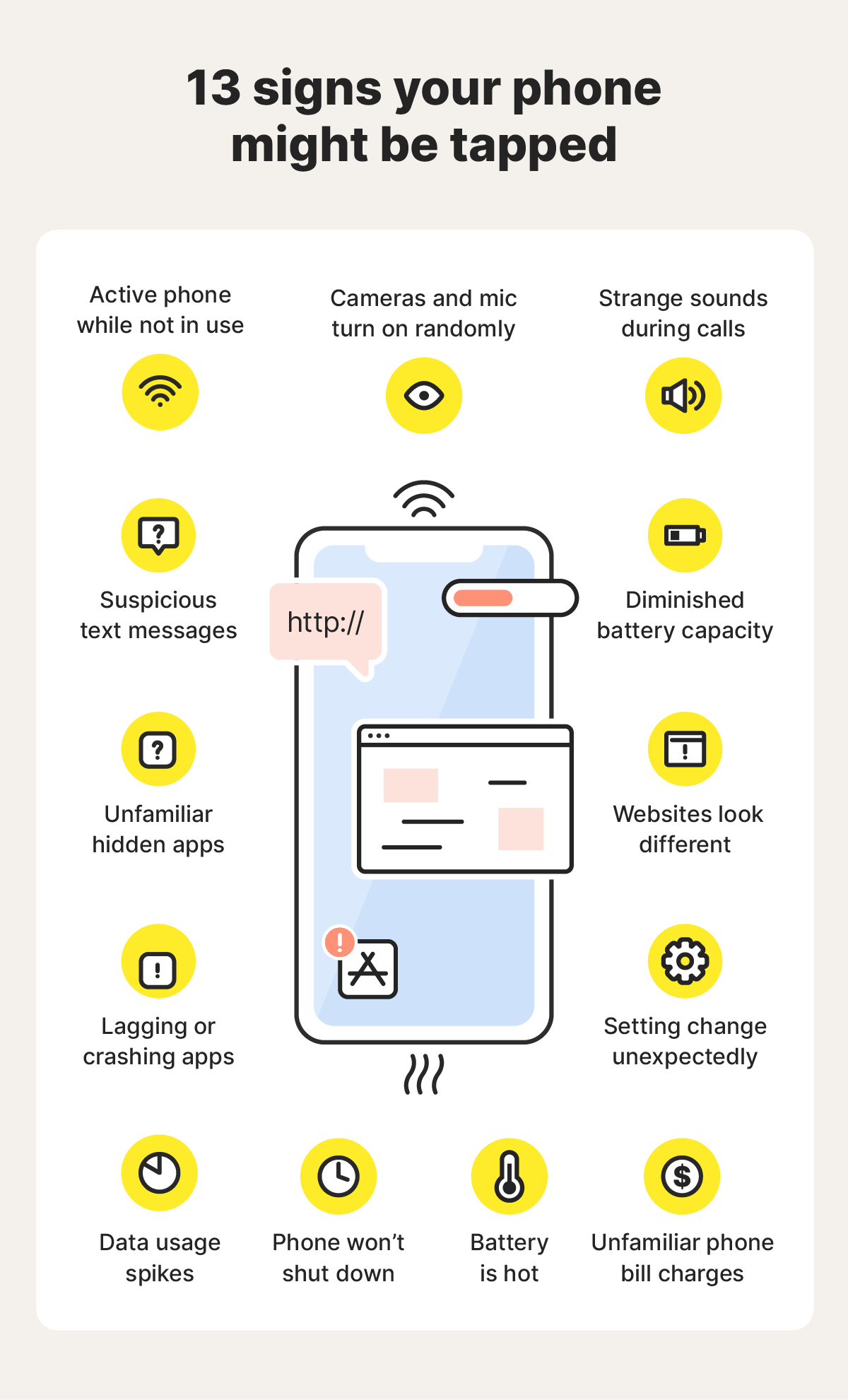
1. Unusual sounds or echoes during calls
If you're noticing weird clicking sounds or high-pitched hums on multiple calls across different locations and with different people, it could be a sign that someone is eavesdropping or tracking your calls.
While everyone experiences occasional static or odd sounds during calls due to network issues or poor signal, persistent audio issues are a red flag. This is because some call‑interception tools interfere with your phone’s connection, creating small delays, audio feedback, or distortion as they route your call through an unauthorized system.
Here are some things you can do to determine if strange sounds on calls are caused by poor cell signal, a malfunctioning device, or potential spyware:
- Test calls in different places: Make a few test calls to different contacts from different locations, and note if the sound occurs consistently.
- Ask the person on the other end: If you're the only one who hears the noises, it’s more likely that hidden monitoring software is affecting your specific device or phone number.
- Try another device: Test a different phone using the same SIM card to rule out hardware problems with your specific device.
If the weird sounds follow your number rather than your device and happen consistently, you've got a red flag that needs further investigation.
2. The battery drains faster than usual
While fast battery drain can happen if you play a lot of mobile games or stream movies and shows, sudden battery performance issues can indicate a hacked phone, particularly if your battery drains even when your phone isn’t in use.
Spyware works in the background to monitor your activity or steal data from your device’s storage drive, which is then transmitted to a third party. This leaves a footprint in the form of your battery life draining faster.
You can test this by:
- Checking your battery usage data: Both Androids and iPhones allow you to check your battery life data through the settings app. You can check which apps use the most battery and pinpoint when the battery performance issues started, making it easier to identify whether the issue could be related to hacking or something less sinister.
- Checking the battery on another phone: Is your phone using more battery power than someone else’s, even though they have the same model and software version? If so, it could be that your phone is bugged or defective. Talk to your friends and family who have the same model and review their battery life data.
3. Odd phone activity when not in use
If your phone lights up for no reason or apps open by themselves, it may mean that your phone has a malware infection that allows hackers to track your calls or steal data.
Here are unusual phone activity signs to look out for:
- Turning off and on by itself: While there are legitimate reasons for your phone to automatically restart, like planned operating system updates, unexplained reboots warrant investigation. Spyware might initiate restarts to install new features or mask activity.
- Apps opening and closing on their own: If your apps regularly open or close without you tapping the screen, it could be a sign of spyware that’s able to launch specific apps to record data or activate the camera or microphone without your knowledge.
- Notifications while in silent mode: If you see excessive notifications while your phone isn’t in use, especially if they’re from apps you don’t recognize, it could mean somebody has tapped your phone.
- Voicemail box unexpectedly full or empty: Saved voicemails being deleted or new voicemails appearing without any indication of a missed call can signal that your phone or SIM might be compromised.
If your phone starts experiencing several of these issues at once, there’s a chance it’s been compromised with malware that grants hackers remote access to your device or allows them to exfiltrate data.
Surveillance apps or remote access Trojans (often referred to as RAT software) can cause unusual device behavior as they tweak settings, pull data, and transmit information back to the hacker.
But, bear in mind, a hacker doesn’t always have to be an anonymous cybercriminal — it could also be someone you know. There have been cases where a “friend” has installed a hidden app and used it to drain cash apps or steal private photos.
4. Your phone won’t shut down
If your phone experiences delays when you try to turn it off or doesn’t shut down properly, hidden spyware could be secretly sending data to someone. Phones generally complete any running processes before shutting down, and malicious software will try to finish data transfers before your device fully powers off.
It’s especially suspicious if this happens right after you get off a call or finish texting — times when surveillance software would most likely be collecting (and transferring) data.
You should also keep an eye out for the opposite issue: your phone randomly shuts down or reboots on its own. Refusing to turn off or suddenly turning off can both point to spyware running behind the scenes.
5. Websites or apps look different
Malware can affect how your phone handles everyday tasks, including displaying websites. While changes in website appearance can sometimes be caused by legitimate updates or temporary browser glitches, sudden changes that aren’t reflected on other devices could mean malware is hijacking your browser to redirect you to a malicious fake copy of the authentic website.
These sites may look legitimate, but they’re actually designed to steal your login credentials, personal information, or financial data. So, if a website looks off or behaves differently than it used to, close your browser completely and look up the website on Google to ensure you’re on the real version.
6. Your phone feels unusually hot
If your phone feels warm even when you haven’t used it, the problem is likely resource-intensive background processes or hardware issues. However, it could also be a sign that your device is infected with malware and secretly transmitting data.
Spyware and tracking apps can quietly run in the background — recording calls, tracking your location, logging keystrokes, or sending data to whoever’s spying on you. All of this keeps your phone working (and heating up) even when you’re not using it.
7. You receive suspicious texts
Receiving strange text messages containing random numbers, symbols, or characters could mean a hacker has tapped your phone. Some spyware requires the hacker to send secret, coded text messages to your phone, triggering different actions. These texts aren’t supposed to be visible, but glitches may pull back the veil and give you a clue that something’s wrong.
8. Cameras and microphones turn on randomly
An orange or green dot at the top of your phone’s screen means an app is using your microphone or camera. If you’re not actively using either, and have closed any apps that might have permissions to use them, it could be a sign that someone else activated them with remote-access tools and is monitoring your activity.
9. Data usage spikes
Spyware doesn’t just monitor your activity or collect data, it also exports stolen information harvested from your phone to a hacker. This will generally result in an unexplained increase in your monthly data usage, as data is transmitted to another device.
Advanced spyware might try to obscure this warning sign, making it more difficult to spot. But regularly checking your data usage by app could help you detect unexplained anomalies.
10. Hidden apps on your device
If you find apps on your phone that you didn’t install and don't recognize, it might indicate that tapping software has been injected onto your device without you realizing.
But bear in mind that spyware often disguises itself with generic, common names and can be hidden, meaning it might not show up in your app drawer. Instead, go into your settings and look through the full list of apps installed on your device.
If you notice an app you don’t recognize, check what permissions it has, paying extra attention to any that don’t seem necessary. An app called “System Update” shouldn’t require microphone access, for example. If you discover anything suspicious, uninstall the offending app immediately.
11. Unexpected charges on your phone bill
If you’re suspicious about spyware, check your phone bill for any unfamiliar charges. Some remote-control apps trigger your phone to contact premium-rate numbers via calls or texts, and the money goes directly to the attacker.
While this might not be a common approach used by hackers, it’s still a risk worth checking out. If you find any suspicious calls or charges, contact your provider to investigate if the charges were a glitch.
12. Lagging or crashing apps
If apps that normally run smoothly start freezing, crashing, or lagging, it might be worth checking, especially if several apps that used to work fine are all struggling at the same time.
There might be a reasonable explanation, like an outdated operating system or aging hardware. However, if updating your software and restarting your device don’t help, it may also be a sign that your phone is infected with spyware.
Malicious software can cause lag and crashes by running constantly in the background, consuming CPU, memory, and other system resources. This slows down your device and interferes with normal app performance.
13. Settings are changing on their own
Your phone’s settings shouldn’t change unless you alter them. If location services turn on by themselves, permissions you denied are suddenly allowed, or mobile security apps turn off for no reason, someone else might have remote access to your device.
Spyware often needs permissions for your mic, camera, location, or accessibility settings. Partners, roommates, or anyone who knows your passcode could tweak your settings — such as changing your location or forwarding your calls — to make spying easier.
How to check if your phone is tapped on Android or iOS
There’s a large and thriving industry dedicated to snooping on others via spyware. And while some spy software — such as Pegasus spyware — is highly sophisticated and practically impossible to detect, many commercially available spyware apps can be found if you know what you're looking for.
Here’s how to look into whether someone might be tracking your phone or stealing your data:
Review app permissions
Checking app permissions can help you spot potential riskware or tapping activity on your phone. Many surveillance apps need access to sensitive features like your microphone, camera, location, contacts, or SMS.
If an app has permissions that don’t make sense for what it’s supposed to do, then attackers may be using it as an avenue to secretly monitor your activity or steal personal information.
How to check app permissions on iOS devices
If you have an iOS device, here’s how to check app permissions:
- Go to the Settings app on your iPhone.
- Go to Privacy & Security. This displays permissions by category, such as Location, Microphone, and Camera.
- Scroll to the bottom of Settings, tap a specific app, and view or manage its permissions.
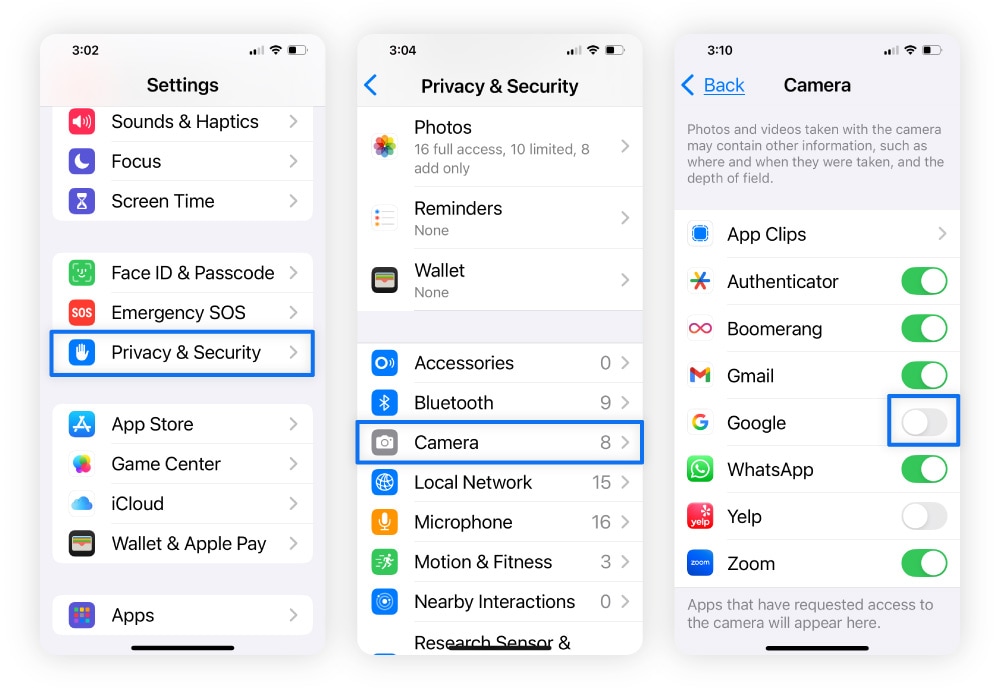
You can also go to Settings > Privacy & Security > App Privacy Report to see how apps are actually using the permissions you’ve granted. This shows things like:
- Data and sensor access.
- App network activity.
- Website network activity.
- Most contacted domains.
This can also help you detect apps that might be monitoring your calls, messages, or activity.
How to check app permissions on Android devices
To review app permissions and find spyware on an Android device:
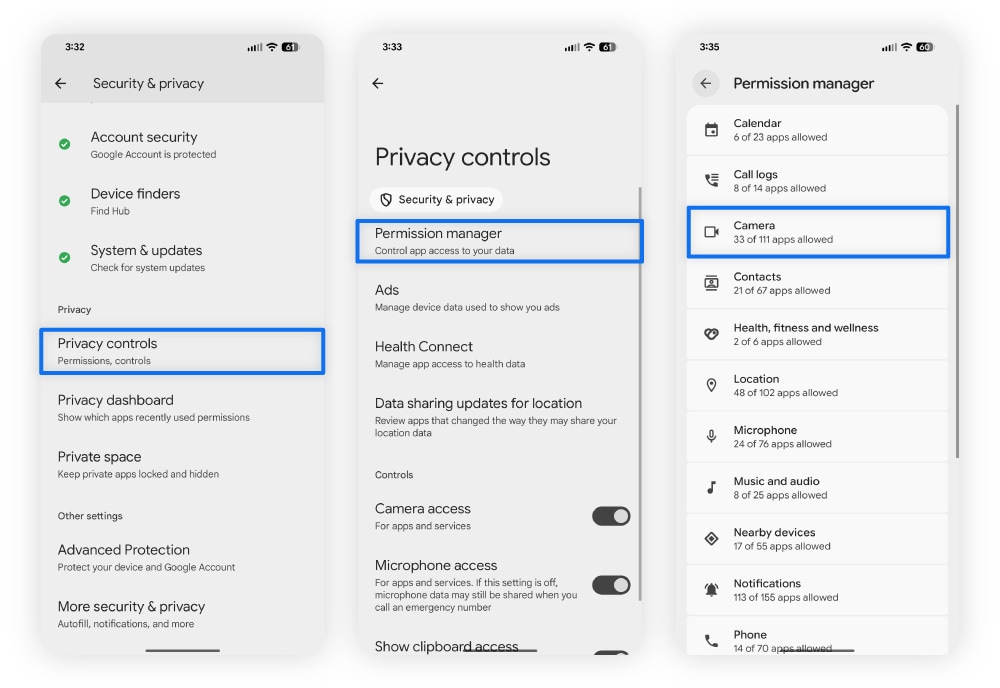
- Open the Settings app.
- Go to Privacy (on some devices, this might be called Security and Privacy).
- Tap Permissions Manager.
- Select the specific permission you want to manage, such as Camera, Location, or Microphone.
- You’ll get a list of apps that have been granted that permission.
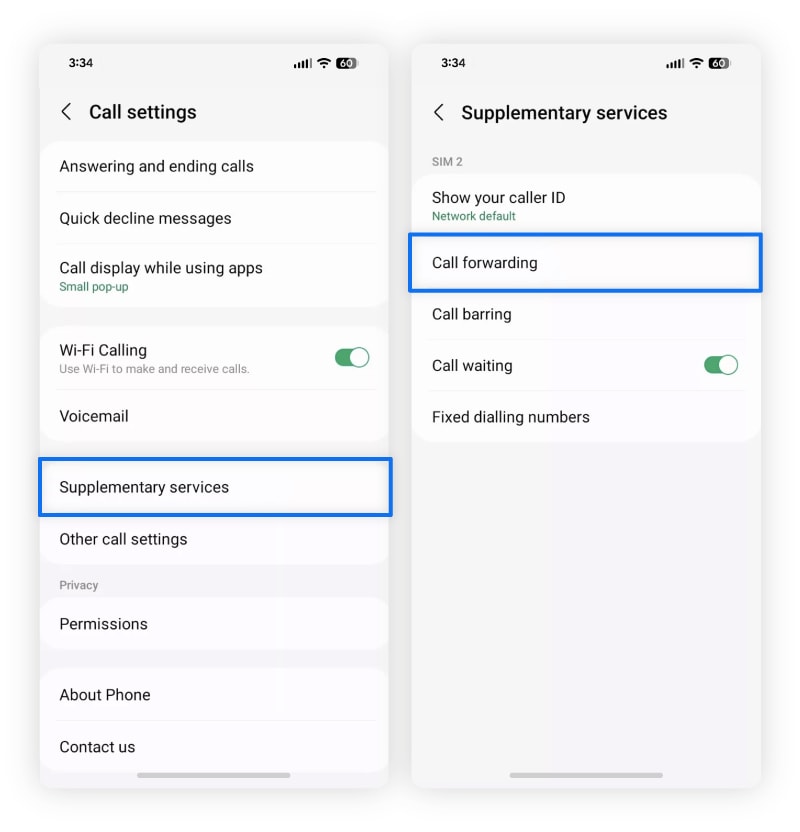
Check your call forwarding settings
Call forwarding is a legitimate phone feature that lets you set rules that automatically redirect incoming calls to another number. However, if someone gains access to your phone through malware, spyware, or by physically handling your device, they could change these settings without your knowledge.
This allows them to create forwarding rules that mean they receive your calls without you even noticing. And, if they answer those calls pretending to be you, they could gather sensitive information that can be used in fraud or identity theft.
Here’s how to check your call forwarding settings and disable any rules you didn’t turn on:
How to disable call forwarding on iPhone
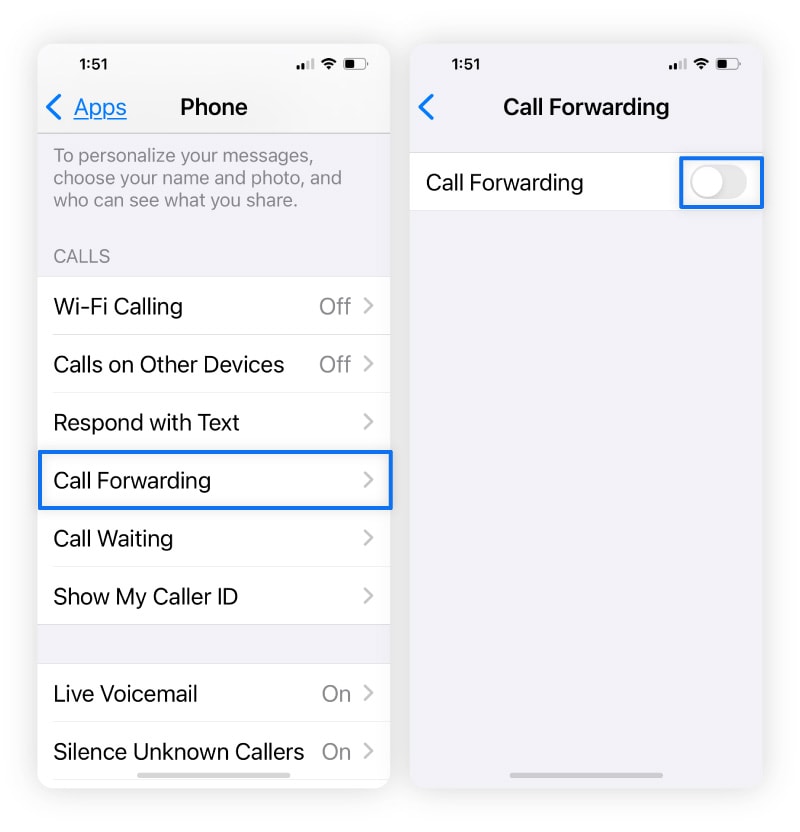
Call forwarding can be exploited if someone gains unauthorized access to your phone. Here’s how to check and disable it on an iOS device:
- Open Settings > Apps > Phone.
- Select Call Forwarding and toggle it off.
How to disable call forwarding on Android
Here’s how to disable call forwarding on a Samsung or other Android phone:
- Open the Phone app and tap the three dots.
- Choose Settings, tap Supplementary Services, then Call forwarding.
- From there, toggle off Always forward, Forward when busy, and Forward when unanswered.
Note: If you’re using a Google phone, you’ll need to go to Call settings, choose Call Forwarding, and toggle it off.
Dial USSD codes
USSD codes are special dial-in sequences that talk directly to your carrier’s network. They bypass your phone’s operating system, so they can reveal network-level changes — like call or message forwarding — even if spyware hides them from your settings.
While there is no code to check if a phone is tapped, you can use dialing codes to disable call forwarding through your mobile service provider (T-Mobile, AT&T, or Verizon):
- Open your phone's dial pad as if you were going to make a call.
- Depending on your carrier, enter the following code:
- T-Mobile: Dial ##21# and press call.
- AT&T: Dial #21# and press call.
- Verizon: Dial *73 and press call.
- You’ll hear a confirmation message saying call forwarding is deactivated.
Scan your phone for malware
If you suspect your phone may be compromised, run a malware scan with a reputable antivirus app. Spyware and malicious apps can hide in the background, making it nearly impossible to identify them manually. But mobile security apps are designed to spot these threats, and help you remove them to protect your privacy.
Get Norton 360 for Mobile to scan for viruses, spyware, and other types of malware, identify risky apps before you download them with App Advisor for Android, receive alerts of unsafe Wi-Fi networks, and help safeguard you from visiting malicious websites.
What to do if your phone has been tapped
If you find direct evidence of spyware on your phone, or you have other reasons to suspect somebody has tapped it, it’s important to act quickly to try and resolve the issue, minimizing the amount of time your privacy is at risk.
Here are some steps to take, and how they can help protect your data:
Turn on airplane mode
If you think your phone is tapped, disconnect it from the internet right away by enabling airplane mode. It disables all wireless communication — including cellular, Wi-Fi, and Bluetooth connections — which stops any active data transfers between your phone and whoever might be monitoring it.
This means you have a “safe window” to check your settings, run security scans, or back up important data without interference.
How to enable airplane mode on an iPhone
You can enable airplane mode in two ways:
- Go to Settings and toggle Airplane Mode, or
- Swipe down from the top-right corner to open the Control Center and tap Airplane Mode.
How to enable airplane mode on an Android device
Similarly, here’s how you can do this on Android phones:
- Swipe down from the top of the screen to open the Quick Settings panel and tap the airplane icon, or
- Go to Settings, then Network & Internet, and toggle Airplane Mode on.
Reboot your phone in safe mode
If you find apps you can’t delete or if performance issues caused by spy software have made your phone almost unusable, restart your phone in Safe Mode. This allows you more freedom to remove apps that are causing problems.
How to reboot an iPhone in Safe Mode
- Turn off your iPhone by holding down the power button and the volume up button together.
- Press and release the power button to turn your device back on.
- When your iPhone’s screen lights up, press the volume down button, then release it as soon as the Apple logo appears.
How to reboot an Android device in Safe Mode
- Press and hold your phone’s power button while the device is still on.
- Tap and hold to power the phone down until you see Reboot to Safe Mode. Then tap OK.
Contact your phone carrier
Your phone carrier can help in two key ways when you suspect your phone is tapped. First, they can check your line for signs of unauthorized access or illegal wiretapping.
Second, if the tap originates from the carrier’s own network rather than just on your device, they can confirm it. In this situation, the only way to fully stop the tap may be to switch to a different carrier, because the monitoring occurs at the network level, not just on your phone.
Perform a factory reset
If you think your phone has been hacked, resetting your phone to its factory settings should remove any spy software. But remember that a factory reset deletes everything, so make sure to back up any important files, photos, or documents you want to keep before proceeding.
Once you’ve reset your phone, either install your apps from scratch or choose to restore your phone from an existing backup that was created before you think the hack happened to avoid reinstalling compromised apps.
How to perform a factory reset on iPhone
Here’s how to do a factory reset on iPhone:
- Go to Settings, then General.
- Tap Transfer or Reset iPhone.
- Tap Erase All Content and Settings.
- Enter your passcode and Apple ID password.
How to perform a factory reset on Android
If you’re using an Android device, here’s how to reset it:
- Go to Settings, then System (sometimes referred to as General Management).
- Select Backup & reset.
- Choose Erase all data (factory reset).
- Tap Erase all data to confirm.
- Enter your PIN or password.
- Tap Erase all data to start the factory reset.
Report phone tapping to the authorities
Phone tapping is a crime, so if you suspect your phone is being monitored illegally, you’re within your rights to report it to the authorities. There are several ways to go about this:
If you suspect illegal wiretapping:
- Contact the local police: File a report with your local police department and provide any evidence you have.
- Contact the FBI: If you believe your phone is being tapped as part of criminal activity, reach out to your local FBI field office or submit a tip online at tips.fbi.gov.
If you suspect cybercrime or hacking:
- File a report with the IC3: The Internet Crime Complaint Center (IC3) handles cyber-enabled crimes, fraud, and hacking incidents.
- Contact local law enforcement: This can help if identity theft or financial fraud is involved.
If you think your phone being monitored might have left you vulnerable to identity theft, also make sure to notify your bank, credit card companies, and the three credit bureaus. They can advise you on ways to protect your finances from subsequent fraud.
How to help prevent phone tapping
There’s no guaranteed way to prevent phone tapping, but there are steps you can take to help decrease your vulnerability.
Here are five top tips that can boost your mobile security and reduce the chances of your phone being compromised with tapping software or other types of malware:
- Routine updates: Update your software and apps regularly to patch security holes and help keep your phone protected. Enable automatic updates to reduce the number of vulnerabilities that can be exploited to access your phone.
- Use secure communication apps: Use secure messaging apps with end-to-end encryption to help secure the information and communications you send and receive online, whether you’re on your everyday device or a burner phone.
- Use a VPN: A VPN encrypts your internet connection, making it extremely difficult for any unauthorized third parties to eavesdrop on communications you make (or data you transmit) online.
- Delete unused, outdated, or suspicious apps: Remove apps you no longer use to reduce the likelihood of hackers exploiting outdated security to compromise old apps.
- Install security software: Get a mobile security app to help protect your device from different types of malware, viruses, hackers, and other online threats, like fake websites or dangerous Wi-Fi networks.
Take back control of your phone
If you think your phone might be tapped, taking practical steps like reviewing app permissions, rebooting your phone, and disabling call forwarding, can help you detect potential risks and secure your device.
But these steps aren’t always enough. Get Norton 360 for Mobile for immediate real-time protection against malware, unsafe apps, and other online threats. It’ll help you reduce the risk of spyware compromising your privacy or personal data, so your sensitive information stays private.
FAQs
Does call forwarding unconditional mean my phone is tapped?
No, call forwarding unconditional isn’t evidence of phone tapping, it’s a normal setting that forwards all calls to a different number. But if it’s active and you didn’t set it up, it could indicate someone has gained unauthorized access to your phone and is intercepting your calls.
What is the code to see if your phone is tapped?
There’s no specific code that can tell you if your phone is tapped. However, USSD codes like *#21# can show whether call forwarding is enabled. And if you find that call forwarding has been enabled, then you can use ##002# to disable it.
Can someone see through the phone camera if my phone is tapped?
Yes, a hacker may be able to access your phone’s camera remotely if they’ve installed malicious spyware — this is called “camhacking.” If you ever notice an orange or green dot at the top of your screen, it means an app is actively using your microphone or camera. If you don’t know why, it could mean your phone has spyware.
Editors' note: Our articles offer educational information and are written to raise awareness about important topics in Cyber Safety. Norton products and services may not protect against every type of threat, fraud, or crime we write about. For more details about how we research, write, and review our articles, see our Editorial Policy.







Want more?
Follow us for all the latest news, tips, and updates.