







6 reasons your iPhone is not turning on and how to fix it
If your iPhone isn’t turning on, it may have a dead battery — or something more serious. From hardware hiccups to software threats, we’ll break down six common reasons an iPhone won’t turn on so you can troubleshoot your issues. Then, get a dedicated security app with AI-powered threat detection to help defend your iPhone from malware that can impact performance.







When your iPhone won’t turn on, it’s easy to fear the worst — but a fix is often simpler than it first seems. Whether the issue is a drained battery, a faulty charging cable, or something more severe, identifying the problem is the first step to resolving it and easing your worry that the device is beyond repair.
Quick steps to try if your iPhone won’t turn on
Before diagnosing the cause, try these basic troubleshooting steps, which can often restore power with minimal hassle:
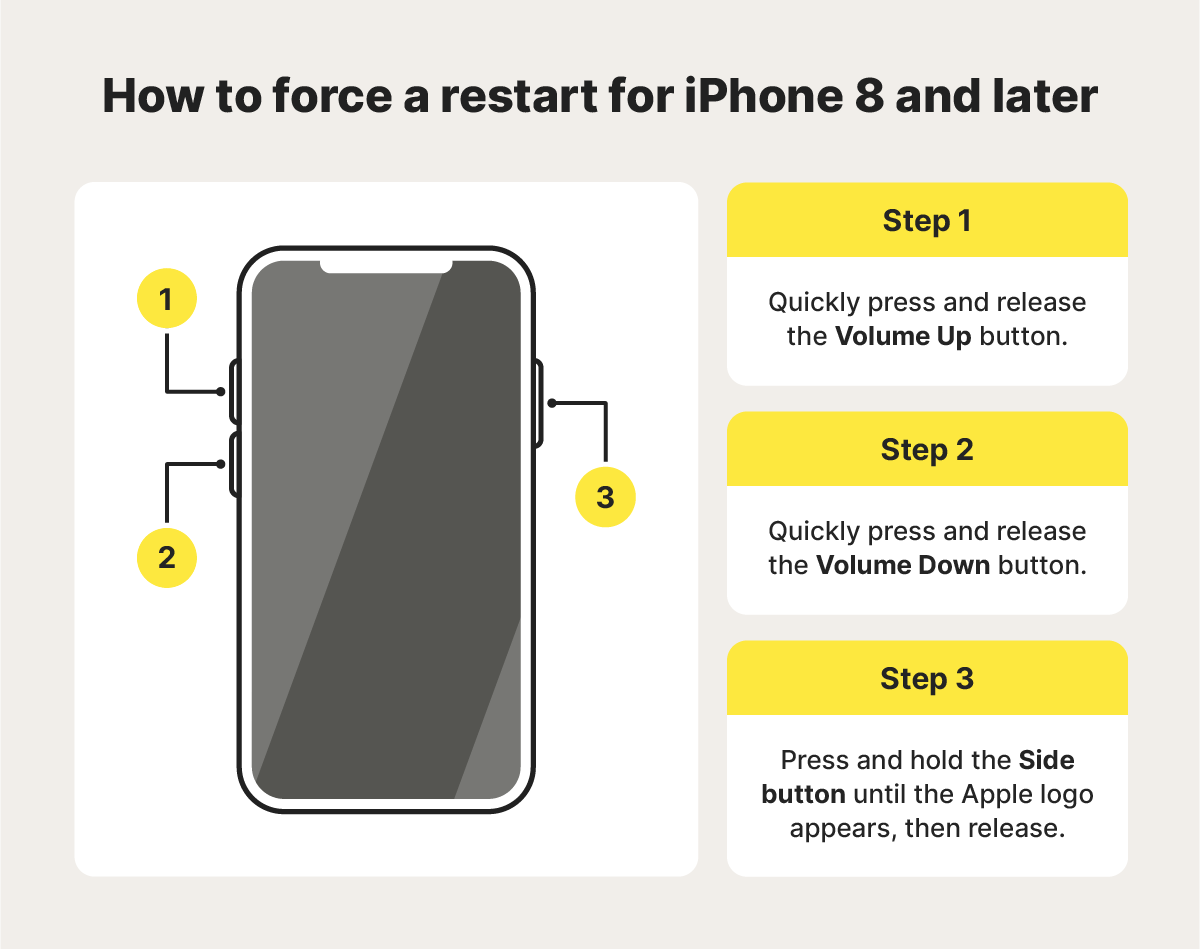
- Force restart your iPhone: Press and quickly release Volume Up, press and quickly release Volume Down, then hold the Side button until the Apple logo appears.
- Charge your device for 30–60 minutes: If the battery is fully drained, it may take some time before a charging indicator appears.
- Check your charging equipment: Try a different cable, adapter, or power outlet to rule out faulty accessories.
- Inspect the charging port: Remove any dust or debris that could be blocking the connection.
If your iPhone still doesn’t turn on after these steps, the issue may stem from battery health, hardware damage, or a software problem.
What causes an iPhone to not turn on
An iPhone that won’t turn on is usually caused by power, software, or hardware issues. The most common reason is a drained or faulty battery, especially if the device hasn’t been charged properly or the charging cable or port is damaged. In some cases, the screen may be unresponsive or broken, making it seem like the phone isn’t powering on.
Software problems can also prevent startup. A failed iOS update, system crash, or corrupted firmware may cause the device to freeze on a black screen. Force restarting the iPhone can often resolve these temporary issues.
More serious cases involve hardware faults, such as water damage, overheating, or internal component failure, which may require professional repair. If basic troubleshooting like charging or restarting doesn’t work, connecting the iPhone to a computer to restore it, or contacting Apple Support, may be necessary.
1. Dead battery
A dead battery is one of the most common and straightforward reasons an iPhone won’t turn on. While normal use can drain the battery over time, power-intensive activities like video streaming, gaming, or running multiple apps can cause it to die faster than expected.
If your phone still doesn’t respond after charging, the battery itself may be defective and no longer able to hold a charge. In that case, a replacement might be necessary. You can visit the nearest Apple Authorized Service Provider or send your iPhone directly to Apple for repair.
2. Faulty charging accessories
If your iPhone won’t turn on, even while it’s charging, a faulty charging accessory might be to blame. Damaged cables, worn-out adapters, or debris in the charging port can all interfere with proper power delivery.
To troubleshoot the problem, try a different cable, adapter, or power outlet. If your iPhone begins charging with the new setup, it's a strong sign that one of your original accessories was causing the issue.
3. Software glitch
A software glitch can sometimes prevent your iPhone from turning on, especially after a failed iOS update, system crash, or corrupted startup process. In these cases, the device may appear stuck on a black screen or repeatedly display the Apple logo during startup.
If you suspect a glitch is the reason your iPhone’s not turning on, try a force restart. This interrupts the current power cycle and can resolve minor software issues that may be preventing the phone from booting properly.
4. Physical damage
Dropping your iPhone in water or onto a hard surface can short-circuit internal components, loosen connections, or damage the battery, preventing it from turning on. Cracked screens, dented frames, or visible corrosion are signs that your phone may have been physically damaged.
If you suspect physical damage, inspect your iPhone for visible cracks, dents, or signs of moisture under the screen. Internal components, such as the battery, display, or logic board, may be damaged and prevent the device from powering on. If you notice any signs of hardware issues, take your iPhone to an Apple Store or an authorized repair provider for a proper diagnosis.
5. Overheating
iPhones are designed to shut down automatically if they overheat, protecting internal components from heat damage. Overheating can occur if your device is left in direct sunlight, used for long periods of gaming or video recording, or charged in a poorly ventilated area.
If your iPhone overheats and displays a temperature warning screen, turn it off immediately and move it to a cooler environment away from direct sunlight. Allow it to cool before turning it back on to avoid further damage.
6. Jailbreaking
Jailbreaking your iPhone removes Apple’s built-in mobile security restrictions, giving you more control over customization and allowing downloads from unofficial third-party stores. While this offers greater flexibility, it’s not recommended because it also makes your device more vulnerable to iPhone hacking and viruses, which can corrupt your system and prevent it from turning on.
If you have a jailbroken iPhone that won’t power on, try putting it into DFU (Device Firmware Update) mode and restoring it using Finder (on macOS Catalina or later) or iTunes (on Windows or older macOS versions). This process reinstalls the original iOS software, removes the jailbreak, and may resolve startup issues. Keep in mind that restoring your device will erase all data, so maintaining regular backups is essential.
Strategies to preserve your iPhone’s battery
Few things are more frustrating than a rapidly draining iPhone battery when you don’t have a charger handy. Luckily, you can use the following strategies to help preserve your iPhone's battery and keep it charged longer:
- Enable optimized battery: This feature slows battery aging by reducing the time your iPhone spends fully charged, minimizing battery stress, and extending its lifespan. To enable it, go to Settings > Battery > Battery Health & Charging, and toggle on Optimized Battery Charging.
- Use dark mode: Dark mode reduces the amount of light your screen emits, which can help conserve battery life. To turn it on, go to Settings > Display & Brightness and select Dark.
- Reduce screen brightness: Swipe down from the top-right corner of your screen to access the Control Center, then adjust the brightness slider to a less energy-intensive level
- Disable unnecessary location services: Some apps track your location even when you’re not using them, draining your battery. To manage this, go to Settings > Privacy & Security > Location Services, and switch off location access for apps that don’t need it.
Protect your iPhone with Norton
Performance issues on your iPhone are typically caused by software bugs, limited storage, or hardware constraints. However, unsafe downloads, malicious websites, or compromised apps can still introduce security risks.
Security tools like Norton 360 Deluxe can help add another layer of protection by blocking malicious websites, helping detect suspicious activity, and protecting multiple devices across your household.
FAQs
Why is my iPhone blinking the Apple logo and not turning on?
If your iPhone is stuck on a screen with a blinking Apple logo, it may be due to a software issue like a failed update, corrupted data, or a jailbreak attempt. Try performing a force restart to resolve the problem. If that doesn’t work, a device firmware update may be necessary to reinstall the operating system.
How do I know if my iPhone is charging if the screen is black?
If your iPhone’s screen is black but it’s charging, you should see a charging icon (a lightning bolt) on the screen after a few minutes of being plugged in. You may also notice the battery icon with a charging symbol displayed on the screen.
How do I check if my iPhone battery needs to be replaced?
To check if your iPhone battery needs replacement, go to Settings > Battery > Battery Health & Charging. If it shows “Service" or the Maximum Capacity is significantly below 80%, the battery is degraded and may need to be replaced.
iPhone and Apple are trademarks of Apple Inc.
Editors’ note: Our articles offer educational information and are written to raise awareness about important topics in Cyber Safety. Norton products and services may not protect against every type of threat, fraud, or crime we write about. For more details about how we research, write, and review our articles, see our Editorial Policy.








Want more?
Follow us for all the latest news, tips, and updates.