






How to clear cookies and cache in every browser
Cookies and cache files perform certain helpful functions, but they can accumulate over time, taking up space and storing data about your browsing. Fortunately, clearing them in your browser’s settings is easy. Learn the exact steps for clearing your cache and cookies in popular browsers, then get Norton AntiTrack to help block trackers and bolster your online privacy.

2025
Consumer
Security Innovator





- When should you clear cookies vs. cache?
- How to clear cookies in Chrome
- How to clear cookies in Safari
- How to clear cookies in Firefox
- How to clear cookies in Microsoft Edge
- Automated cookie clearing tools and privacy software
- Why should you clear cookies?
- Take control of your online privacy with Norton AntiTrack
- FAQs
Cookies are small data files that websites store on your browser or device to keep track of your logins, preferences, and browsing history. Meanwhile, your cache stores website data, like images and scripts, so those sites load faster next time you visit.
Cookies and cache files make life easier by saving your digital shopping carts, speeding up checkout times, and storing login credentials. But letting your browser store your data and personal information for too long can have downsides.
Most common concerns with cookies involve either privacy (tracking) or performance (clutter). Clearing your cookies and cache helps protect your privacy by reducing internet tracking, and it may improve your browser's performance by minimizing the amount of data in storage.
Knowing how to clear cookies and cache from your browser is an important part of protecting your personal data online. Just keep in mind that clearing cookies may sign you out of websites and reset saved site preferences.
In this guide, you’ll learn how to remove cookies and clear your browser cache, potentially helping keep third-party trackers and targeted ads off your trail.
We’ve included the main browsers below, so jump to the one you use most or look through them all to get an in-depth understanding.
- How to clear cookies in Chrome
- How to clear cookies in Safari
- How to clear cookies in Firefox
- How to clear cookies in Microsoft Edge
When should you clear cookies vs. cache?
Clear cookies when you want to reset logins, remove stored site data, or reduce tracking across websites. Clear the cache when pages aren’t loading correctly, or they’re showing outdated content. Clear both if you’re troubleshooting browser issues or want a more complete reset.
How to clear cookies in Chrome
As one of the most popular internet browsers, Google Chrome is available on many devices — and there’s a way to remove cookies from each one.
Chrome on your Windows or Mac computer
Here’s how to clear cache and cookies in Chrome on a desktop computer, Mac, or laptop:
- Open Chrome.
- Click the three dots in the top-right corner.
- Select Delete Browsing Data (also accessible in the Privacy and security tab of the Settings menu).
- Choose the time range for which you want to clear cookies. Mark the checkbox next to Cookies and other site data and any other data you want to clear (like Cached images and files).
- Click Delete data.

Tip: You can open the Delete browsing data menu instantly at any time by using the shortcut Ctrl + Shift + Delete (Windows) or Command + Shift + Delete (Mac).
To clear cookies for a specific website only, go to Settings > Privacy and security > Site settings > View permissions and data stored across sites. From this menu, you can delete data from specific sites.

If you want to delete your cookies regularly, you can try using browser extensions for advanced cookie management. These tools delete your cookies and clear your cache after a certain amount of time or when you close browser windows.
Cookie AutoDelete is one of the most popular browser extensions for automated cookie deletion. It clears your cookies whenever you close a window or tab.
You can also set Chrome to automatically delete cookies when you close windows. To do it, go to Settings > Privacy and security > Site settings > On-device site data (you may have to expand the menu under Additional content settings to see this option). Then, click Delete data sites have saved to your device when you close all windows.
Enabling this will delete your data and sign you out of websites only when you close all Chrome windows (it will not sign you out of your Google account).
Chrome on your Android device
Here’s how to clear cache and cookies in Chrome on Android devices:
- Open Chrome and tap the three dots in the top-right corner.
- From the menu, select Delete browsing data.
- Next, choose the time range and pick Cookies and site data + Cached images and files (potentially under More options).
- Tap Delete data to confirm.
To clear data on a specific website, go to Settings > Site settings > All sites. Choose a website and tap Clear & reset to clear its cookies.
Chrome on your iOS device
Here’s how to clear cookies on Google Chrome on your iPhone or iPad:
- Launch Chrome and tap the three dots in the bottom right.
- Select Delete Browsing Data.

3. Choose the time range for which you want to clear cookies.
4. Select Cookies, site data, and Cached images and files. Then, click Confirm.
5. Tap Delete Data.

How to clear cookies in Safari
Below, we’ll show you how to clear cookies on Apple’s default browser, Safari. But before you do it, keep in mind that clearing cookies can remove stored website settings like dark mode or preferred language.
If you’re worried about unknown sites tracking your activity with third-party cookies, Safari has your back. Its Intelligent Tracking Prevention (ITP) automatically limits third-party tracking cookies, helping prevent advertisers, data brokers, and others from tracking you online. This is done automatically and helps to improve your online privacy.
Safari on your Mac
Here’s how to clear cookies in Safari on a Mac computer:
- Launch Safari, then click the Safari menu and Settings.
- Choose the Privacy tab, then click Manage Website Data.
- Click Remove All.
- Confirm by clicking Remove Now.
To clear cookies for a specific site only, go to Settings > Privacy > Manage Website Data. Select a site and click Remove to clear cookies.
Safari on your iOS device
Clearing Safari cookies on an iOS device is also simple. Here’s how to do it:
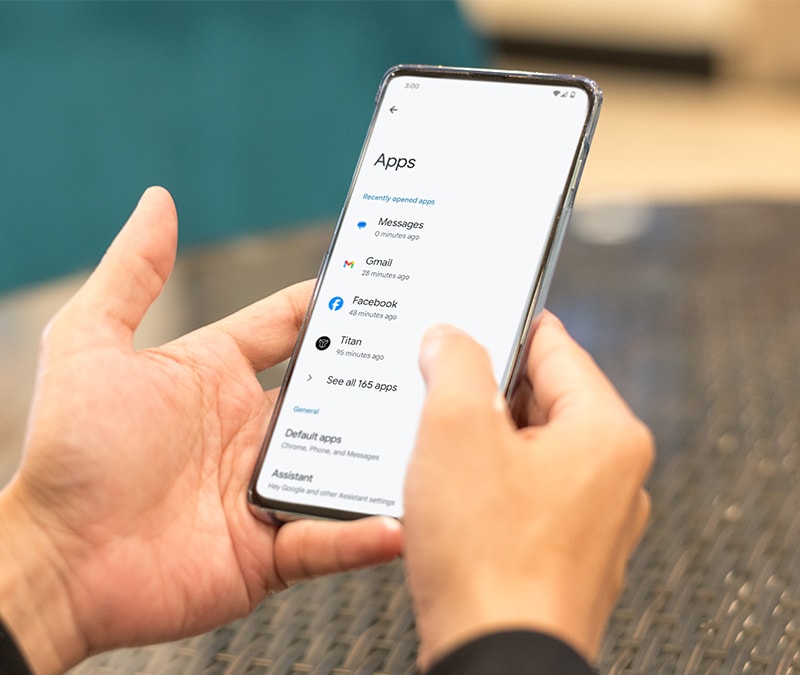
- Go to Settings and select Apps.
- Scroll down (or use the search bar) and tap Safari.

3. Scroll down and tap Advanced, then Website Data.
4. Tap Remove All Website Data, and Remove Now to confirm deletion.
How to clear cookies in Firefox
Follow these steps to delete cookies in Firefox across your desktop and mobile devices.
Firefox on your Windows or Mac computer
Here’s how to clear cache and cookies in the Firefox browser:
- Open Firefox and click the hamburger icon (three horizontal lines) in the top-right corner of the homepage, and click Settings.
- Select Privacy & Security from the menu on the left.
- Scroll down to Cookies and Site Data and click Clear Data… or Clear browsing data.

4. Choose the time range, and select Cookies and site data and Temporary cached files and pages, then Clear.

Under Cookies and Site Data, you can also tick the box next to Delete cookies and site data when Firefox is closed. This will delete cookies whenever you exit Firefox.
To clear cookies from a specific website on Firefox, go to Settings > Privacy & Security > Manage browsing data. Select a website and click Remove Selected. Click Save Changes to confirm.

If you’re worried about issues with cookies or third-party tracking, you can use a Firefox extension to automatically remove cookies. Forget Me Not is one of the top Firefox extensions for advanced cookie management. It allows you to configure rules for how site data is kept and when it’s deleted.
Firefox on your Android device
Here’s how to wipe your cookies and clear cache on an Android when using Firefox:
- Launch Firefox.
- Tap the three dots menu at the top-right or bottom-right corner, depending on the version.
- Go to Settings.
- Scroll down and tap Delete browsing data.
- Select Cookies and site data and Cached images and files, and any other data you want to clear, then tap Delete browsing data.
- Select Delete in the pop-up window.

You can also set up Firefox on Android to automatically delete cookies when you exit the app. Go to Settings and select Delete browsing data on quit to enable it.
When this feature is enabled, a Quit button will appear in the Firefox menu (three dots). Firefox will only delete your cookies if you quit Firefox using this Quit command. It will not delete your cookies if you only swipe the app away.
Firefox on your iOS device
Follow these steps to clear cookies on your iPhone or iPad on Firefox:
- Launch Firefox, then tap the three dots.
- Select Settings.
- Scroll down to Privacy and select Data Management.

4. Toggle on Cookies and any other data you want deleted, then tap Clear Private Data.
5. Choose OK to confirm deletion.
How to clear cookies in Microsoft Edge
Here’s how to clear cookies and cache on Microsoft Edge on your computer and mobile devices.
Microsoft Edge on your Windows or Mac computer
How to clear cookies on Microsoft Edge on a computer:
- Launch Microsoft Edge and click the three dots in the top right corner.
- Select Delete Browsing Data from the menu.
- Choose the time range you want to clear cookies and cache on Edge for.
- Ensure Cookies and other site data and Cached images and files are selected.
- Click Clear now.

Microsoft Edge browser extensions can help you clear cookies automatically and configure advanced cookie settings. Cookie AutoDelete is one of the top cookie management add-ons for Microsoft Edge.
Microsoft Edge on your Android or iPhone
The steps for clearing cookies in Microsoft Edge on Android or iOS are very similar to the process on a computer:
- Tap the three lines at the bottom of the screen.
- Tap the Delete data icon.
- Choose the time range and the data you want cleared, then tap Delete data.

Unfortunately, the Edge mobile app does not have an option for automated cookie clearing. If you want to delete cookies automatically from your mobile device, consider downloading privacy software that deletes cookies.
Automated cookie clearing tools and privacy software
Manually clearing cookies and cache can be a hassle. Automated cookie clearing utilities can make the process easier by clearing clutter and tracking data in the background.
Try these options for automated cookie clearing:
- “Auto-clear on exit” features built into your browser: Some browsers give you the option to clear cookies when you close the app. You need to toggle this on in the Settings menu. Make sure to check what qualifies as “exiting” the app. Swiping away or closing windows may not be enough to clear cookies.
- Browser extensions: Extensions like Forget Me Not and Cookie AutoDelete work in the background to automatically delete cookies and clear cache.
- Privacy software: Privacy software often includes cookie management as part of a larger suite of privacy-enhancing functions. Norton AntiTrack and Norton Utilities Ultimate are examples of tools that delete cookies automatically.
Do you really need another app or extension just for clearing cookies? It depends on your situation and how much you value your online privacy. Automated tools handle recurring cleanup while you browse, helping keep your security tight. Manually clearing only deletes past data, so it’s not quite as effective at preventing tracking.
Here are a few more benefits to automatically clearing your browsing data:
- Saves time.
- May reduce personalized pricing or targeted offers on some websites.
- Reduces tracking between browsing sessions.
- Prevents website errors caused by stale cookies.
- Reduces ad profiling.
- Helps strengthen your online privacy.
Why should you clear cookies?
Cookies can make your online experience more convenient by enabling autofill and faster loading times. But there are also good reasons why you should clear your cookies:
- Privacy: Clearing cookies helps safeguard your privacy by reducing the extent to which websites track your online behavior. Without clearing cookies, websites can collect information about your browsing habits, which can be used for targeted advertising.
- Performance: Over time, stored data like cached files can affect how web pages load or display. Clearing cookies and cache may help resolve loading issues or outdated content.
- Control: Clearing cookies gives you greater control over your online activities and preferences. It allows you to start fresh and selectively choose which websites you want to remember your login information or browsing history. This control helps you manage your digital footprint.
- Security: Clearing cookies can reduce the amount of stored session data in your browser. While cookies are generally safe, in some cases, such as on shared or public devices, removing them can help limit unauthorized access to active sessions.
Cookies and cache exist to make your browsing experience more convenient, so clearing them can have a few downsides.
Clearing cookies will sign you out of all of your accounts. So, next time you visit Facebook, for example, you’ll see the login page instead of going directly to your feed. But it won’t delete your saved passwords, so logging in again should be easy.
Clearing your browsing data will also reset site preferences, such as language, currency, or data consent. You’ll have to reset these each time you clear cookies.
Take control of your online privacy with Norton AntiTrack
Help protect your online privacy effortlessly with Norton AntiTrack. This powerful tool helps you browse privately by masking your digital fingerprint, going beyond just clearing cookies. Install Norton AntiTrack to help prevent websites and data collection companies from tracking your activity and preferences online.
FAQs
Can cookies track you?
Cookies can track multiple types of data about you, from your browsing history to your personal IP addresses.
Does deleting cookies speed up computers?
Erasing cookies may not help speed up your computer directly, but it could speed up your browser in some cases. However, deleting information can make it take longer to log in to websites you frequently visit.
Can I automatically delete cookies every time I close my browser?
It is possible, but it depends on the browser. Most browsers allow you to toggle an “auto-clear on exit” option for cookies. You can find this in the Settings menu under Privacy and security. Browser extensions like Cookie AutoDelete can also help you automatically delete cookies when you close tabs or windows. Software is another option. Norton Utilities Ultimate is among the best cookie cleaner software for Windows and Mac.
How can I delete cookies for just one website?
You can delete cookies for just one website, but how to do it depends on your browser. On most browsers, you can find this option by going to Settings > Privacy and security > Manage website/browsing data. Select the site you want to remove data for and click Clear/Delete data.
Will clearing cookies delete passwords?
Clearing cookies typically signs you out of websites, but it does not delete saved passwords stored in your browser or a password manager. Passwords are usually managed separately.
Editors’ note: Our articles offer educational information and are written to raise awareness about important topics in Cyber Safety. Norton products and services may not protect against every type of threat, fraud, or crime we write about. For more details about how we research, write, and review our articles, see our Editorial Policy.








Want more?
Follow us for all the latest news, tips, and updates.