







How to block spam calls on iPhone, Android, and landlines
Spam calls are so common that many people avoid answering unfamiliar numbers altogether. Fortunately, your phone has built-in tools that can help you block unwanted callers — whether you’re using an iPhone, Android, or even a landline. Get Norton 360 with LifeLock for stronger protection against scams, phishing attempts, and identity theft.





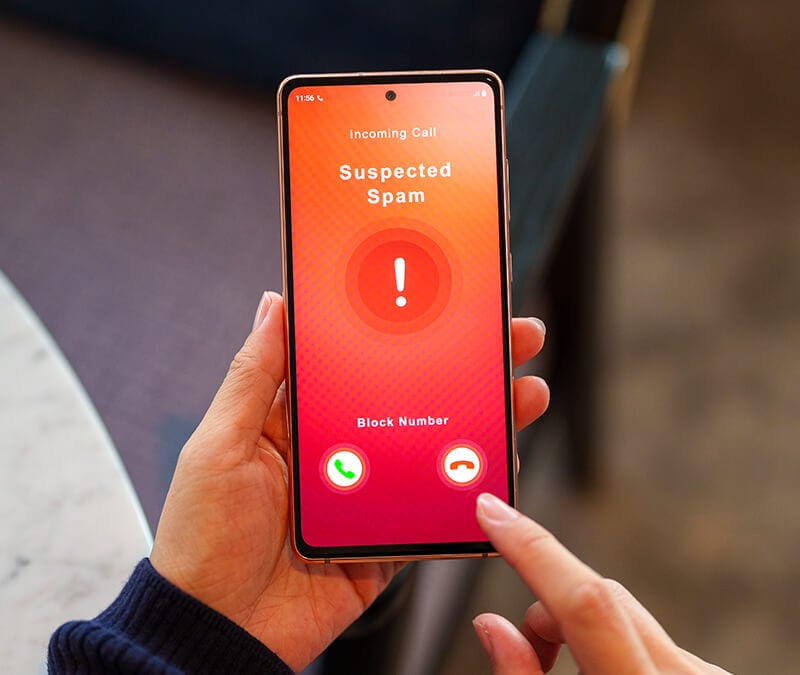

According to Truecaller’s 2024 U.S. Spam & Scam Report, 56.2 million Americans were affected by spam and scam calls in 2023. The report further states that 41% of 65-year-olds have stopped answering unknown calls as a result — a wise defensive measure, but one that can cause legitimate calls to get lost.
In this guide, we’ll explore how to block and filter potential spam calls on iPhone, Android, and landlines, what to do if you accidentally answer one, and how advanced spam protection tools can add an extra layer of security.
How to block spam calls on iPhone
iPhone users have several ways to stop spam calls: you can silence all unknown callers, manually block specific numbers, or use iOS 26’s new call screening feature.
Use your iPhone’s “Call Screening” feature
If you enable the new Call Screening feature, your iPhone will automatically ask anyone who calls from an unsaved number why they’re calling and send you a transcript of the conversation. Then, you decide whether to let the call go through. So far, users have been impressed with the efficacy of this new feature.
Here’s how you can enable Call Screening on iPhones running iOS 26 or later:
- Open the Settings app on your iPhone.
- Scroll down and tap Phone.
- Go to Screen Unknown Callers.
- Choose Ask Reason for Calling.
Use your iPhone’s “Silence Unknown Callers” feature
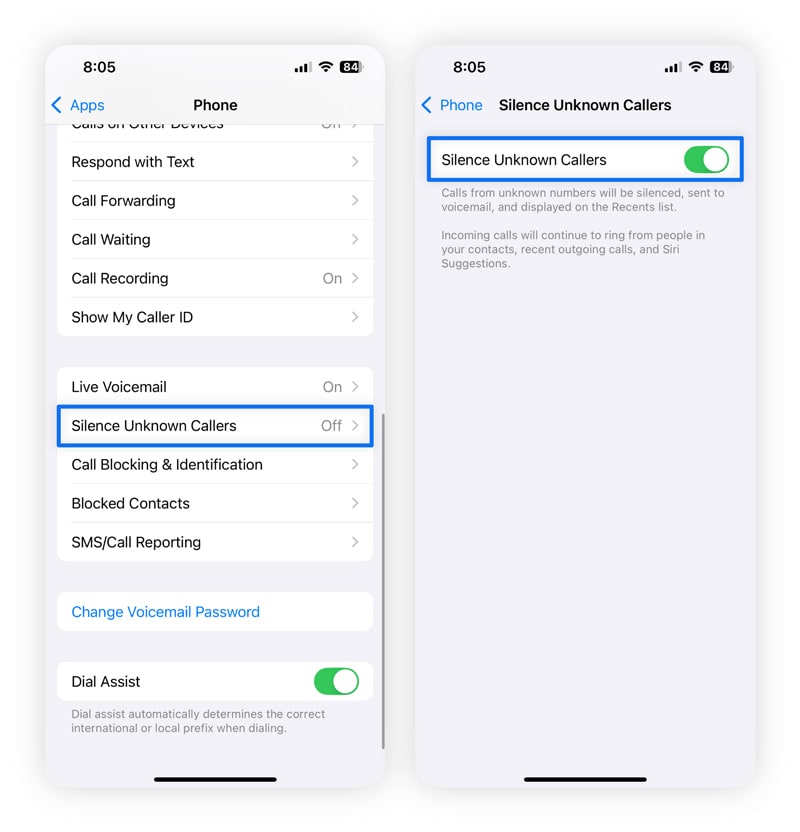
iPhone’s “Silence Unknown Callers” feature automatically sends any call from an unknown number straight to voicemail. This is a great safety measure if you’re getting a lot of spam calls in the aftermath of a data breach.
Here’s how you can enable this feature to block all spam calls on iPhone:
- Open Settings.
- Scroll down and tap Phone.
- Tap the Silence Unknown Callers toggle to switch it on.
Keep in mind that this won’t just silence spam risk calls but also legitimate calls from unsaved numbers, such as delivery drivers or new contacts, so you’ll need to check your voicemail regularly.
Pro tip: Temporarily disable call screening if you’re expecting important calls from unknown numbers, such as when a family member is hospitalized, or during job searches when recruiters might be calling.
Block individual numbers manually
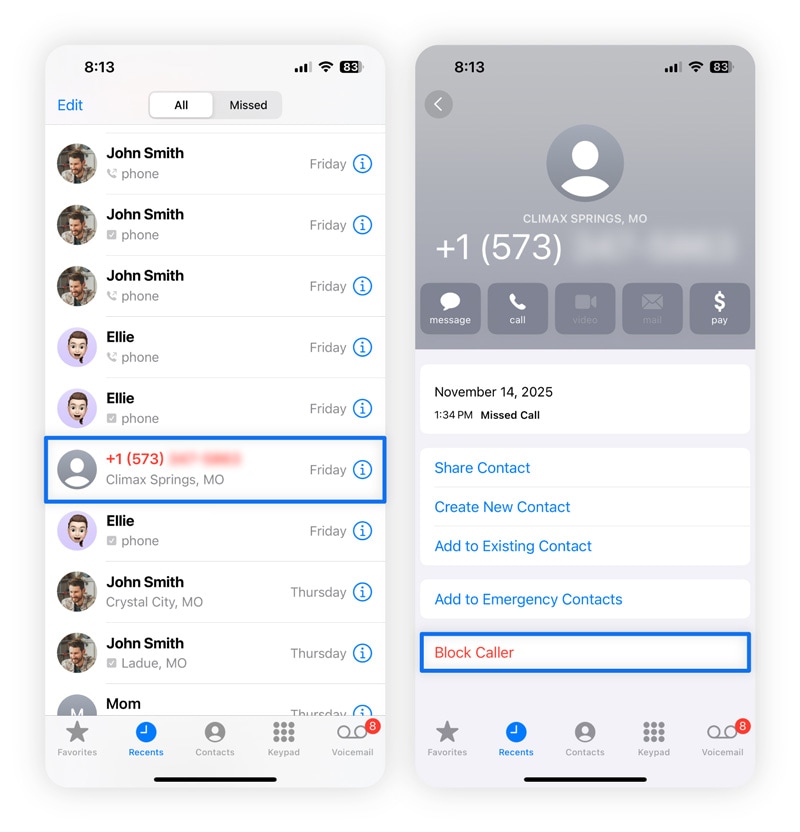
Blocking individual numbers manually is ideal if you’re getting repeated calls or robocalls from specific spam numbers.
Here’s how to block a number on iPhone:
- Open the Phone app and go to Recents.
- Tap the “i” icon next to the number you want to block.
- Scroll down and tap Block Caller.
- Tap Block Contact to confirm.
Once blocked, you won’t receive calls, messages, or FaceTime calls from that number. You can unblock numbers anytime by going to Settings > Phone > Blocked Contacts.
Note that blocking a number on iPhone doesn’t block it on messaging apps like WhatsApp or Messenger. You’ll need to block it separately within each app to prevent all contact.
How to block spam calls on Android
Android devices come with several built-in features to help you block unwanted calls. This includes manual blocking, marking calls as spam, and using caller ID to screen callers before answering a call.
Some Android devices, such as Google Pixel phones, also offer a call screening service similar to iOS 26. This feature, available in select countries, is particularly useful if you’re dealing with robocalls or you’re being targeted by vishing scams.
Use Android’s “Spam Protection”
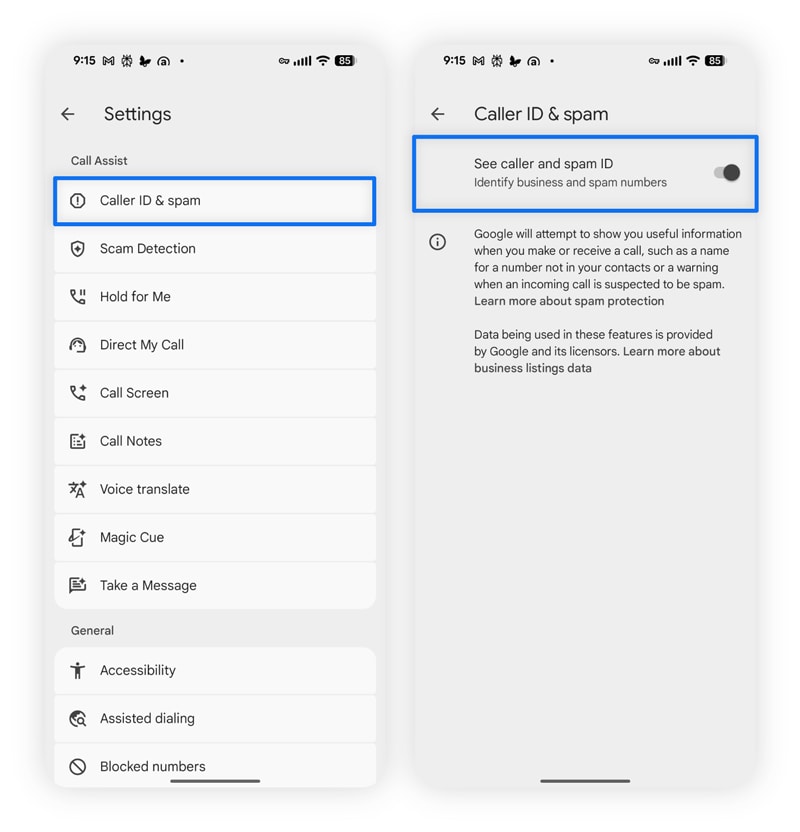
Android’s caller ID and spam protection features give you warnings about potential spam callers before you answer. These are usually on by default, but here’s how you can toggle them on or off. These instructions are for a Google Pixel phone, but the process should be similar on other Android devices.
- Open the Phone app and tap Settings.
- Under Call Assist, go to Caller ID & spam.
- Toggle on See caller and spam ID.
Now, you’ll be able to see if a call is likely a scam and block it before it reaches your phone. This feature will also let you know if the call is from a business registered in its system.
Use Call Screen (Google Pixel)
Pixel phones’ Call Screen feature lets you find out who’s calling and why before you pick up. Here’s how to turn on Call Screen on a Google Pixel 7 or above:
- Open the Phone app.
- Tap More > Settings.
- Tap Spam and Call Screen or Call Screen.
- Choose Call Screen.
- Select your preferred screening level:
- Spam: Only screen known spam calls.
- Possibly faked numbers: Screen suspected spoofed numbers.
- First-time callers: Screen all numbers calling for the first time.
Call Assist then screens your calls and automatically hangs up if it confirms a call is spam. For other calls, you’ll get a transcript of the conversation so you can decide whether to pick up or not.
Block individual numbers manually
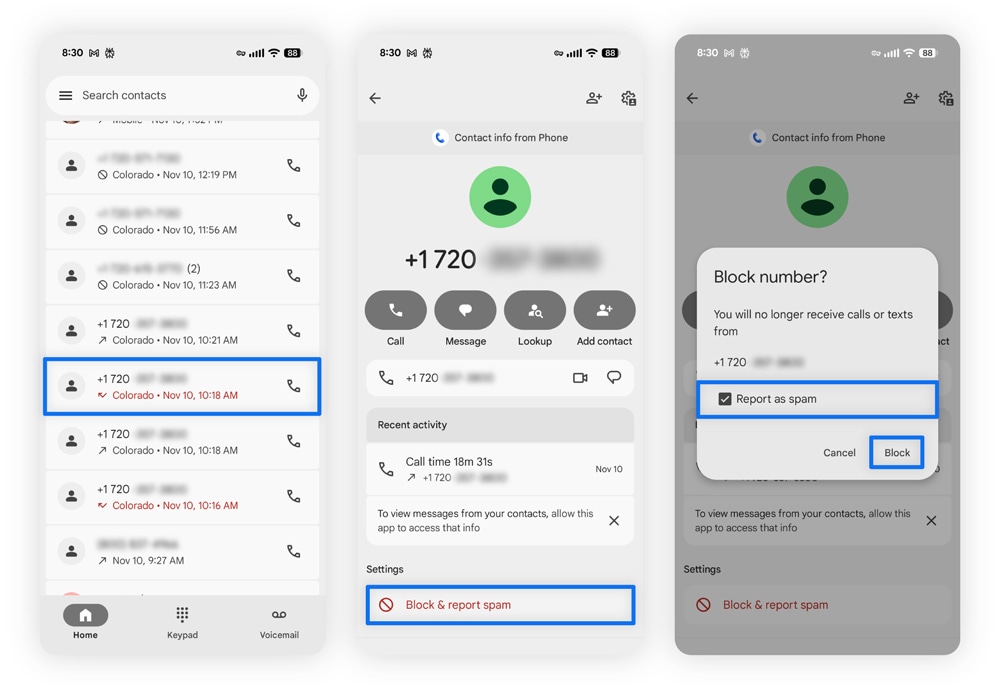
Another way to protect your Android device is by manually blocking spam calls. Here’s how you can do this:
- Go into your call history.
- Select the number you want to block.
- Choose the Block option.
You’ll also see the option to report the number as spam during the blocking process. We recommend that you always report spam numbers, as this helps strengthen Android’s spam protection for everyone.
How to block spam calls on a landline
To block spam calls on your landline, you can use your provider’s built-in call-blocking features through star codes, register with the National Do Not Call Registry, or invest in a call-blocking device.
Here’s how to block unwanted calls on landlines:
- Enable call blocking features from your landline provider: Most providers offer star codes for spam protection. You can dial *60 to either block the last number that called you or *77 to block any call that comes in without caller ID information.
- Register with the National Do Not Call Registry: Add your landline number for free to the Do Not Call Registry. After 31 days on the registry, legitimate telemarketers must stop calling you. This won’t stop illegal scam calls, but it does reduce calls from companies that are annoying you legally.
- Use call screening and blocking tools: Let your answering machine screen calls, or purchase devices like the V5000 Call Blocker, which comes preloaded with thousands of known spam numbers and lets you block additional numbers manually.
Although landlines lack the advanced spam protection features that smartphones have, these tools can still block a significant number of spam calls.
Mobile carrier tools for blocking spam calls
Major mobile carriers offer their own spam-blocking apps and services, often with free basic versions and premium upgrades. These tools use massive databases of known spam numbers and advanced call analysis to identify and block robocalls before your phone rings.
Here’s an overview of the spam protection services by popular mobile carriers, and how they help block spam calls:
- AT&T ActiveArmor: This app automatically blocks fraudulent calls and labels suspected spam so you can decide whether to answer. The paid “Advanced” tier adds reverse number lookups and enhanced fraud protection.
- Verizon Call Filter: With this, you’ll get the caller ID for unknown numbers and a risk assessment for incoming calls. The paid “Call Filter Plus” version adds spam-number lookup and stronger robocall blocking as well.
- T-Mobile Scam Shield: Automatic scam-blocking is enabled by default and includes caller ID features. The paid tier also provides category blocking and number lookups.
What to do if you accidentally answer a spam call
Answering spam calls can expose you to scams or signal that your number is active, potentially leading to even more spam. Here are some best practices to follow if you mistakenly answer a spam call:
- Hang up immediately: Cut the call as soon as you realize it’s spam. Don’t engage in conversation, even if they say something like, “Press 1 to be removed from our list.” This actually confirms your number is active — leading to more calls.
- Block and report the number: Block the number using your phone’s built-in feature or through your carrier’s app. Then, report the spam number through your device or directly to the FTC.
- Don’t provide any personal information: Never share your Social Security number, banking details, passwords, 2FA codes, or other sensitive information over the phone. If an unknown caller claims to be from your bank or a government agency, hang up and call the official number to verify.
- Monitor your accounts for suspicious activity: Check your bank accounts for unauthorized transactions. If you shared any personal information, contact the FTC and your bank, then place a fraud alert on your credit report through one of the three credit bureaus. This can help prevent identity theft.
- Watch out for vishing attempts: Vishing, or voice phishing, is when scammers call you to steal personal information. Once they know your number is active, they’ll likely try again with new tactics. Avoid answering unknown numbers, and be skeptical of urgent requests for payment or sensitive details.
Help defend against spam and scams with Norton
Spam calls aren’t just irritating — they’re a gateway to real risks. Scammers can pair leaked personal data with AI-driven tactics to create highly targeted attacks designed to steal your identity or pressure you into sending money.
A strong Cyber Safety solution with device protection and identity safeguards can help stop these threats early. Norton 360 with LifeLock does exactly that. Its Safe Call feature uses advanced AI to help you tell which calls are safe to answer, while its identity theft protection offers support and recovery if a scammer ever gets hold of your information.
FAQs
How do I block spam calls permanently?
While you can’t permanently block 100% of all spam calls, you can reduce them by combining multiple methods. Register with the National Do Not Call Registry, enable your phone’s built-in spam blocking and your carrier’s spam filter (like AT&T ActiveArmor or Verizon Call Filter), and install a third-party app like Norton 360 with LifeLock.
This multi-layered approach blocks the vast majority of spam calls, though determined scammers may occasionally slip through with new tactics.
Does #662# really block spam calls?
Yes, dialing #662# blocks spam calls, but only for T-Mobile and MetroPCS customers. If you’re on a different carrier like AT&T or Verizon, this code won’t work — you’ll need to use your carrier’s specific app or star codes instead.
Why am I suddenly getting so many spam calls?
A sudden increase in spam and scam calls usually means your phone number was leaked on the dark web. Run a dark web scan using a tool like Norton 360 to check if your data has been compromised and take steps to protect yourself by registering with the Do Not Call Registry.
Editors’ note: Our articles offer educational information and are written to raise awareness about important topics in Cyber Safety. Norton products and services may not protect against every type of threat, fraud, or crime we write about. For more details about how we research, write, and review our articles, see our Editorial Policy.






Want more?
Follow us for all the latest news, tips, and updates.