







How to increase upload speed: 13 tips for faster internet
Frozen video calls or choppy streams? Explore our tips to increase your upload speed and improve your connection stability. Then, get Norton Utilities Ultimate to clean up junk files, reduce background processes, and help your device run more efficiently so uploads and streaming feel smoother and more responsive.

2025
Consumer
Security Innovator





- 1. Limit background activity and connected devices
- 2. Restart or reset your router
- 3. Move your router
- 4. Switch to 5GHz Wi-Fi
- 5. Adjust QoS settings
- 6. Update your router’s firmware
- 7. Update your drivers
- 8. Check your device for malware
- 9. Try switching to mobile data
- 10. Try connecting to a VPN
- 11. Get a faster internet connection
- What is upload speed?
- What is the difference between download and upload speeds?
- How to check my upload speed
- Keep your devices running smoothly
- FAQs
Upload speed impacts everything from backing up large files to joining important video calls. When it’s slow, it can interrupt your work at critical moments. In many cases, the issue comes down to speed limitations defined by your internet plan, which you can often resolve by upgrading your package with your internet server provider (ISP).
But before you do that, there are quicker and more affordable steps you can try first, like optimizing your router setup, reducing network congestion, and updating your equipment. Let’s dive in.
1. Limit background activity and connected devices
Bandwidth-heavy apps and having multiple connected devices can compete for your available upload bandwidth, slowing down transfers and causing interruptions. This is especially noticeable when several activities are happening at once, like video calls, cloud backups, or file uploads.
To improve upload speeds and reduce bandwidth congestion, close apps you’re not using and limit high-bandwidth activities. For example, if you’re backing up important data to the cloud while on a video call, pause the upload until your call ends to keep your connection stable.
2. Restart or reset your router
Restarting your router can help resolve upload speed issues by clearing temporary glitches and re-establishing your connection to your ISP. To restart, power off your router, unplug it for 30 seconds, then turn it back on. This can also help if you have no internet connection at all.
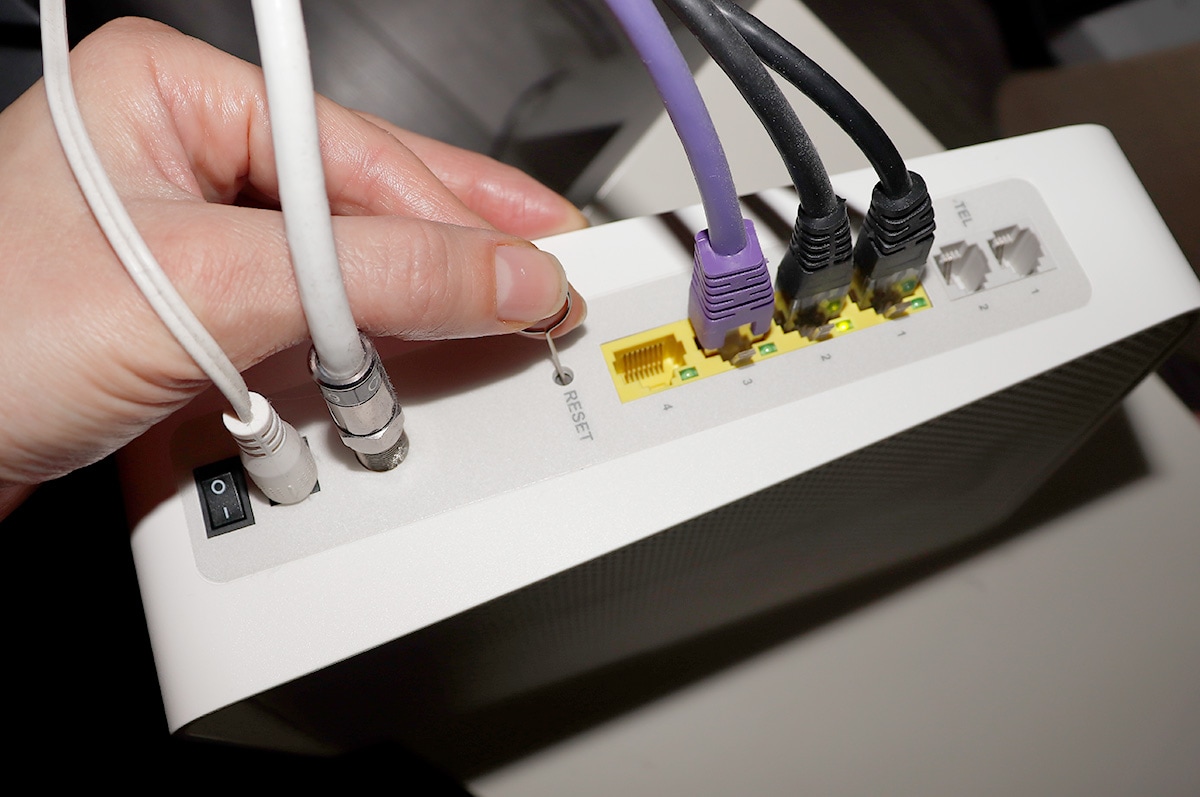
If the problem is persistent, resetting your router to its original settings can help too, but be cautious, as a factory reset will erase your settings and change your Wi-Fi router password. To reset your router, press and hold the reset button for about 10–15 seconds (or follow the steps in the manual), then set up your router again.
3. Move your router
Router placement affects signal strength and stability, which in turn affects internet speeds (including uploads). As such, optimizing your router placement can help contribute to faster upload speeds. If relocating your router isn’t practical, you can also extend your Wi-Fi range with tools like Wi-Fi extenders or mesh systems.
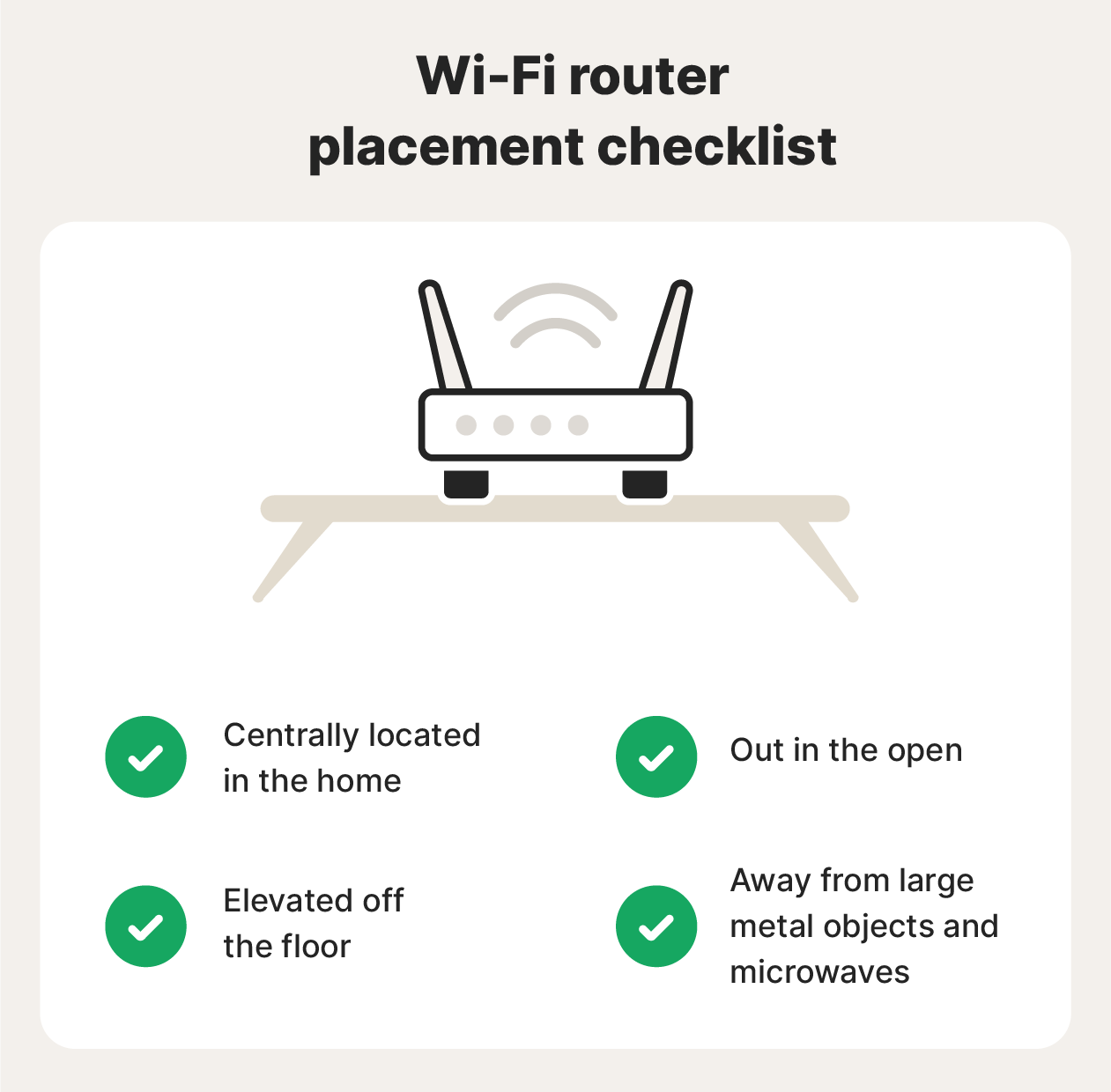
Here are the golden rules of router placement:
- Put your router in a central location for the furthest reach.
- Make sure it’s out in the open and not behind furniture or in a cupboard.
- Elevate it off the floor so the signal has a greater chance of clearing furniture and objects.
- Position it away from large metal objects, thick walls, and microwaves.
4. Switch to 5GHz Wi-Fi
If your router supports dual-band Wi-Fi, switching to the 5GHz band can improve upload speeds. The 5GHz frequency offers faster data transfer rates and less interference than 2.4GHz, making it ideal for activities like video calls, file uploads, and streaming.
But keep in mind that 5GHz has a shorter range and doesn’t pass through walls as well, so this method works best when you’re close to your router. So, if you’re already on 5GHz — but the router is far away and moving closer is impractical — try switching to 2.4GHz.
5. Adjust QoS settings
Quality of Service (QoS) settings let you prioritize certain types of internet traffic, such as video calls, gaming, or file uploads. By giving upload-heavy activities higher priority, you can reduce slowdowns and keep important tasks running smoothly when your network is busy.
To adjust QoS settings, go to your router’s admin panel.
- Open a web browser and enter your router’s IP address.
- Log in with your admin username and password. If you haven’t changed these credentials yourself, they will often be a generic combination, like “admin” and “password.”
- Navigate to QoS, Traffic Control, or Device Prioritization settings > Select the device or app you want to prioritize > Set it to high priority or allocate more bandwidth.
- Save your changes and restart your router if prompted.
6. Update your router’s firmware
A router’s firmware is the built-in software that controls how it manages your network and handles data traffic. Keeping it up to date can fix bugs, improve stability, and help your router perform more efficiently. Many routers update automatically, but you may need to check for updates manually:
- Go to your router’s admin panel (see steps in the section above).
- Navigate to Firmware, System, or Advanced settings > Check for available updates > Download and install the latest version.
- Restart your router to apply changes.
If you can’t find the update option, search for your router’s manufacturer and model name along with “firmware update” and follow the official instructions.
7. Update your drivers
Outdated or corrupted computer drivers can cause connection issues that affect your upload speed, especially if your device isn’t communicating properly with your network hardware. Updating these drivers can help resolve bugs and improve stability.
To update your drivers manually on Windows go to Device Manager > Expand Network adapters > Right-click your network device > Select Update driver > Choose Search automatically for drivers and follow the prompts.
On Mac, network drivers are updated automatically through system updates. To check, go to System Settings > General > Software Update and install any available updates.
Manually updating drivers is part of a good computer maintenance routine, but it can take time, and it’s easy to miss important updates. Norton Driver Updater automatically scans for outdated, corrupted, or missing drivers and lets you update them in just a few clicks.
8. Check your device for malware
Malware can slow your internet connection by using bandwidth in the background or interfering with network activity. Some infections can lead to severe performance issues, especially if your device is part of a botnet, running unwanted processes, or exfiltrating your data to a cybercriminal using your internet connection.
Use trusted Cyber Safety software to help scan for and remove malware, protecting your device from hidden threats that could impact performance, disrupt your connection, and jeopardize your digital security.
9. Try switching to mobile data
If your Wi-Fi network is slow or congested, your uploads can take longer. In some cases, switching to your phone’s 4G LTE or 5G mobile data can provide a faster or more stable connection, especially if your Wi-Fi signal is weak or overloaded.
Keep in mind that performance depends on your signal strength, network coverage, and data plan: many people’s mobile data is slower than their Wi-Fi. For best results, move to an open area or closer to a window to improve reception, and make sure you have enough data allowance before switching.
10. Try connecting to a VPN
A virtual private network (VPN) helps protect your privacy by encrypting your internet traffic and routing it through a secure server. Because of this extra step, using a VPN often reduces your upload speeds slightly.
However, in certain situations, a VPN may actually improve internet speeds. This is because some ISPs limit speeds for specific types of traffic, such as streaming or gaming, in a practice known as throttling. Whether ISPs should be allowed to “throttle” certain types of traffic lies at the heart of net neutrality, a long-running debate in internet regulation.
In the United States, net neutrality regulations have shifted multiple times, with ongoing legal and policy debates about whether ISPs should be required to treat all internet traffic equally. As a result, enforcement and protections may differ depending on where you live. As of March 2026, net neutrality regulations have been suspended at the federal level, although certain states, like Oregon and California, have implemented their own net neutrality laws.
You can check if your ISP is throttling your connection by running a speed test with and without a VPN or at different times of day and comparing the results. If you notice consistent slowdowns during specific activities, throttling may be affecting your upload speeds. If it is, connecting to a VPN could help.
11. Get a faster internet connection
If none of the steps above work, or you need significantly faster upload speeds, you may need to upgrade your internet plan. Your upload speed is ultimately limited by your ISP, so even a perfectly optimized setup can’t exceed your plan’s maximum.
Check your current plan to see what upload speeds you’re paying for, and contact your ISP about upgrade options. In some cases, you may be able to switch to a faster plan or newer equipment without a large price increase.
If better options aren’t available, consider comparing other providers in your area. Look for plans with higher upload speeds, such as fiber connections that offer symmetrical speeds, for a faster and more consistent experience.
What is upload speed?
Upload speed is the rate at which your device sends data to the internet — it’s measured in megabits per second (Mbps). A swift, stable upload speed is essential for transferring large amounts of data, such as video files, or for hosting live streams.
Reliable upload speeds also improve your overall experience online and, in general, households with multiple users or devices stand to benefit from higher upload speeds.
What counts as a fast upload speed depends on how you use the internet and how many people share your connection. Basic activities like sending emails or posting photos require very little bandwidth, while video calls, live streaming, and uploading large files require faster, more consistent speeds.
Here’s a closer look at what’s considered a good upload speed based on the activity you’re participating in.
Activity |
Recommended minimum upload speed |
|---|---|
Email and basic browsing |
1-2 Mbps |
Social media posting |
1-2 Mbps |
Standard definition video calls |
1-2 Mbps |
High definition video calls |
2-4 Mbps |
Group video calls |
6-8 Mbps |
Online gaming |
3-10 Mbps |
Working from home |
3-10 Mbps |
What is the difference between download and upload speeds?
Download and upload speeds determine the speed at which data is transmitted by your internet connection. Download speed measures how quickly your device receives data from the internet, while upload speed measures how fast your device sends data to it.
Both are important for a smooth online experience. Download speed affects activities like streaming, browsing, and downloading files, while upload speed is essential for video calls, cloud backups, and sharing large files.
As a general benchmark, the FCC defines high-speed internet as at least 100 Mbps download and 20 Mbps upload. However, lower speeds, such as 20 Mbps download and 5 Mbps upload, may still be sufficient for smaller households with lighter usage.
Uploading activities |
Downloading activities |
|---|---|
Video calls |
Streaming or watching content |
Uploading files to shared databases and cloud servers |
Online gaming |
Hosting live streams |
Downloading software and security updates |
Adding attachments to emails |
Loading websites and browsing |
Posting video or audio files to social media |
Receiving project files |
How to check my upload speed
You can check your upload speed using free online tools like Google’s built-in speed tester (just Google “speed test”), Speedtest by Ookla, Fast.com, or your ISP’s own test page.
Before testing, close unnecessary apps and devices that may be using your network to get an accurate reading. Run the test and check the upload speed measured in Mbps to see how quickly your device can send data.
Keeping a record of your results can be helpful if you need to contact your ISP about speeds that don't match your plan. Testing at different times of day and during different activities can help you understand your average performance.
Keep your devices running smoothly
Troubleshooting your internet connection is one of the best ways to boost upload speed, but keeping your device in good shape by managing background processes, removing unnecessary files, and addressing common system issues can also help you maintain speed and performance.
Norton Utilities Ultimate can help by cleaning up junk files, reducing unnecessary background activity, and making it easier to manage programs you no longer need — helping your device stay responsive during everyday tasks.
FAQs
Why is my upload speed important?
Your upload speed is crucial for sending data from your device to the internet. If your upload speed is inadequate, you won’t be able to communicate effectively or participate in activities like online gaming, Zoom meetings, or sending or posting videos on chat apps and social media.
Why is my YouTube video taking so long to upload?
Your YouTube video may be taking a long time to upload due to several factors. Slow upload speeds, large file sizes, high-resolution video (like 4K), network congestion, or background apps using bandwidth can all contribute to long upload times. Sometimes, YouTube’s servers may also be busy, causing delays. Using a stable Wi-Fi or fast mobile connection, closing unnecessary apps, and compressing the video file can help speed up uploads.
Why is my PS5 upload speed slow?
Your PS5 may have slow upload speeds if your Wi-Fi is weak, your network is busy, or other devices are using bandwidth. Connecting with Ethernet and keeping your router updated can help your uploads run faster and more smoothly.
How can I get 1,000 Mbps upload speed?
Getting 1,000 Mbps upload speed requires a high-tier internet plan and compatible hardware. Look for a fiber-optic service, which can deliver symmetrical speeds up to 1 Gbps. Make sure your router, modem, and devices support gigabit connections. Using a wired Ethernet connection instead of Wi-Fi helps achieve full speeds, and minimizing other network activity ensures your upload reaches its maximum potential.
Is 40 Mbps upload speed good?
Yes, 40 Mbps upload speed is fine for most users. It’s more than enough for video calls, uploading large files, streaming, cloud backups, and online gaming.
Is 10 Mbps upload slow?
Yes, 10 Mbps upload is on the slower side by today’s standards. It’s usually enough for basic tasks like video calls, social media, and small file uploads. Still, large uploads, high-quality streaming, or multiple users on the same network may feel slow or laggy.
Editors’ note: Our articles offer educational information and are written to raise awareness about important topics in Cyber Safety. Norton products and services may not protect against every type of threat, fraud, or crime we write about. For more details about how we research, write, and review our articles, see our Editorial Policy.







Want more?
Follow us for all the latest news, tips, and updates.