







How to remove a hacker from your phone in 8 steps
To remove a hacker from your phone, it’s crucial to act fast. Disconnect from the internet, remove suspicious apps, lock down your accounts, and revoke permissions. But most importantly, invest in trusted cybersecurity software to help detect and eliminate malware in real time.






- 1. Scan for malware
- 2. Disconnect from the internet
- 3. Remove suspicious apps and profiles
- 4. Check device permissions and signed-in devices
- 5. Change all passwords from a different device
- 6. Enable two-factor authentication
- 7. Update your phone
- 8. Complete a factory reset (the last resort)
- Common signs of a hacked phone
- How to protect your phone from hackers
- Get Norton to protect your phone from hackers
- FAQs
If someone hacks your phone, they may be able to access all of the personal information stored there, including your private messages, 2FA codes, photos, and login credentials. They could even hijack your phone camera or record what you type using keylogger spyware. That’s why it’s so important to remove a hacker as soon as you suspect one.
Read on to learn how to remove a hacker from your phone by scanning for malware using trustworthy Cyber Safety tools, disconnecting from the internet, and removing suspicious apps. By acting quickly, you can reduce the chances of falling victim to identity theft, account takeover attacks, or worse.
1. Scan for malware
Certain types of malware allow hackers to gain access to your phone. A malware scan helps identify some of these hidden programs that may be recording activity, redirecting traffic, or granting itself permissions even after you revoke them.
Downloading a trusted security app, such as Norton AntiVirus Plus, is the smartest first step you can take if you suspect your phone has been hacked.
Cybersecurity software can help protect you against malware attacks, flag unsecure networks, and even detect scams.
To perform a malware scan with Norton AntiVirus Plus:
- Install Norton AntiVirus Plus and create an account with Norton (you’ll need internet connection for this).
- Open the app on your phone.
- Tap Run Smart Scan on the app’s home screen.
2. Disconnect from the internet
If you want to try and remove a hacker manually, it’s best to go offline.
Disconnecting from the internet limits a hacker’s ability to remotely control your phone or transfer data from the device. Many attacks depend on an active connection to monitor activity, send commands, or move information off your phone. Cutting all connections can help contain the issue while you take the next steps.
But turning off Wi-Fi alone is not enough. If cellular data remains active, your phone can still send and receive information over the mobile network. As such, the fastest way to fully disconnect is to turn on Airplane Mode, which disables both Wi-Fi and cellular connections at once.
Take the following steps to disconnect from the internet.
On iPhone:
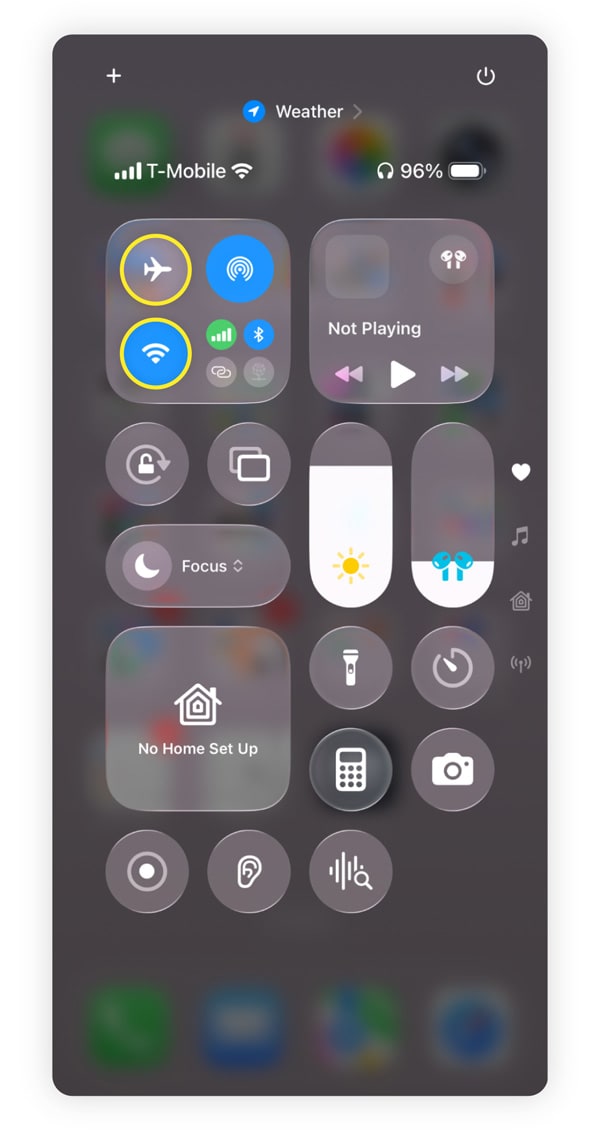
- Swipe down from the top-right (or swipe up if your iPhone has the Home button) to reach the Control Center.
- Tap the Airplane Mode icon to turn off both Wi-Fi and cellular data at once.
On Android:
- Swipe down from the top of the screen to reach Quick settings.
- Tap the Airplane mode icon, which disables Wi-Fi and mobile data at the same time.
Keep your phone offline except when downloading updates or trusted security tools. Staying offline helps limit a hacker’s ability to reconnect while you secure your device. Many security scans from anti-malware providers can run offline.
3. Remove suspicious apps and profiles
Some malicious apps disguise themselves as common tools or utilities. Removing apps you don’t recognize, including lookalike or duplicate apps, reduces the chance that malware continues collecting data or reopening access in the background.
Remove apps and profiles on iPhone:
- Review your full app list by swiping left past all Home screens to open the App Library.
- Tap the search bar to view all installed apps in one place.
- Delete unfamiliar apps by touching and holding the app icon, then selecting Delete App.
Also check for configuration profiles by going to Settings > General > VPN & Device Management. Remove any unfamiliar VPNs, device management tools, or profiles you don’t recognize.
Configuration profiles are sometimes used by workplaces or schools to manage devices, but unfamiliar profiles can allow deeper access and should be removed — especially on a personal device.
Remove apps and profiles on Android
- Open the full apps list by going to Settings > Apps or Apps & Notifications > See All Apps.
- Look for generic apps, duplicate apps, or apps you don’t remember installing, then tap Uninstall. Also review Device admin apps. These controls grant elevated system access, and unfamiliar apps with these permissions can monitor activity, block removal, or maintain control in the background.
- If an app won’t uninstall, go to Settings > Security > Device admin apps, and disable admin access for the suspicious app first. After that, return to the apps list and uninstall it.
In the future, avoid third-party apps that aren’t from official app stores. Those apps might bypass platform security checks, making you vulnerable to hackers.
4. Check device permissions and signed-in devices
After removing suspicious apps, review what access your remaining apps still have. Even legitimate apps can be misused if they’re granted overly broad permissions. Checking device permissions helps prevent unauthorized access to your camera, microphone, GPS location, messages, and other sensitive data.
Some permissions are especially risky because they allow deeper system-level access, such as virtual private network (VPN) connections or device management controls. Reviewing these settings ensures apps only access what they truly need to function.
After reviewing app permissions, check for any unfamiliar devices connected to your account. Hackers sometimes gain access through compromised Apple ID or Google accounts rather than malware alone. Removing unknown devices helps block unauthorized access to backups, synced data, and account-level features.
Check permissions and devices on iPhone:
- Go to Settings > Privacy & Security.
- Review access to Camera, Microphone, Location Services, Photos, Bluetooth, and Tracking.
- Next, go to Settings, tap your name, and scroll down to view signed-in devices.
- Remove any devices you do not recognize.
Check permissions and devices on Android:
- Go to Settings > Security and Privacy > Permission manager or Permission usage.
- Review location, microphone, camera, SMS, notifications, and accessibility access.
- Then, go to Settings > Google > Manage your Google Account > Security
- Review Your devices and remove any you don’t recognize.
5. Change all passwords from a different device
Do you reuse the same password over and over again? Then someone who hacked your phone may have access to all the accounts you used that password for, too. That’s why changing your passwords is critical if you suspect a hacker has access to your phone.
But remember: if your phone is compromised, changing passwords on that same device can expose the new credentials. Using a separate, trusted device to create new, secure passwords helps prevent attackers from capturing updated login details and regaining access.
- Go through your accounts and create new, unique passwords for the following items:
- Email, banking, social media, and shopping accounts.
- Apple ID and Google account.
- SIM PIN (set by your mobile carrier to reduce SIM swap risk).
- Password manager master password and any saved passwords.
6. Enable two-factor authentication
If your passwords are exposed in a data breach or after a phone hack, a cybercriminal could use them to take over your accounts. Two-factor authentication (2FA) requires a second proof of identity in addition to your password, such as a one-time code generated by an app or biometric info like a thumbprint or face ID.
That way, even if a hacker steals your password, they can’t log in without that second piece of identifying information.
When possible, use an authenticator app instead of SMS-based codes for one-time passwords. Authenticator apps provide stronger protection because they’re harder to intercept and redirect, making it more difficult for attackers to regain access after you secure your accounts.
7. Update your phone
Software updates fix known security flaws that attackers actively exploit. Running outdated software increases the risk that a hacker can maintain access, reinfect the device, or find vulnerabilities that may have already been patched in new versions.
Update your iPhone:
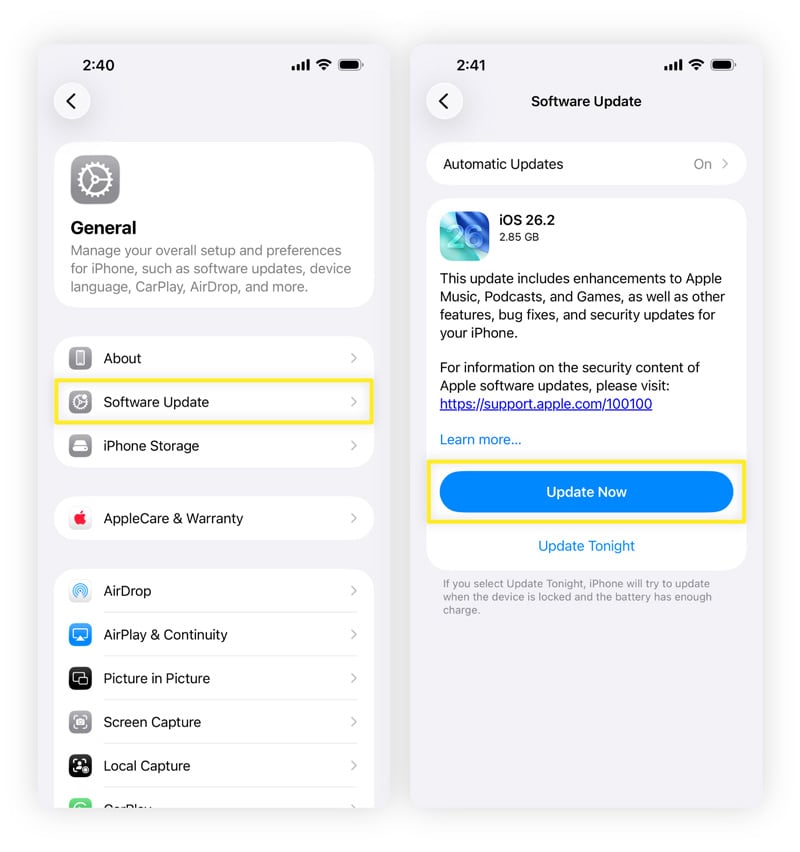
- Open Settings > General > Software Update.
- If an update is available, tap Update Now and follow the on-screen steps.
Update your Android phone:
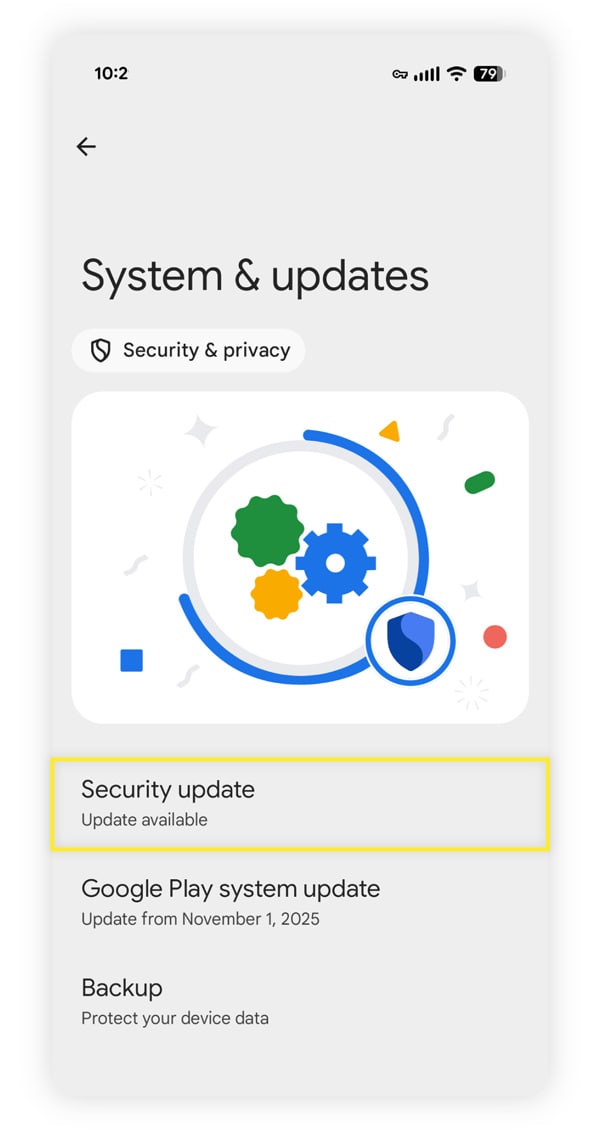
- Open Settings and tap Security & privacy > System & updates.
- If there are updates available, follow the prompts to download and install them.
8. Complete a factory reset (the last resort)
Some threats can survive app removal and permission changes, leaving a factory reset as the last resort. A factory reset removes malware by wiping the system entirely, making it the most reliable option if other steps don’t resolve the issue.
However, besides malware, this will completely remove all your other files, too.
As such, before resetting your phone completely, back up essential data such as photos and contacts. Avoid backing up apps, system settings, or files, as this could reintroduce the same problem to the device.
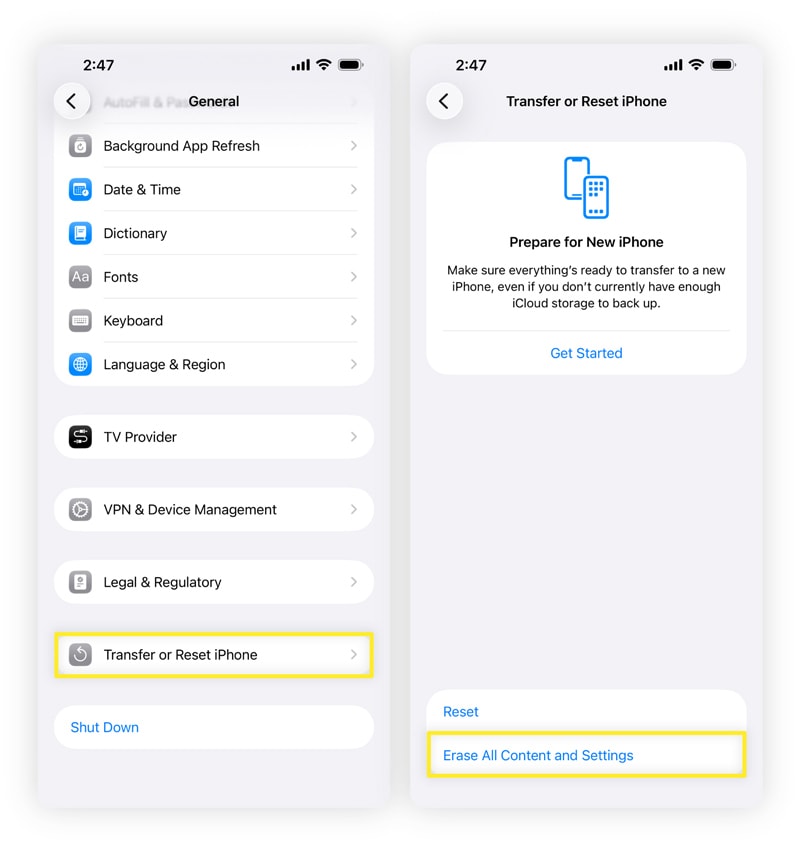
Fully reset your iPhone
- Open Settings > General.
- Tap Transfer or Reset iPhone > Erase All Content and Settings.
- Enter your passcode or Apple Account password when prompted to confirm.
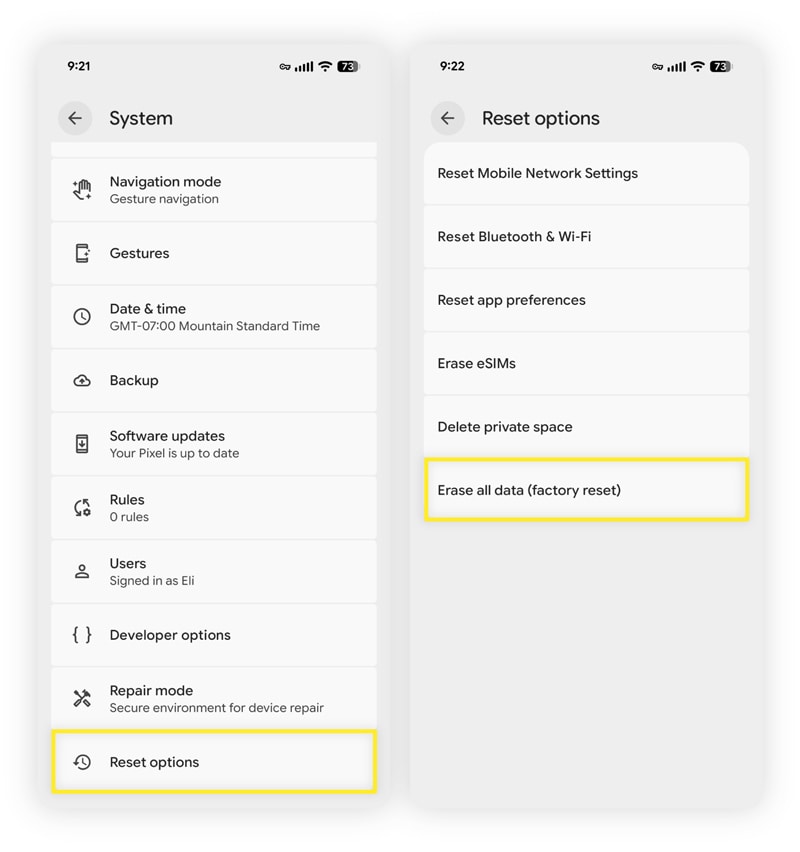
Fully reset your Android
- On Samsung Galaxy phones, open Settings > General management > Reset > Factory data reset, then tap Reset.
- On other Android devices, open Settings and use the search bar to search for Reset options.
- Tap Erase all data (factory reset) in the results, then tap Erase all data again and enter your password or PIN to confirm.
After the reset, set up the phone as a new device instead of restoring a full backup. This helps unhack your phone by preventing malware or compromised apps from returning, safeguarding information moving forward.
Reinstall apps individually from official app stores and monitor the device for unusual behavior.
Common signs of a hacked phone
When your phone is hacked, you may see some warning signs right away. These issues often show up when malicious software runs in the background, causing your device to slow down, overheat, or behave unusually. Here are some signs of a hacked phone:
- Slower speeds: Apps may lag, freeze, or take longer to open because malicious processes are using your phone’s processing power.
- Shortened battery life: Spyware and background activity can drain your battery faster than normal and cause your phone to overheat, even when you’re not actively using your phone.
- Frequent pop-ups: Unexpected ads, redirects, or alerts can signal adware or hostile scripts running on the device.
- Suspicious increase in data use: Malware often exfiltrates data in the background, which can cause unexplained spikes in mobile data usage.
- Unfamiliar apps: Strange apps you don’t remember installing may be disguised tools used to monitor activity or maintain access.
Sudden changes matter more than gradual slowdowns. A sharp shift in performance or behavior often points to active interference rather than normal wear and tear.

How to protect your phone from hackers
After you remove a hacker from your phone, follow good digital hygiene practices to help prevent a repeat occurrence. These steps help close common entry points and limit what attackers can access if something slips through. Building a few consistent habits like these makes future attacks harder to carry out.
- Install a cybersecurity app: Mobile security and antivirus software can detect malicious apps, unsafe networks, and risky behavior before damage spreads.
- Avoid suspicious websites: Unsafe sites can deliver malicious downloads or redirect you to scams designed to steal information.
- Avoid clicking links from unknown sources: Unexpected links in texts or emails may be a social engineering or phishing scheme designed to trick you into installing malware or sharing login details.
- Use a VPN on public Wi-Fi: A VPN encrypts your connection, which helps protect data from interception on shared networks.
- Disable password autofill features: Autofill can expose stored credentials if someone gains temporary access to your device. Opt for a secure password manager instead.
- Avoid third-party apps: Apps outside official app stores skip many security checks and are more likely to contain hidden malware.
- Enable two-factor authentication: 2FA adds a second verification step that blocks account access even if a password is compromised.
- Limit app permissions: Restricting app permissions reduces the amount of data apps can access if they are misused.
- Do not jailbreak your phone: Removing built-in security controls makes it easier for malware to install itself.
- Keep your phone updated: Updates patch known vulnerabilities that attackers actively exploit.
Get Norton to protect your phone from hackers
While it’s sometimes possible to remove a hacker from your phone manually, dedicated software makes the job much easier. And, with a reliable Cyber Safety app, you may be less likely to get hacked in the first place.
Norton AntiVirus Plus helps block malicious websites, eradicate malware, prevent account takeovers, and alert you to cleverly disguised AI scams, keeping your devices safer from hacking. As the most trusted brand in consumer Cyber Safety, we’ll help ensure you can surf the web with peace of mind.
FAQs
Can someone hack your phone from your number?
Yes, it is possible for someone to hack your phone from your number through a tactic called a SIM swap attack.
In this scenario, a hacker convinces a mobile carrier to move your phone number to a new SIM card they control. Once that happens, they can receive your calls and text messages, including account verification codes. Setting a SIM PIN with your carrier and securing your email and financial accounts helps reduce this risk.
Will resetting your phone remove hackers?
In many cases, resetting your phone can get rid of hackers. A proper factory reset wipes apps, settings, and stored data, which removes most spyware and malicious software.
This works best when the reset is followed by setting up the phone as new, rather than restoring apps or system settings from a backup that may already be compromised.
Is there a way to scan your phone for hackers?
Yes, trusted mobile security apps can scan for malicious apps, unsafe network connections, and suspicious behavior.
Can hackers see through your phone camera?
They can if a spyware app that a hacker controls has been granted camera access and that access is misused. This is why it’s important to review app permissions and remove camera access from apps that don’t require it.
What happens when a hacker tracks your phone?
Hackers who track a phone may be able to monitor location, messages, app activity, and login behavior. Over time, this access can expose personally identifiable information (PII) such as contact details, saved credentials, verification codes, and patterns tied to daily routines. Criminals can use that information to support account takeovers and identity misuse. This highlights the importance of protecting PII.
Editors’ note: Our articles offer educational information and are written to raise awareness about important topics in Cyber Safety. Norton products and services may not protect against every type of threat, fraud, or crime we write about. For more details about how we research, write, and review our articles, see our Editorial Policy.








Want more?
Follow us for all the latest news, tips, and updates.