







How to clean your PC in 16 steps
Learning how to clean your PC inside and out helps your device run smoothly and could extend its lifespan. This guide will cover some simple steps you can implement to keep your PC clean and explain how Norton Utilities Ultimate can help maximize performance.

2025
Consumer
Security Innovator



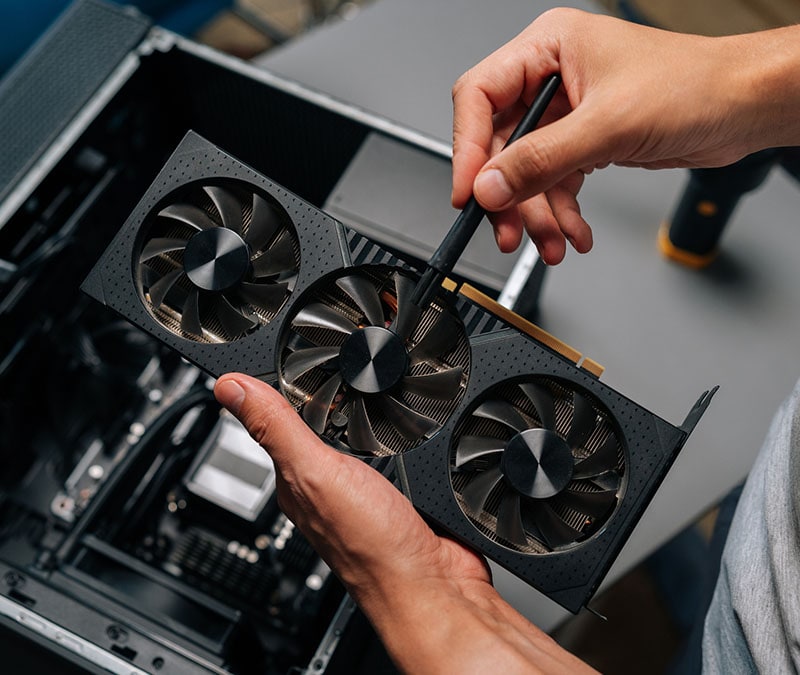

Your PC may be dirtier than you realize. Dust and debris build up on the screen and in the keyboard, and digital debris gathers in the form of obsolete files and old browsing data. This junk clutters up your storage and slows your PC’s performance.
Computer maintenance reduces the risk of hardware failure and keeps your system running as it should. That said, you should aim to physically clean your hardware about every six months to keep dust from causing internal damage. On the digital side, run a cleaning tool every few weeks — or more frequently for power users — to help keep your system free from performance-draining bloat.
Let’s kick things off with some easy steps you can take to keep your PC clean, inside and out.
What you’ll need to clean your PC safely
Before you begin cleaning your PC, ensure you have the necessary tools ready to go, such as microfiber cloths and compressed air to avoid damaging sensitive components. Some things to have on hand include:
- Compressed air: Ideal for removing dust from hard-to-reach crevices and vents.
- Microfiber cloth: Use this to gently wipe your screen and case without leaving scratches.
- Isopropyl alcohol: Good for cleaning sticky keys or stubborn grime.
- Cotton swabs: Perfect for detail work around fan vents and keyboard edges.
- Screwdriver: You may need this to open your PC case for a deep internal clean.
When you’re ready, clean your PC in a well-ventilated room to avoid breathing in dust and alcohol fumes.
How to clean PC hardware (physical cleaning)
Regular physical PC maintenance helps prevent device overheating and keeps your workspace hygienic. Follow these steps to maintain your computer’s hardware.
Power down and prepare your PC
Safety is the priority, so always make sure your PC is turned off and unplugged before you start cleaning physical components to avoid shocks or short-circuiting. While you have the cables disconnected, take a moment to inspect your surge protector.
Surge protectors are your PC’s first line of defense against voltage spikes. Even small surges over time can stress sensitive components like your motherboard and power supply.
Because surge protectors can lose their effectiveness after just one significant surge, they may stay “on” without actually providing protection. Check the “Protected” LED light on the unit; if it’s flickering or out, or if you’ve recently experienced a notable power spike or storm, replace the protector.
Wipe down your computer and screen
Dust off the outside of your computer with a soft, dry cloth at least once a week. For the monitor, use a microfiber cloth to remove fingerprints. Avoid household cleaners that can wear away screen coatings. Instead, use distilled or filtered water to dampen your cloth for tougher smudges. You can even get a dedicated screen cleaner for just this purpose if distilled water doesn’t do the trick.
Clean your keyboard and mouse
Turn your keyboard over and gently tap it to dislodge crumbs and debris. If your keyboard has changeable keycaps, you can also pop them off for a more thorough cleaning with an air duster. For dirt and sticky substances, use a cotton swab dipped in rubbing alcohol. This stops keys from sticking or failing over time.
Finish up removing the batteries from your mouse or unplugging it, and wiping it down with a damp cloth.
Remove dust from vents, fans, and accessories
If dust bunnies are building up inside, use a screwdriver to open the exterior case and use short bursts of compressed air to clean the fans and internal components. Be careful to only use short bursts and avoid holding the spray button down for long — spraying compressed air for too long can create condensation, which is not good for your PC hardware.
After spraying the interior of your PC thoroughly, put the case back together carefully to avoid damaging it.
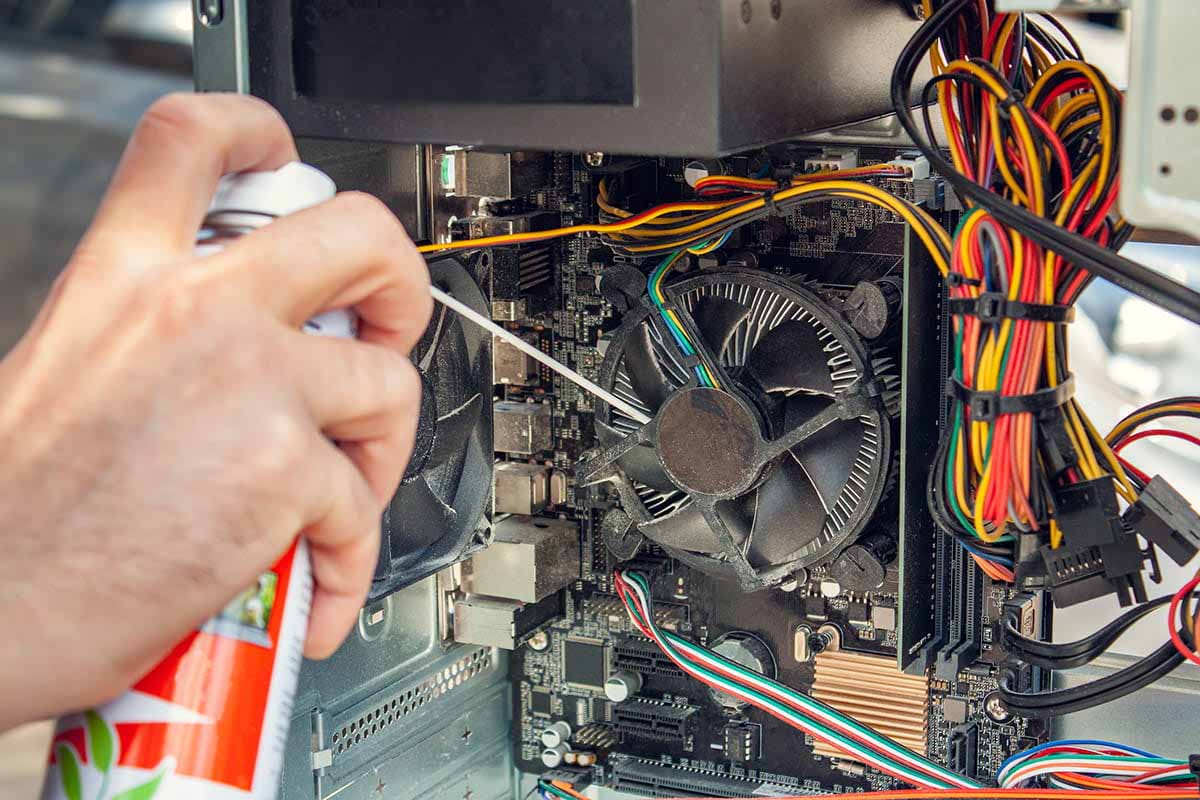
For laptops, consult your manual for instructions before cracking open the case. This ensures you know the correct steps to take and helps keep you from voiding your warranty.
Improve airflow and prevent overheating
Make sure you have at least three inches of space on all sides of your PC — that means no obstructions, including walls, carpets, or cables. This is essential because proper ventilation improves airflow and maintains healthy temperatures.
Without it, heat can degrade your CPU and GPU, trigger thermal throttling, and shorten your device’s lifespan.
How to clean PC software (digital cleanup)
While scrubbing the outside of your computer helps it look new, the real magic happens under the hood. PC cleaner software and system maintenance keep data safe and purge hidden junk files that could be hogging RAM. Follow these steps to get started with your digital cleanup.
Back up your data first
Before you get rolling, back up your most important data. That way, if anything goes awry or you need to wipe a drive, you’ll still have access to it.
In general, there are two options for backing up data:
- Physical backup: Save a copy of your data in a physical location, such as on an external hard drive or thumb drive. You can also opt to print important files and store them in a fireproof safe or filing cabinet.
- Cloud backup: Store a copy in the cloud. Cloud-based file storage like Google Drive or Norton Cloud Backup, or password managers like Norton’s work well for keeping data safe and easily accessible from anywhere.
Run Disk Cleanup and remove temporary files
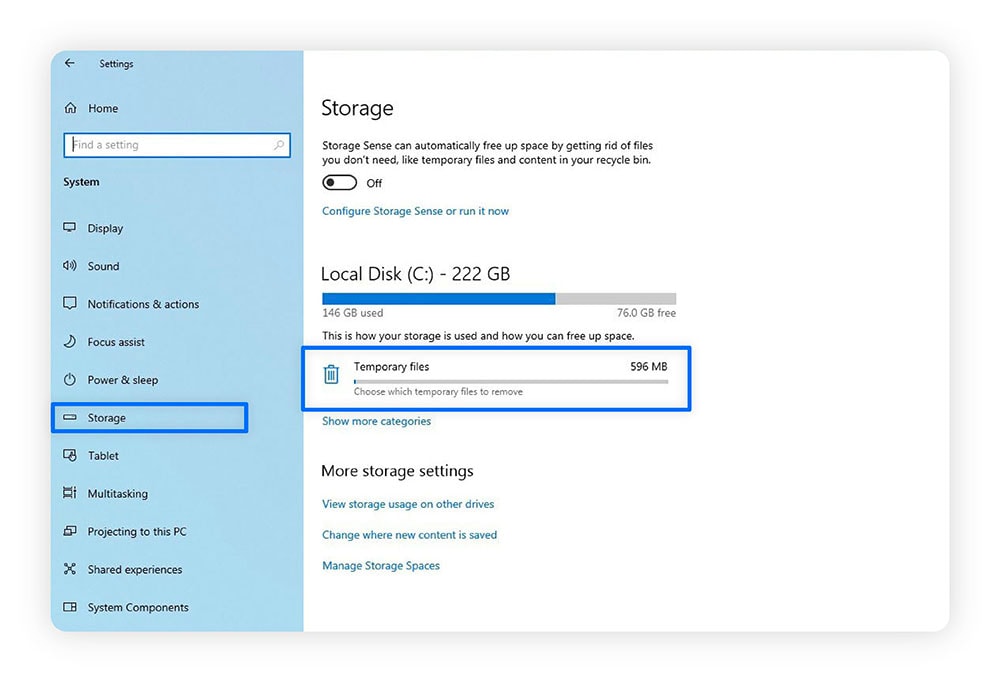
When you run programs, they create temporary files that often stay on your drive long after they’re needed. Use the Windows Disk Cleanup tool or go to Settings > System > Storage to remove these files, freeing up valuable disc space and helping your computer run faster.
Uninstall unused programs and bloatware
Take a look at the apps on your computer and get rid of anything you don’t use. This includes bloatware (pre-installed junk you never asked for) and applications that no longer serve you.
Also, keep an eye out for non-bloatware programs you don’t recall installing. Malicious software often hides in plain sight by mimicking legitimate utilities. Removing them frees up memory and blocks the hidden access points that malware uses to control your device.
Manage startup programs
Too many programs trying to launch at once can slow your boot time to a crawl. Open your Task Manager and look at the Startup tab to see which apps are taking up the most resources (Startup Impact). Then, disable any high-impact startup programs.
Typically, these include third-party programs such as messaging apps and music players. And don’t worry about losing programs you use — disabling these just means they won’t start until you manually decide to launch them.
Clear browser cache and cookies
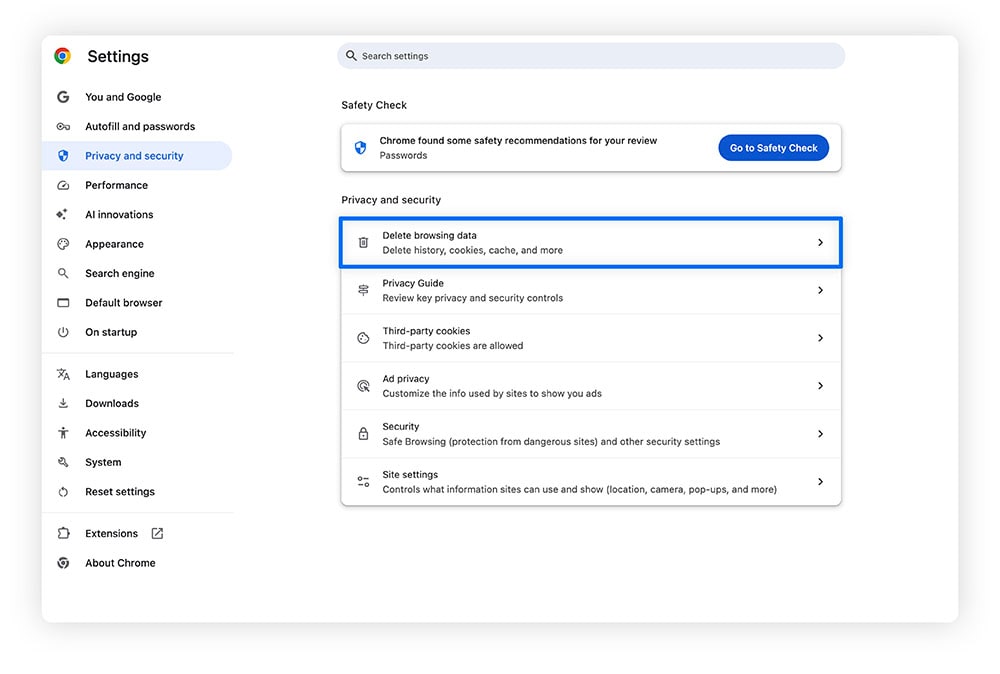
Websites store cookies and cached files to help pages load faster, but this data piles up over time and can eventually slow you down. Clear your browsing data regularly in your browser settings to fix loading issues and improve overall performance.
Update Windows, drivers, and apps
Outdated software creates entry points for malware. Always download and install the latest versions of software and drivers.
These updates patch security vulnerabilities, such as zero-day exploits and software bugs, so hackers can’t gain unauthorized access to your system or private files.
Find and fix drive errors
To detect hard drive issues before they lead to crashes, run the Windows Chkdsk tool. Access it by right-clicking the drive in File Explorer > Properties > Tools > Check, or run chkdsk in Command Prompt with administrator privileges.
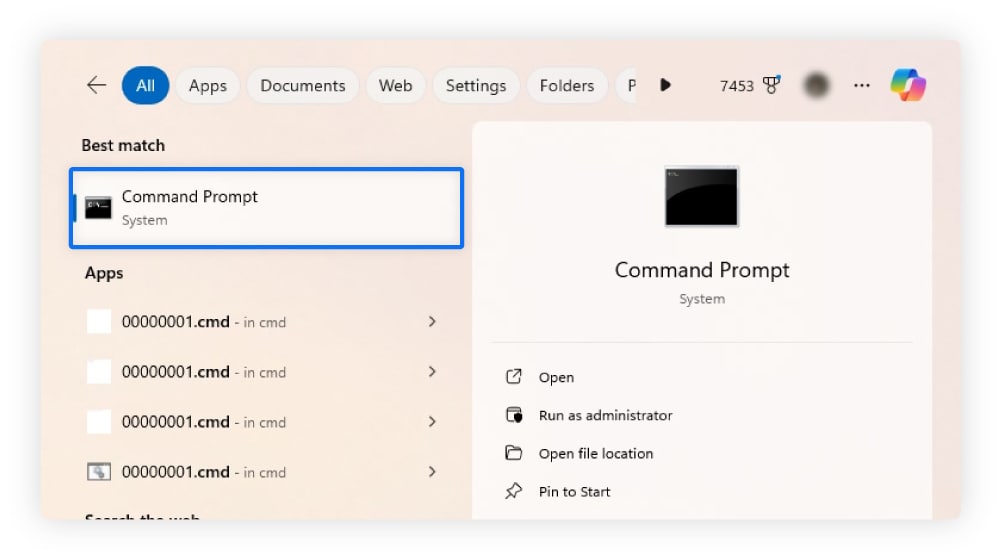
This scans for file system errors and bad sectors, automatically repairing them to maintain data integrity.
Scan for malware and security threats
Run a full system scan at least once a month to catch hidden threats like spyware, cryptominers, or ransomware that can quietly slow your PC, steal data, or compromise security. Scans help identify suspicious files, outdated software vulnerabilities, and unusual network activity before they escalate into bigger problems.
Use a tool like Norton 360 Deluxe to automatically scan for malware and block threats in real-time.
Clean your Windows registry
The Windows registry is a database where Windows stores system settings and installed programs. Over time, unused or broken entries left behind by uninstalled apps or system changes can accumulate. This can slow your computer and even cause crashes.
If you’re not an advanced user, it’s safer to use a trusted registry-cleaning tool like CCleaner, which automates the process and creates backups before making changes.
Optional advanced PC maintenance
Sometimes, a thorough software cleanup and dusting aren’t enough to restore peak performance. If your PC still feels sluggish, noisy, or overheats during routine tasks, it may be time for more hands-on maintenance. These advanced steps can help extend your PC’s lifespan, improve speed, and reduce heat-related slowdowns.
Replace or upgrade hardware
Upgrading your PC’s storage from an older hard drive (HDD) to a solid-state drive (SSD) can dramatically improve performance. This is because SSDs store information on flash memory, allowing your system to access files and launch programs almost instantly.
Adding more RAM complements this upgrade by giving your computer extra working memory to handle multiple programs at once. While an SSD makes accessing data faster, insufficient RAM can still cause slowdowns when running many apps simultaneously.
Re-apply thermal paste
The thermal paste between your CPU and its cooling plate helps transfer heat away from your processor. Over the years, this paste can dry out, reducing its effectiveness and causing your CPU to run hotter and throttle performance.
Cleaning off the old stuff and reapplying fresh, high-quality thermal paste can lower temperatures, reduce fan noise, and keep your PC running smoothly. Keep in mind that laptops are trickier and may require professional help.
Benefits of cleaning your computer
Regular PC maintenance helps keep your digital system running smoothly, prevent physical damage, and protect against avoidable exploits that can put your data at risk. By cleaning both software and hardware, you can boost speed, reduce crashes, protect stored data, and extend your computer’s lifespan.
Some key benefits of cleaning your computer include:
- Improved performance and speed: Removing digital clutter and hardware grime allows your PC to process data faster and more efficiently.
- Overheating and hardware damage prevention: Clean vents and fans protect internal components from temperature-related damage.
- Extended computer lifespan: Well-maintained components last longer, saving you money on frequent replacements.
- Data security and device protection: Updates and malware scans keep hackers and viruses out of your system.
- Reduced crashes and errors: Fixing drive errors and removing bloatware leads to better device stability.
Risks and common mistakes when cleaning your PC
Even with the best intentions, a clean PC can quickly become a broken one if you use the wrong techniques. To keep your hardware and data safe, avoid these common mistakes:
- Cleaning your PC while it’s powered on or plugged in: When performing physical maintenance — like dusting fans or internal components — always shut down your computer and unplug it first. This prevents electrical shorts and reduces the risk of injury.
- Static electricity and electrical damage: Static electricity can fry sensitive computer parts like your CPU, RAM, or graphics card. When handling internal components, use an anti-static wrist strap or touch a grounded metal surface to rid yourself of any built-up charge.
- Spraying liquids directly on screens or hardware: Moisture can seep into the bezel or ports. So, always dampen your cloth first, never spray cleaner directly on the device.
- Over-spinning or damaging fans with compressed air: Hold the fan blades in place while you clean them to prevent compressed air from spinning them too fast and damaging the bearings.
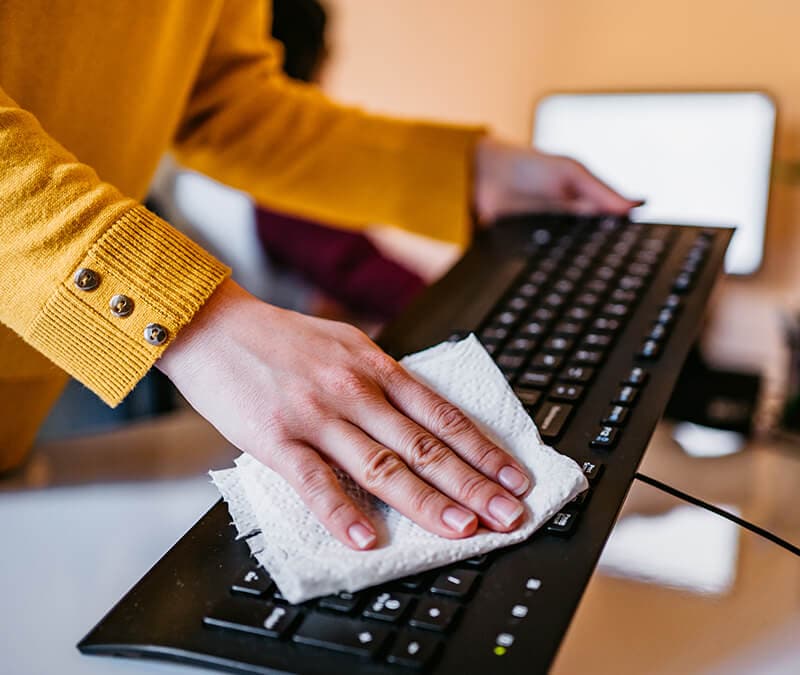
- Using harsh cleaners or paper towels on displays: Paper towels are abrasive and can scratch screens; chemicals like window cleaner can strip away protective coatings.
- Deleting important files or aggressive registry cleaning: Moving too fast through a digital cleanup can lead to the accidental loss of system-critical files. Losing these files can cause your PC to malfunction.
If your computer is still under warranty or you aren't comfortable with in-case cleaning, hire a professional instead.
Clean up your PC with Norton Utilities Ultimate
Manually cleaning every folder and setting on your PC can be a grueling, time-consuming task. Norton Utilities Ultimate simplifies this process by automatically identifying and clearing out junk data, broken registry keys, and unnecessary programs.
Beyond cleaning, it features a built-in Data Shredder to help permanently delete sensitive documents and make them unrecoverable, along with tools to help keep your digital footprint private. If you want to spend less time troubleshooting and more time enjoying a fast, responsive computer, a dedicated cleaning tool is the perfect next step.
FAQs
What is the best way to clean dust from your PC?
The best way to clean dust from vents and internal PC components is to use short bursts of compressed air. Use a microfiber cloth on exterior surfaces.
Will cleaning my PC make it run faster?
Yes, physically cleaning prevents thermal throttling (where the PC slows down to stay cool), and digitally cleaning removes background processes and junk files that consume system resources.
How often should you deep clean gaming PCs?
Gaming PCs typically move more air and generate more heat. Check for dust buildup every three to six months and perform a software cleanup monthly to ensure peak gaming performance.
Editors’ note: Our articles offer educational information and are written to raise awareness about important topics in Cyber Safety. Norton products and services may not protect against every type of threat, fraud, or crime we write about. For more details about how we research, write, and review our articles, see our Editorial Policy.






Want more?
Follow us for all the latest news, tips, and updates.