







How to know if your computer has a virus: 11 warning signs
Has your computer slowed to a crawl? Are you fighting off annoying pop-ups? These are signs that your device may have a virus. Read on for more virus warning signs, tips, and ways to get rid of a computer virus. Then, get Norton 360 Deluxe to help block viruses, fight malware, and keep your computer protected.






Viruses and other types of malware can be installed on your computer without your knowledge. While they can be subtle, there are often warning signs that your computer is infected, since most malicious programs affect your device’s performance or behavior in some way.
Continue reading to learn about the most clear-cut warning signs of a virus or malware infection, how to check your computer safely, and what you can do to keep your devices safer.
11 signs your computer has a virus
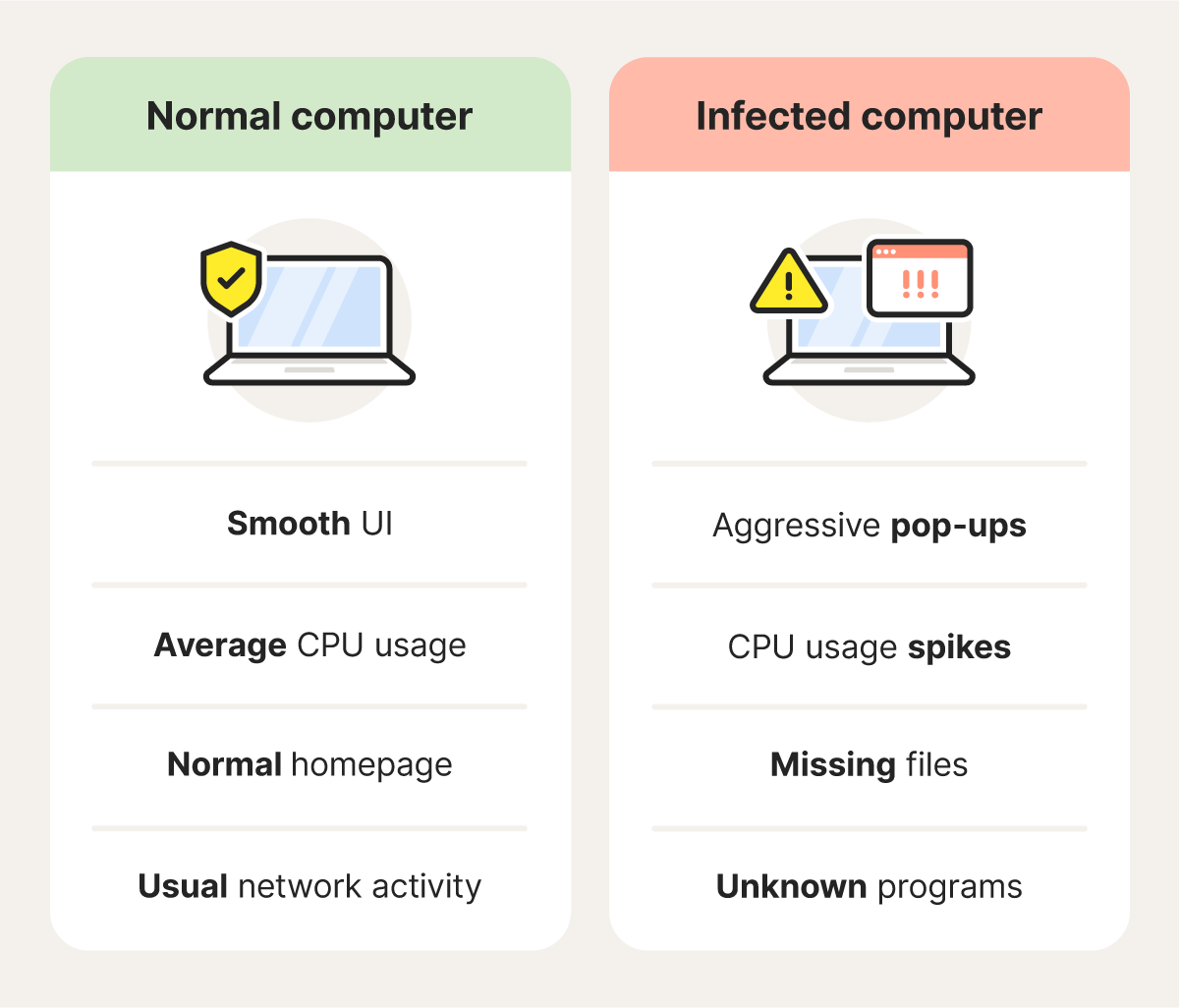
When your computer is infected by a virus or other malware, warning signs could include slower performance, suspicious changes to your browser, and frequent crashes or freezing. Here’s a run-down of the top signs of a computer virus to watch out for.
1. Your computer’s performance slows
Malware often hogs system resources, such as your CPU, leaving fewer resources available for everything else. This hidden activity can slow down your computer’s performance across the board, making even the simplest task feel painfully slow.
2. You get a lot of pop-ups or fake virus alerts
Frequent or odd pop-up windows are red flags for viruses. Fake virus pop-ups might prompt you to visit other websites to download fake antivirus or other unsafe software programs, which may install malware to infect your computer.
Malicious pop-ups and spam may also secretly install spyware that could hijack your browser or steal your passwords and other personal information without your knowledge.
3. Your homepage changed unexpectedly
Changes to your homepage may be the result of a virus or browser hijacker taking control of your browser settings, including your default homepage. Instead of opening the site you chose, the infection forces your browser to load a page you didn’t authorize. These infections can create shortcut files, browser errors, and redirects designed to push you toward scam sites or unwanted downloads.
4. New browser toolbars suddenly appear
If you open your browser and notice a new toolbar you didn’t install, like a row of buttons or search features added beneath your address bar, that’s a common sign of a virus. Unwanted toolbars can be bundled with malware or adware that tracks your browsing or injects ads into the pages you visit.
5. Unknown programs start on your computer
If applications or system processes you don’t recognize begin launching on startup (or you spot unfamiliar software running in the background), your computer may have deeper system-level malware. These programs can interfere with your files, change your settings, and slow your device to the point where everyday tasks take much longer.
6. You experience frequent crashes or freezing
Viruses can interfere with normal system operations or overload your CPU, which can lead to crashes or system freezes. You might see the blue screen of death on Windows or notice that apps suddenly quit without warning.
While an occasional crash can occur for many non-malicious reasons, consistent freezing, combined with other warning signs, often indicates a virus or malware. If this continues, run a virus scan to see if there’s something malicious occurring.
7. Your files go missing, become corrupted, or get renamed
It’s a cause for concern when files start disappearing or suddenly renaming themselves. Malware can corrupt your documents and scramble their contents, rendering them unreadable. If ransomware is the culprit, your files may become completely inaccessible unless you pay a ransom. Just remember that even if you pay, there’s no guarantee you’ll get your files back.
8. Your network shows unusual activity when idle
If your computer appears idle but Task Manager or Activity Monitor shows high network usage, a malicious program may be running in the background. Malware often communicates with attacker-controlled servers to send stolen data or receive instructions, which can cause unexplained network activity. This behavior is especially common on computers that have been ensnared in a botnet.
9. Your security software has been disabled
If your antivirus or security tools are disabled without your permission, your computer might have a virus. Many types of malware are designed to disable your protections first, making it easier to hide, spread, or download additional threats without detection.
10. Your email account sends emails you didn’t write
Have you ever received an odd email from a friend that made you suspect their email was hacked? If you notice emails in your outbox that you didn’t send, social media posts you didn’t create, or you can’t log into your email or social media accounts, your computer may be compromised.
11. You’re locked out of your computer
Getting locked out of your own computer is one of the most alarming signs of a serious infection. It often means malware has taken control of critical system functions. As a result, it may block you from logging in, stop you from changing your password, or even encrypt your entire system, leaving you unable to access your files.
How computers get viruses
Computer viruses and other malware typically enter through deceptive downloads, by clicking phishing links or pop-ups, or after installing untrustworthy extensions.
Here are the most common ways viruses get in:
- Unsafe downloads: Free software, files, or updates that secretly contain malware.
- Phishing links: Fraudulent texts or emails that lure you into clicking malicious phishing links or opening infected attachments.
- Drive-by downloads: Malicious code that installs automatically when you visit a compromised website — even if you don’t click anywhere.
- Fake pop-ups or ads: Scareware messages like “Your PC is infected!” that prompt you to download a fake fix.
- Shady extensions: Browser add-ons that spy on activity, inject ads, or change settings without clear consent.
- Juice-jacking: Malware delivered through compromised USB charging stations in public.
- Outdated software: Older apps or operating systems with known security flaws attackers can exploit — one reason updating your software regularly is so important.
How to check for and remove viruses
Removing a virus from a Mac or PC yourself is possible, but if the infection is lodged deep, it may require expert assistance.
A simple approach is to install reliable antivirus software that can scan your computer for threats to help identify and remove malicious apps and files.
Here’s a basic plan to check for and remove computer viruses:
Download or update your antivirus software
Without antivirus software, your computer may not be able to detect or stop threats. Start by downloading a trusted security tool, such as Norton 360 Deluxe, if you don’t already have one installed. If you do have antivirus software, make sure it’s updated before running a scan. Outdated protection can miss newer threats and leave dangerous malware undetected.
Disconnect from the internet
Turn off your Wi-Fi or unplug your Ethernet cable to isolate your device from the internet. Disconnecting helps cut off the malware’s access to your network and can reduce the chance of additional damage. Staying online gives malware more opportunities to spread, steal sensitive data, or communicate with outside servers.
Reboot your computer in Safe Mode
Safe Mode starts your computer with only the essential files and drivers it needs. This prevents most types of malware from running. With fewer programs active, it’s easier for you to detect and remove threats that might hide during a normal startup.
To enable Safe Mode on Windows:
- On the sign-in screen, hold the Shift key down and click Restart.
- Select Troubleshoot > Advanced options > Startup settings.
- Choose Restart > Safe Mode.
To enable Safe Mode on Silicon Macs:
- Shut down your Mac.
- Press the power button until Loading startup options displays.
- Choose your Startup disk.
- Press the Shift key, then click Continue in Safe Mode.
To enable Safe Mode on Intel-based Macs:
- Restart your device.
- Immediately hold down the Shift key until the login window appears.
- Release the Shift key and log in.
Run a full system scan
Once you’re in Safe Mode, run a full system scan using a virus removal tool. A full scan examines your entire device, from files and folders to apps and other hidden areas where malware typically hides. Full scans can take a while, depending on your computer’s age, but they’re far more effective at detecting hard-to-spot, deep infections.
Check running processes manually
If something still seems off, review the programs running in the background. Look for processes with unfamiliar names or apps you don’t remember installing, as these can sometimes indicate unwanted software.
You can see this information in Task Manager (Windows) or Activity Monitor (Mac).
To open Task Manager:
- Right-click the Start button > Task Manager
To open Activity Monitor:
- Go to Applications > Utilities > Activity Monitor
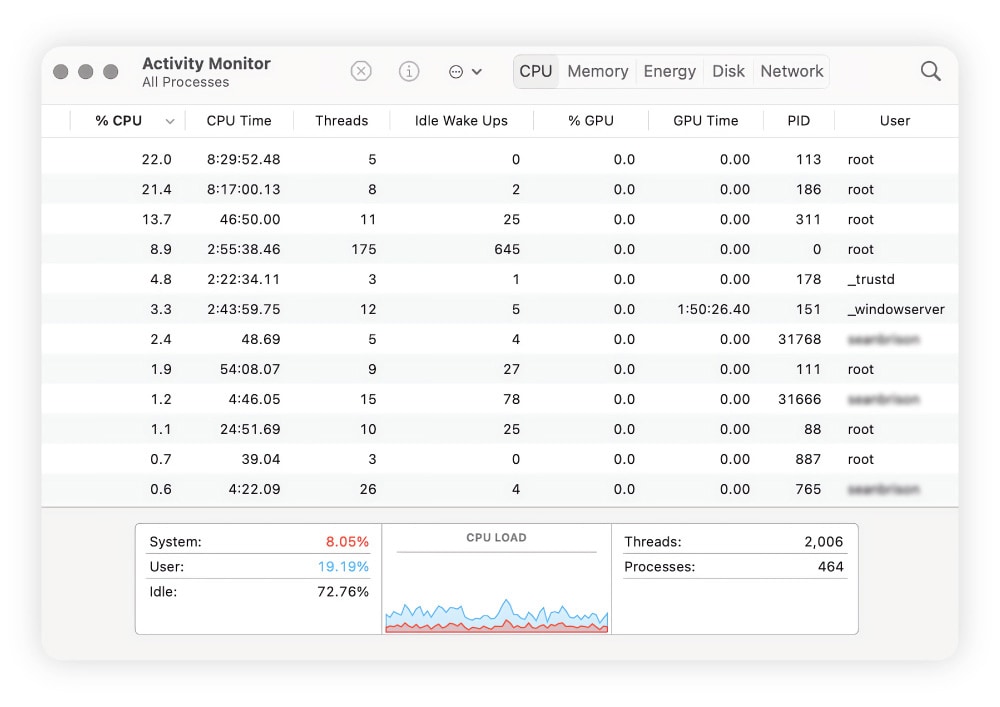
Malware often uses generic or misleading names to avoid detection, so anything unfamiliar is worth investigating. Legitimate system processes are typically owned by your user account or the system (for example, listed as root on macOS).
Next, check which processes are using unusually high amounts of CPU, memory, or network activity, especially when you’re not actively running demanding apps. Consistently high usage can be a sign of malicious activity in the background.
If you spot a suspicious process, run a full antivirus scan so your security software can identify and remove it safely.
Clear temporary files and browser cache
Cleaning out temporary files and your browser cache can help remove leftover data that malicious software may leave behind, such as cached scripts or corrupted files. While this step won’t remove an active infection on its own, it can eliminate remnants that sometimes persist after malware has been detected and removed.
Most computers include built-in tools to make this easy. On Windows, you can use Disk Cleanup to remove temporary files and free up disk space. On a Mac, Storage Management helps identify and delete unnecessary system data. Clearing these files can reduce the risk of leftover malware-related files causing further problems.
How to prevent future computer viruses
Once you’ve updated your software and secured your devices, there are some simple and practical steps you can take to protect yourself:
- Reset all your account passwords: Use strong passwords that are unique and at least 15 characters long. Then store them in a password manager.
- Block pop-ups: Install an ad blocker and never click on random pop-ups that appear on your screen.
- Use a secure browser: Download a private browser, such as Norton Private Browser, to surf the web more securely.
- Avoid suspicious links and attachments: Don’t click links or open attachments unless you trust the sender and can verify the source.
- Don’t download untrusted content: Avoid files, apps, or updates from unofficial websites, pop-ups, or peer-to-peer sources, as they often bundle malware or unwanted software.
- Use a VPN: A VPN helps keep your connection safe and private, which is especially important when using a public Wi-Fi connection. It encrypts your internet traffic, making it harder for cybercriminals to launch man-in-the-middle attacks.
- Use a firewall: A firewall acts like a barrier between your computer and unwanted traffic, blocking suspicious connections before they reach your device.
- Update software regularly: Don’t postpone updates. Software updates are important because they patch security flaws, fix bugs, and help protect your device from new threats.
Help protect your computer from viruses
Even if you’re cautious about the websites you visit and the links you click, there’s always the chance of a malware infection. Norton 360 Deluxe provides a powerful extra layer of protection, helping to keep your computer safe from viruses and malware.
Along with ironclad protection against malware and viruses, Norton 360 Deluxe also features a built-in VPN to help keep your connection private and protect the data you send and receive online.
FAQs
What kind of damage can computer viruses do?
A single virus can cause a wide range of serious problems. Some viruses corrupt important files, making your documents or applications unusable. Others overload your system’s resources, causing constant freezing, slowdowns, or crashes. Advanced threats can open a backdoor into your computer, allowing attackers to steal sensitive information.
Where is a computer virus usually hidden?
Computer viruses often hide in places such as system files, temporary folders, or startup programs that load automatically. Others conceal themselves inside browser extensions or downloaded files. The most reliable way to find them is through a full virus scan, as many threats bury themselves deep within your system.
What are the different types of computer viruses?
Computer viruses are a type of malware that replicate themselves to spread across files, computers, and networks. Common types include macro viruses (which spread through documents), browser hijackers (which take over your browser settings), polymorphic viruses (which constantly change their code), resident viruses (which hide in system memory), and boot sector viruses (which infect the startup process).
Can a computer with a virus be fixed?
Yes, it’s possible to remove a virus from your computer. The first step is to disconnect from the internet and run a malware scan to identify the problem. Removal can be challenging, but if all else fails, a factory reset should work.
Does resetting my PC remove a virus?
Resetting your PC (not just restarting it) can remove most viruses because it wipes your system files and reinstalls a clean version of Windows. However, deeply embedded malware, such as boot-level infections, may still survive. If you choose to reset your PC, follow up with a fresh antivirus scan to make sure the system is clean.
When should I get professional help?
You should get professional IT help if your antivirus software won’t run or your security settings are disabled. These are generally signs of a deep, advanced infection. You may also want to call a pro if your device won’t start, your data suddenly disappears, or you see ransom messages demanding payment.
Editors’ note: Our articles offer educational information and are written to raise awareness about important topics in Cyber Safety. Norton products and services may not protect against every type of threat, fraud, or crime we write about. For more details about how we research, write, and review our articles, see our Editorial Policy.








Want more?
Follow us for all the latest news, tips, and updates.