







How to change your IP address on any device
Changing your IP address can enhance your online privacy and make it more difficult for websites and advertisers to track your online activities. Learn how to change your IP address on your computer, phone, and router. Then, get Norton VPN to help mask your IP address and access your favorite content on the go with the click of a button.

2025
Consumer
Security Innovator





- What is an IP address?
- Benefits of changing or masking your IP address
- Quick comparison: Ways to change or mask your IP
- How to change your IP address manually
- How to request a new IP from your ISP
- How a proxy (and other methods) changes the IP address that websites see
- Risks and limitations of changing your IP address frequently
- Mask your IP address with Norton VPN
- FAQs
When people talk about changing your IP address, they’re usually referring to masking your public IP address.
Masking your IP address hides your real public IP by routing your internet traffic through another server, which can help improve your online privacy. While it doesn’t make you completely anonymous, it can help you access content on the go, reduce IP-based price discrimination, and limit certain types of online tracking.
See the comparison table below for a list of ways to mask and change your IP address. You’ll also learn how each method impacts your privacy.
Keep reading for instructions on how to change your IP address on any device.
What is an IP address?
An IP address is a set of identifying numbers assigned to internet-connected devices. It allows devices to locate and communicate with one another, both within the same network and across the internet.
There are two types of IP addresses: public and private.
Your public IP address is visible to the websites you visit, and it can be used to estimate your general location and identify your internet service provider (ISP).
Some public IP addresses are dynamic, meaning they change periodically (this helps ISPs manage their network but offers limited privacy benefits). Others are unchanging static IP addresses (usually assigned to businesses).
Your private IP allows devices on the same local network — such as your phone, computer, and tablet at home — to communicate with each other. It isn’t visible to websites or the wider internet and generally has little impact on your online privacy compared to a public IP address.
Benefits of changing or masking your IP address
Changing or masking your IP address has several benefits, from browsing privately to being offered better prices.
- Private browsing: Changing your IP address can help reduce IP-based tracking by websites and advertisers, and stop them from profiling your online activity. While it doesn’t stop all forms of tracking, it may limit location-based profiling, targeted ads tied to your network, and some forms of data collection.
- Improved security: Masking your IP address can hide your real public IP from potential hackers, which can help reduce your exposure to threats like doxxing and DDoS attacks.
- Fewer content restrictions: Connecting to a server in a different location can help you bypass geo-restrictions. This may help you access shows, movies, articles, and services that are only available in certain parts of the world.
- Online anonymity: A changing IP address can help obscure your online activity and location, making it harder for sites and services to track you by linking your browsing activity to your IP.
- Better online prices: Retailers and service providers often charge different prices to visitors based on their location. Using a VPN to change your location can help you avoid price discrimination and potentially find lower prices.
- Reduced IP-based tracking and leaks: Hiding your IP address makes it harder for data harvesters to collect data linked to your real IP. This may lower the chances of your real IP being exposed in data leaks. It also helps limit persistent tracking by websites, apps, and third parties.
Quick comparison: Ways to change or mask your IP
Common methods for changing or masking your IP address include using a VPN, the Tor Browser, rebooting your router, and enabling airplane mode.
Here’s a quick comparison:
Method |
Encryption |
Speed impact |
Bypasses geo-restrictions |
|---|---|---|---|
VPN |
Yes |
Medium |
Yes |
Proxy |
Not usually |
Low |
Sometimes |
Tor Browser |
Yes |
Very high |
Yes |
Router reboot |
No |
None |
No |
Switch network (Wi-Fi to mobile) |
No |
Low |
Rarely |
Ask ISP |
No |
None |
No |
Mobile airplane-mode |
No |
None |
Rarely |
If you want to change your IP address for privacy reasons, using a VPN is the simplest way to go. You can hide your IP address with a click and browse more anonymously without major slowdowns.
If privacy is not a concern and you just need to bypass simple IP-based restrictions, using a proxy is a quick solution with minimal speed impact. However, it’s not ideal for heavy-bandwidth activities like streaming.
How to change your IP address manually
Manually changing your IP address involves accessing your device's network settings and configuring a static IP address. This typically requires entering a specific IP address, subnet mask, and default gateway information. Be careful when you do this, as incorrect settings can disrupt your internet connection.
With that in mind, here’s a step-by-step breakdown to help you manually change your IP address on the most common platforms.
Change your IP address on Windows 11
Changing your IP address on both Windows 10 and 11 is the same. Here’s how to change your IP address on Windows 11:
- Click the Start button at the bottom of your screen.
- Go to Settings > Network & internet.
- Select Ethernet or Wi-Fi (this depends on your current network connection).
4. Click Edit under IP assignment, and select Automatic (DHCP) or Manual.
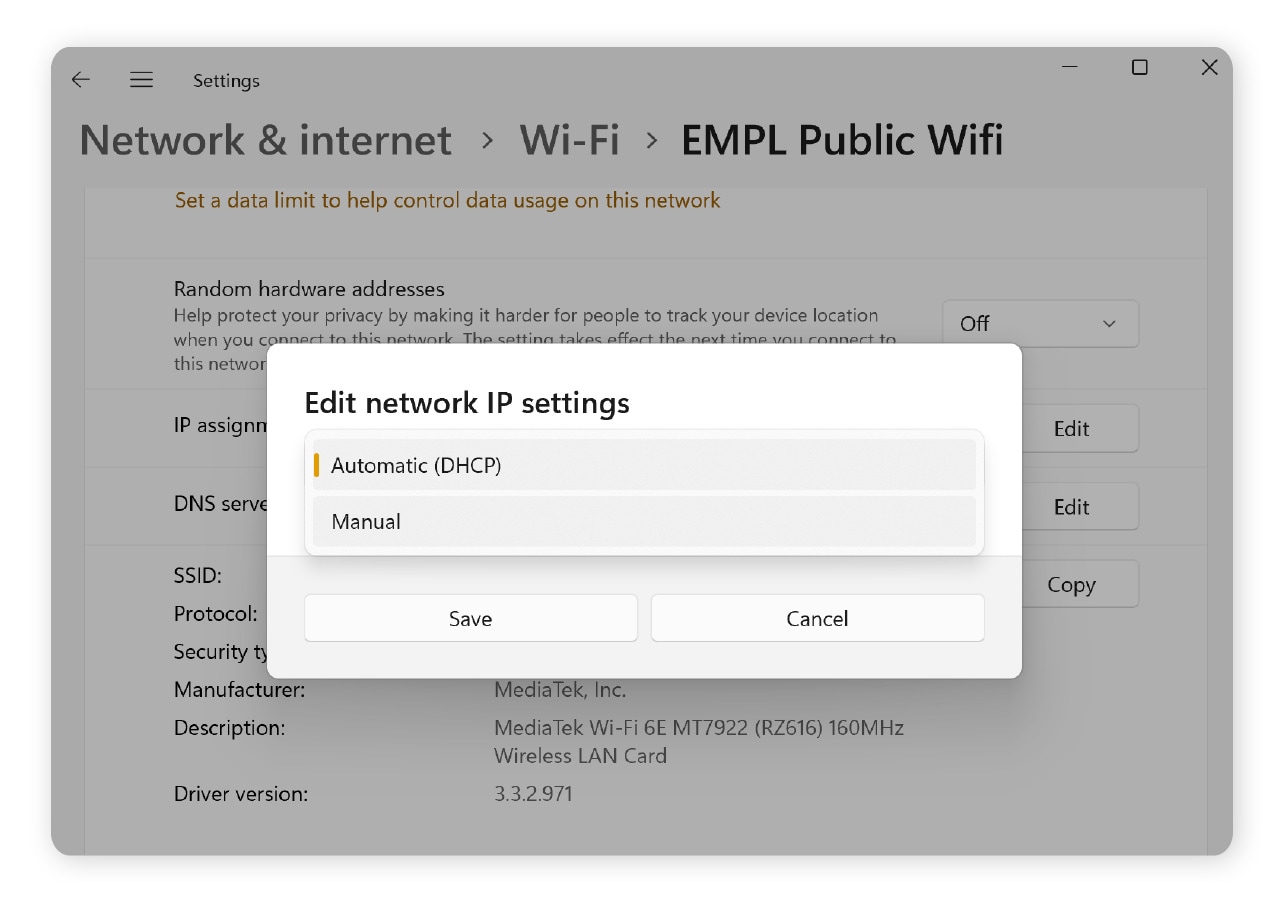
5. If you selected Manual, toggle on IPv4.
6. Enter the new IP address in the IP address, Subnet prefix length, and Gateway boxes. Make sure to use an unused address with your LAN subnet. Conflicts break connectivity. You may also specify a DNS server address, but this is optional.
7. Enter your DNS address in the Preferred DNS and Alternate DNS boxes. Remember to provide the addresses of the primary and secondary DNS servers.
8. Decide if you want your connection to the DNS server to be encrypted (DNS over HTTPS) or unencrypted. If you encrypt, your best bet is to select On (automatic template).
9. Finally, click Save.
Tip: These steps will not change your public IP address. To change your public IP address, reboot your router or use a VPN.
Change IP address on Mac
This is how to manually change your IP address on a Mac. Keep in mind that these steps are for changing your local static IP. They will not change your public IP on the internet.
- Go to System Settings > Network.
- Select your network connection (Wi-Fi or Ethernet). If connected to Wi-Fi, click Details.
- Click TCP/IP in the left column.
- Select Renew DHCP Lease next to “DHCP lease” to quickly change your IP. Or, to continue with the manual process, click the arrows in the Configure IPv4/IPv6 row to access the dropdown menu and select Manually.
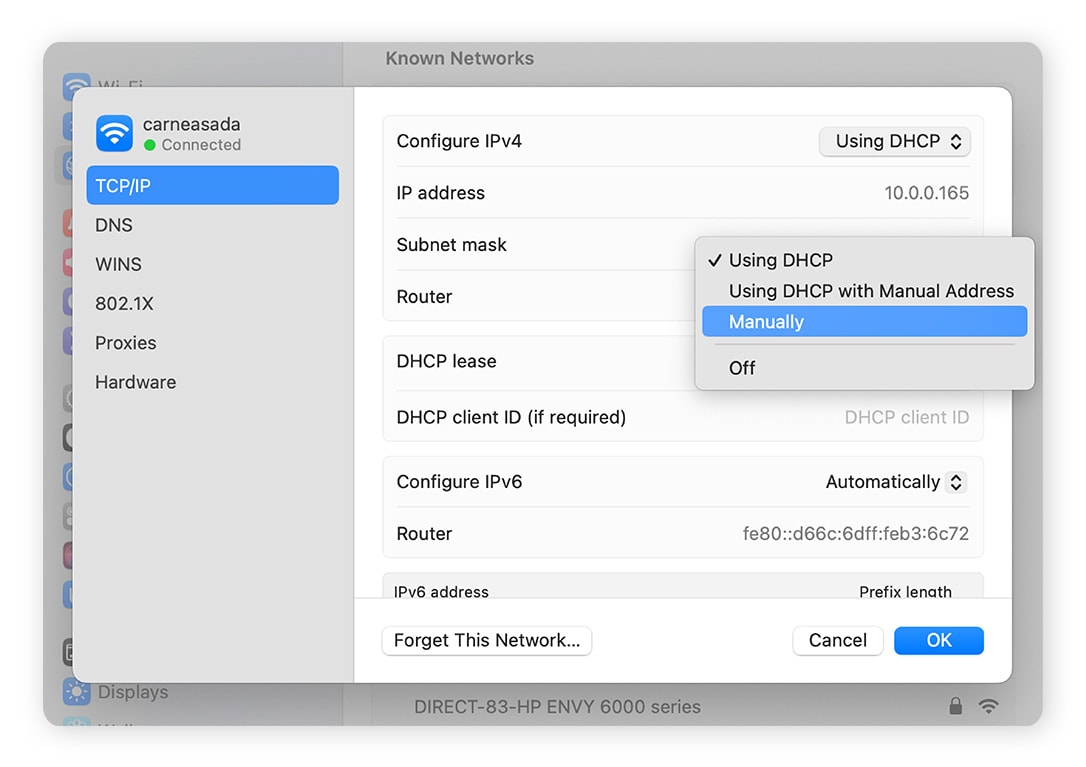
5. Enter the desired IP address, Subnet mask, and Router (default gateway).
6. Click OK to save changes.
Change IP address on Android
You can't directly change your public IP address on Android since your IP address is assigned by your ISP rather than your mobile carrier. However, you can change your private IP address if you need to troubleshoot network issues or configure certain kinds of applications.
Here’s how to change your private IP on Android:
- Go to your Wi-Fi settings. Select your network and tap the settings icon next to your network name.
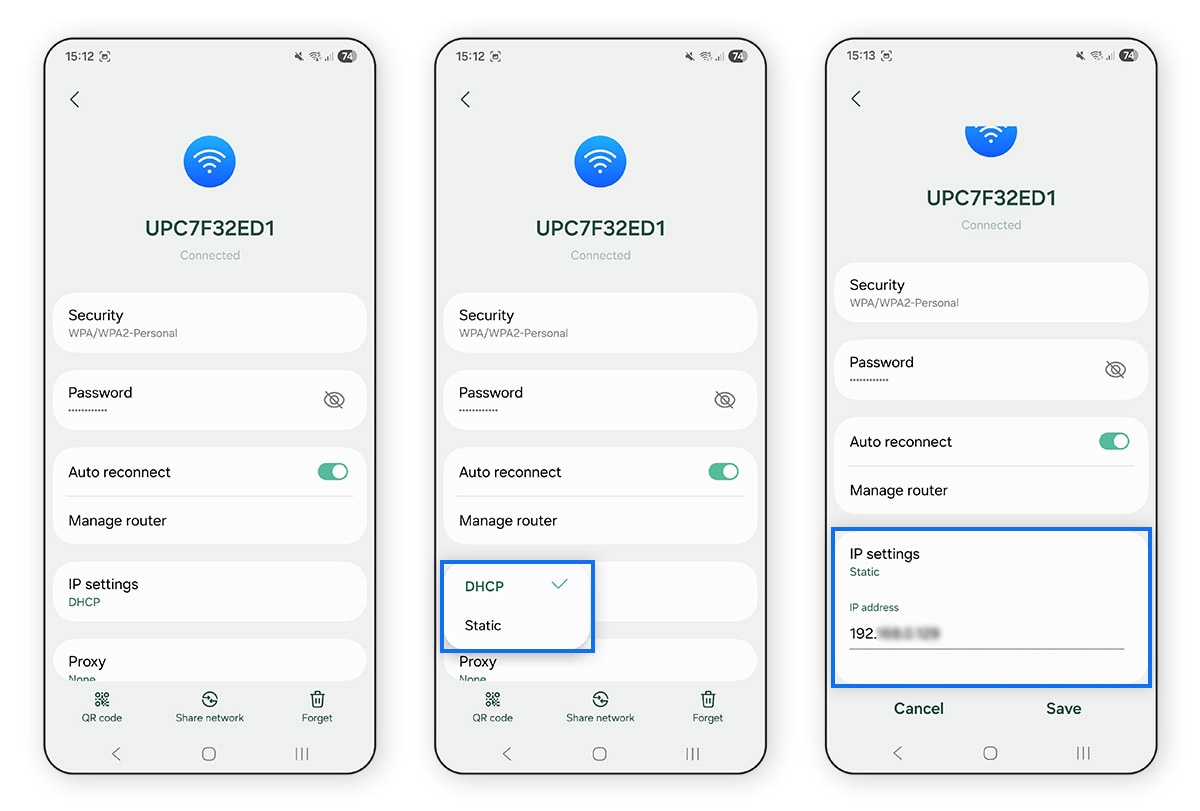
- Change the IP settings from DHCP to Static.
- From there, input the new IP address, Network prefix length (subnet mask), and Gateway.
To change your public IP on Android, try the following:
- Toggle Airplane mode on and off.
- Switch from Wi-Fi to mobile data (or vice versa).
- Use a VPN to mask your public IP address.
Change IP address on iPhone
Similar to Android, you can’t change your public IP address on an iPhone. It’s assigned by your cellular carrier and is dynamic, meaning it changes frequently. But you can change your local IP address by following these instructions:
- Go to Settings > Wi-Fi.
- Tap the i icon next to your network.
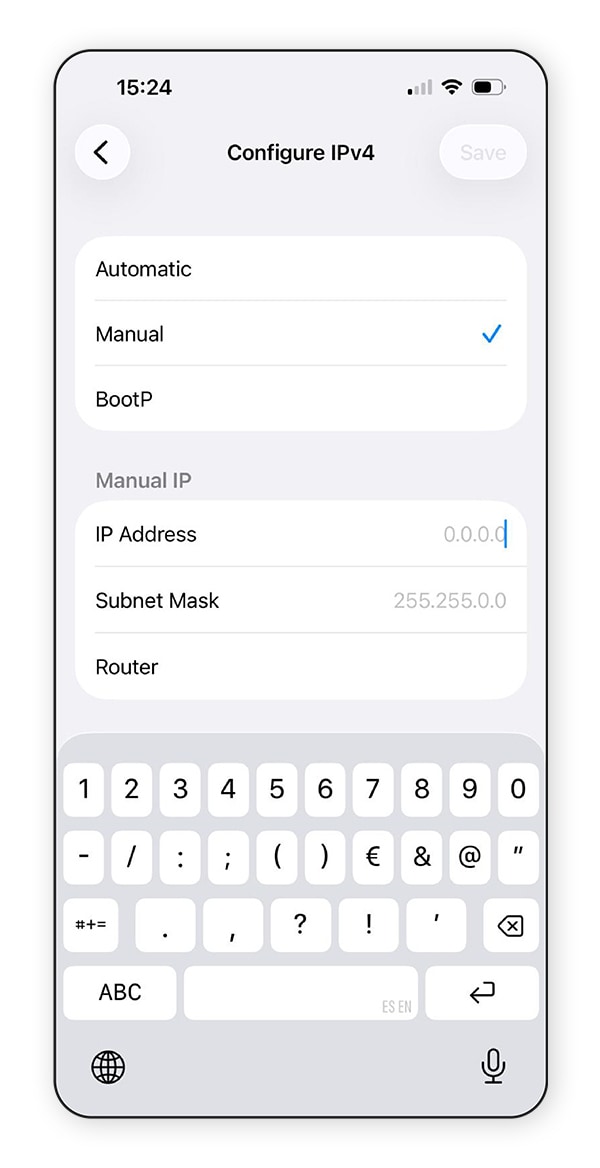
- Select Configure IP.
- Tap Manual and enter your IP Address, Subnet Mask, and Router information.
If you want to change your phone’s public IP address, try using a VPN. Unlike unpredictable dynamic network IP assignments, a mobile VPN offers a consistent IP address, enhancing your privacy while you’re on the go by encrypting the data you send and receive and masking your real location from potential threats.
Toggling airplane mode may also offer a quick way to change your public IP, but it won’t protect your online privacy.
Change IP address on router
The simplest method for getting a new IP address is to power cycle (reboot) your internet router and modem. This refreshes your internet connection and requests a new DHCP lease, which often results in a new public IP.
Here’s how to do it:
- Power down your modem and router (or combined modem-router) for 5-10 minutes.
- Turn on your modem first. When it’s fully online, power up your router.
- Check your WAN or public IP to see if it has changed.
If power cycling your router doesn’t work or the issues you’re troubleshooting persist, you may need to contact your ISP to request a new IP address.
How to request a new IP from your ISP
To request a new public IP address from your ISP, contact your ISP’s customer service department and tell them about your problem. Ask if they can release and reassign your public IP address.
You might need to re-register your modem or router, or your ISP may handle this on their end. And if you have a static IP plan, you’ll usually need to change or remove this service.
This process can be complicated, and not all ISPs will agree to changing your IP address. You should only request a new IP from your ISP if you have a serious connectivity issue related to your current IP address or if it has been flagged for abuse.
Remember that requesting a new public IP address from your ISP doesn’t provide meaningful privacy or security benefits, won’t reliably bypass geo-restrictions, and only has a limited effect on IP-based tracking.
How a proxy (and other methods) changes the IP address that websites see
Proxies, VPNs, and Tor are common methods for masking your IP address. They don’t change the public IP address assigned to your internet connection by your ISP. Instead, they change how your IP address appears to websites and online services.
When you use one of these methods, your internet traffic is routed through an intermediary server with its own IP address before it reaches its destination (e.g., a website). As a result, the websites you visit see the intermediary server’s IP address and not yours.
Here are the details on how each method works:
- Proxy: This method funnels your traffic through a proxy server, so websites see the proxy’s IP and not yours. This is a simple way to mask your IP and bypass certain restrictions, but most proxies don’t encrypt your traffic. This means your web activity may still be visible to your ISP and the proxy operator.
- VPN: A VPN encrypts your web traffic and sends it through a VPN server. Websites you visit see the VPN server’s IP address and not yours. Your ISP and websites can’t see your browsing activity inside the encrypted connection. However, depending on the VPN provider and its logging practices, the VPN provider may still have visibility of your traffic.
- Tor: Tor is a web browser that sends your online activity through multiple “nodes,” encrypting it as it moves through each layer in its network. Websites only see the IP address associated with the final node in the chain. This provides a high level of anonymity, but it can significantly slow your connection speed.
Risks and limitations of changing your IP address frequently
Changing or masking your IP address frequently can have negative consequences. Websites and services, such as streaming platforms, use IP addresses to recognize users and detect suspicious activity. When you change it too often, it can trigger security checks or account restrictions.
Rerouting your web traffic through proxy servers or similar services can also slow your connection and increase latency. This can cause pages to load more slowly or videos to lag.
Here are some reasons not to change your IP address too often:
- Security flags: Automated security flags can cause you to get locked out of your accounts. In some cases, you can get trapped in verification loops where your account gets continuously flagged and blocked even after you verify your identity.
- Terms of service enforcement: Streaming platforms monitor IP behavior to enforce their terms of service and licensing agreements. If they detect suspicious activity (like frequent IP changes), they may restrict your account or block playback.
- Rate limits and CAPTCHAs: Websites use rate limiting and CAPTCHAs to help prevent bots and data scraping. Changing your IP frequently may trigger these defenses, causing inconvenient security checks or lockouts.
- Fraud detection triggers: Sites where security is critical, such as banking and financial accounts, have a low tolerance for suspicious activity. Logging in from constantly changing IP addresses may trigger fraud alerts that result in declined transactions or account holds.
Using a reputable VPN service can help avoid these issues. Free VPNs often send your traffic through overcrowded or abused servers, which are more likely to be flagged. Well-maintained VPNs with stable servers are more likely to be trusted by websites, allowing you to browse more freely from a new IP address.
Mask your IP address with Norton VPN
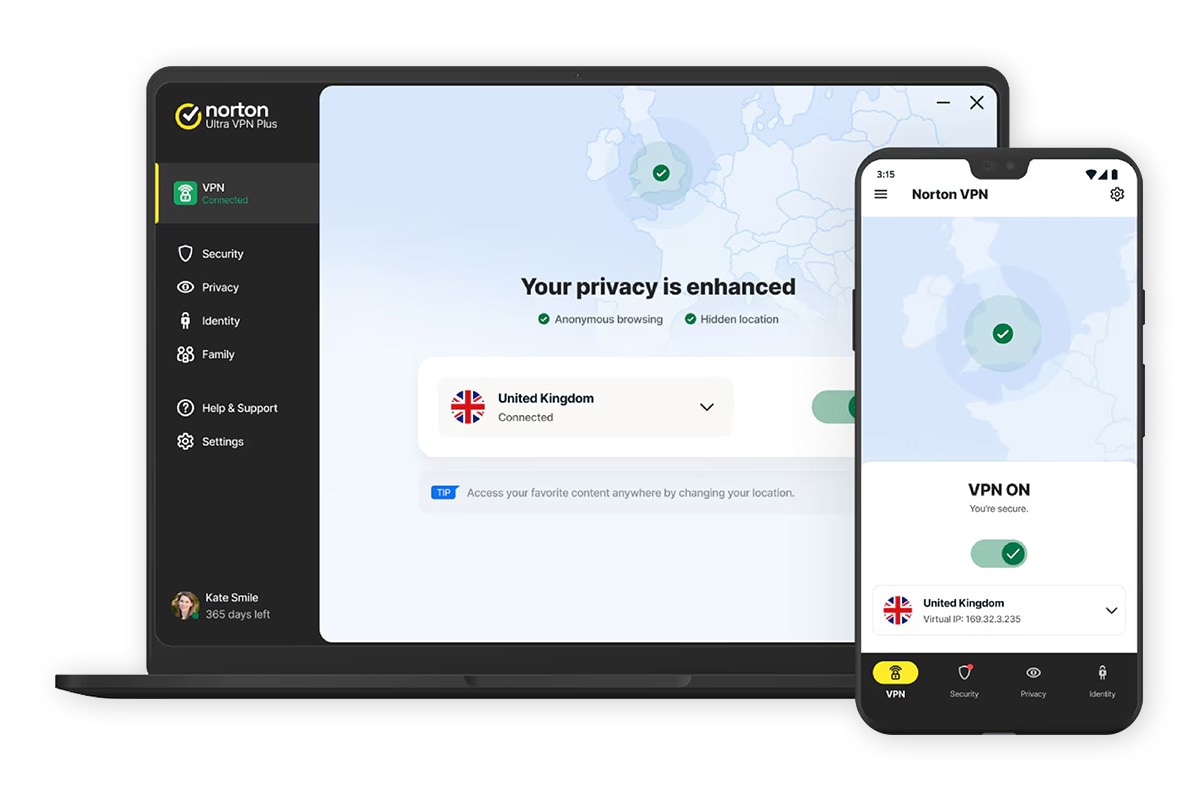
The easiest way to change your IP address is with a VPN. Norton VPN provides a fast and reliable way to connect to the internet to browse more privately and securely.
With Norton VPN, you can change your IP address with a click, helping you browse the web in private. It also lets you choose the server location, so you can access the content you love when you’re on the go.
FAQs
What is my IP address?
The easiest way to find your IP address is by Googling “What’s my IP address?” and pressing “Enter.” Your public IP address will be displayed at the top of the search results.
Can I change my IP address for free?
Yes, in some cases. Your public IP address changes for free when you connect to a new network, whether that’s at work, home, or a local cafe. You can also use a free VPN to change your IP, but make sure you read the privacy policy — some free services log or sell your data. You can change your private IP address for free in your device settings.
Is changing your IP address legal?
Yes, changing your IP address is legal in most countries. However, it becomes illegal if it’s used to carry out unlawful activities. Despite being legal, changing your IP address may go against the terms of service of sites or services you use, leading to restrictions. It may also violate the policies of your workplace or school. Make sure to check local regulations and service terms before changing or masking your IP address.
How to change IP address on mobile?
You can try changing your IP address on mobile by turning airplane mode on, switching between mobile data and Wi-Fi, or using a VPN. The first two methods don’t guarantee an IP change, and using a quality VPN lets you choose your preferred server location.
Will turning off my router change my IP address?
Turning off your router will likely change your IP address, but it’s not guaranteed. If you don’t get a new IP address right away, it may just take a little while to update. Otherwise, you may need to contact your ISP to change your IP address.
How to avoid IP address leaks?
To help avoid IP leaks, use a VPN with leak protection, especially when connecting to public Wi-Fi. Look for a VPN that protects against leaks from the following vectors: DNS requests, IPv6 traffic, and WebRTC connections. Features like split tunneling or app-level VPN exclusions can allow certain apps or services to bypass your VPN connection, which may expose your real IP address if those apps connect directly to the internet.
How often does an ISP change a dynamic IP address?
There’s no fixed schedule for when a dynamic IP address changes. ISPs use DHCP leases that can last anywhere from hours to months. And if your ISP uses CGNAT, you might be sharing an IPv4 address with many other customers. This means your IP may not appear to change at all, even if the ISP changes your internal network assignment.
Editors’ note: Our articles offer educational information and are written to raise awareness about important topics in Cyber Safety. Norton products and services may not protect against every type of threat, fraud, or crime we write about. For more details about how we research, write, and review our articles, see our Editorial Policy.







Want more?
Follow us for all the latest news, tips, and updates.