







How to remove malware from your Android phone in 7 steps
Is your Android phone exhibiting unusual behavior? It could be a sign it’s infected with malware. Learn how to remove viruses from your Android, and discover how Norton can help protect your sensitive data from malware and online scammers.






- 1. Turn off your Wi-Fi
- 2. Run an antivirus scan
- 3. Clear your cache and cookies
- 4. Reboot your device in safe mode to remove infected apps
- 5. Activate Google Play Protect
- 6. Perform a Google account security checkup
- 7. Factory reset your device (last resort)
- Signs your Android device may have malware
- Tips to help protect your Android phone against malware
- What can viruses and other malware do to your Android phone?
- Keep your Android phone safer from malware
- FAQs
Key takeaways
- The simplest way to remove a virus from an Android device is to use trusted antivirus software.
- To try to remove a virus manually, clear your browser data, reboot in Safe Mode, and delete suspicious apps and files.
- Performing a Google account security checkup can let you identify unfamiliar connected devices and other suspicious activity.
Android malware can lurk in downloadable files and apps that you can unknowingly install on your device. And it’s more common than you may think. Threat intelligence researchers estimate that as of January 2026, there were over 37 million instances of malware on Android devices. While removing them might seem daunting, you can often get rid of viruses on your phone in just a few simple steps.
This step-by-step guide will show you how to remove malware from your Android phone. Plus, you’ll learn about the warning signs of an infection and get tips to help keep your phone or tablet safe from malware.
1. Turn off your Wi-Fi
Before starting, turn off your cellular data and Wi-Fi to isolate your Android from the internet and other devices on your home network. This helps prevent malware from spreading to other devices, and stops any stolen data from being sent to cybercriminals. In rare cases, certain types of malware can even spread to and hack your router.
2. Run an antivirus scan
The easiest way to remove a phone virus or malware is to run an Android antivirus scan. Often, a quick scan is all it takes to identify and eliminate unwanted malware.
To run an antivirus scan, open your antivirus, click the scan button, and follow the on-screen instructions. Some antivirus programs let you schedule regular scans, while others offer real-time protection. A good antivirus will help eliminate any virus from your device.
Norton Mobile Security helps protect your phone with real-time threat detection and removal, backed by independent third-party testing. Beyond scanning for malware, it can also warn you about risky Wi-Fi networks and help identify scam text messages, helping reduce the chances of reinfection.
3. Clear your cache and cookies
Clearing your Android’s cache and cookies can help remove malicious web data left behind by unsafe websites, such as tracking scripts, redirects, or corrupted temporary files. This step is especially useful if you’re experiencing pop-ups, unwanted redirects, or browser-based warnings.
While clearing cached data can help resolve these issues, it won’t remove more sophisticated malware that installs itself as an app or runs in the background.
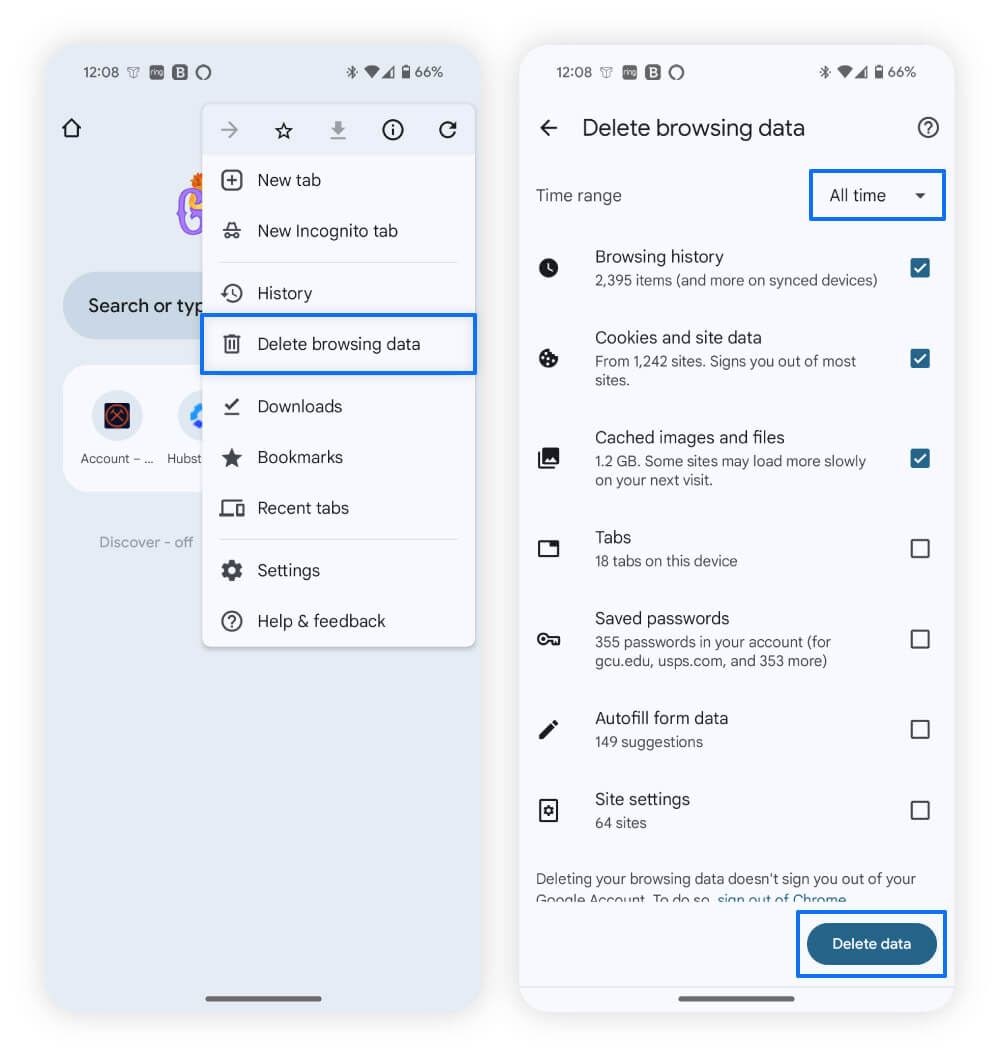
Here’s how to clear the cache and cookies on Chrome, likely the most popular browser for Android users:
- Open Google Chrome.
- Tap the three-dot menu in the upper-right corner.
- Select Delete browsing data.
- Choose All time from the drop-down menu, then select Delete data in the bottom-right corner.
To save time, Norton Utilities Ultimate can help clear cached files and free up space, making it easier to maintain your device and reduce clutter that may hide suspicious behavior.
4. Reboot your device in safe mode to remove infected apps
Safe Mode is a stripped-down version of your operating system designed for troubleshooting. When your phone is in safe mode, third-party apps are disabled, which can stop malware from running in the background. This makes it easier to identify and uninstall apps you don’t recognize or trust, especially if suspicious behavior disappears while safe mode is active.
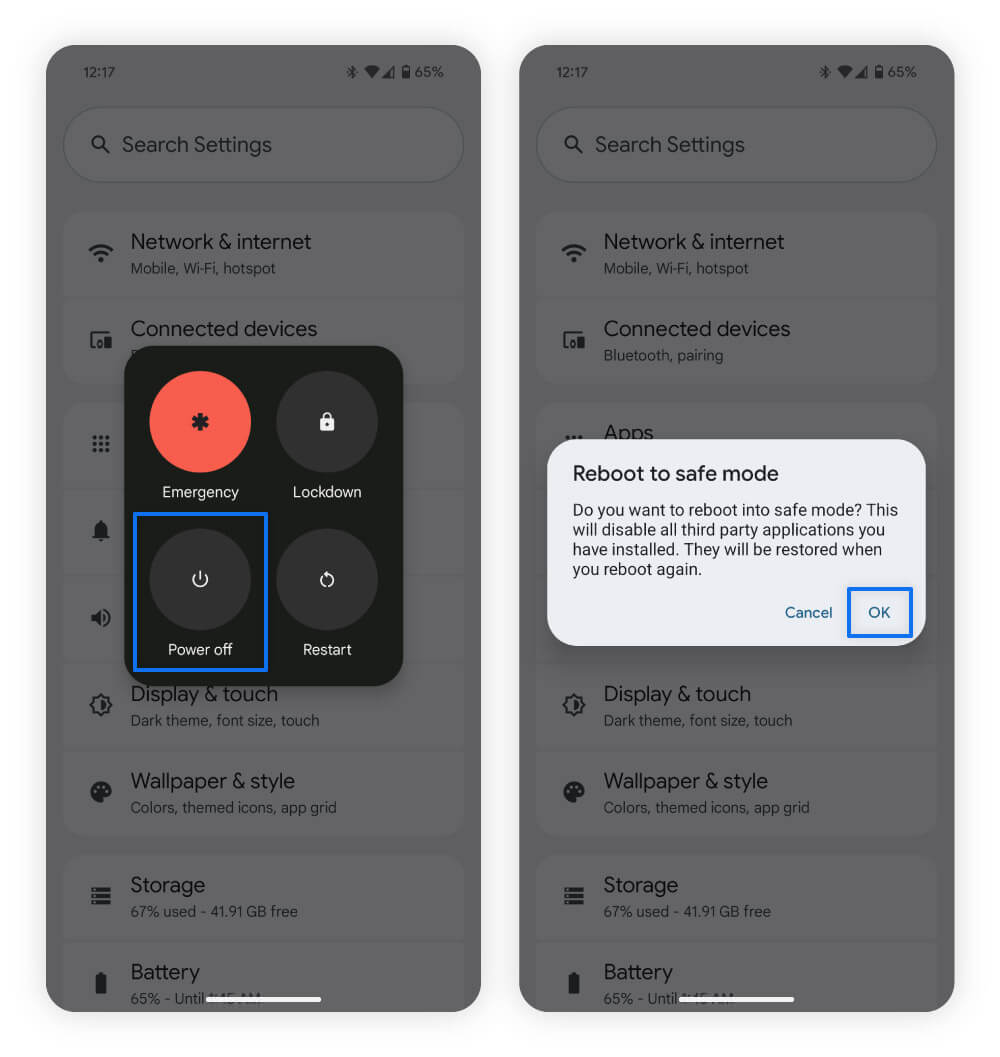
Here’s how to reboot your Android (Pixel) device in Safe Mode:
- Hold down the power button on the side of your device.
- Tap and hold down the Power off button on your screen.
- Press OK to confirm you want to enter safe mode.
If your phone behaves normally in safe mode, it could indicate that malware is hidden in a third-party app. Signs of malware include slow performance, overheating, or apps opening and closing suddenly.
Removing infected Android apps and files
Search for unfamiliar files or apps you don’t recognize — delete anything suspicious. To remove an app, long hold it until it starts jiggling, then tap uninstall.
Here are signs of infected or fake apps you should remove:
- Unusual permissions: Check your app permissions and ask yourself whether you actually granted them. If an app has access you don’t remember approving, consider removing it.
- Duplicate apps: If you see two apps with the same name and icon, one might be fake. Remove them both, then re-download the official version from the Google Play Store.
- Non-official sources: Apps downloaded from unverified websites are more likely to contain malware. Look for apps you didn’t install from a developer’s official website or the Google Play Store.
- Negative user reviews: Check customer reviews to see if others have reported malware. If they have, uninstall the app.
- Unusual design: Apps with odd layouts, broken features, or that mimic others may be spoofed and are more likely to contain malware. It’s best to delete them.
If you find any suspicious files, look them up before deleting them, as removing vital files could cause additional problems for your phone. If you’re unsure if a file is malware or a crucial system file, it’s best to use dedicated antivirus software, like Norton Mobile Security, which will help identify and remove harmful apps and files for you.
Spotting unsafe Android files or apps:
- Look for strange file names made up of gibberish or odd symbols.
- Check files with extensions like .exe or .apk as malware can hide in them, but they can be legitimate, so verify the source before removing any.
- Look for folders you don’t remember creating, but remember some system folders often look unfamiliar.
- When in doubt, use antivirus software to identify malicious apps or files.
5. Activate Google Play Protect
Google Play Protect provides you with a free layer of protection against malware-laden apps. While it doesn’t replace an antivirus solution, it scans apps from the Google Play Store, which can prevent you from installing dangerous apps in the first place.
Here’s how to turn on Google Play Protect:
- Open the Google Play Store app and tap your profile icon in the upper-right corner.
- Select Play Protect, then the gear icon in the upper-right corner.
- Toggle Scan apps with Play Protect and Improve harmful app detection.
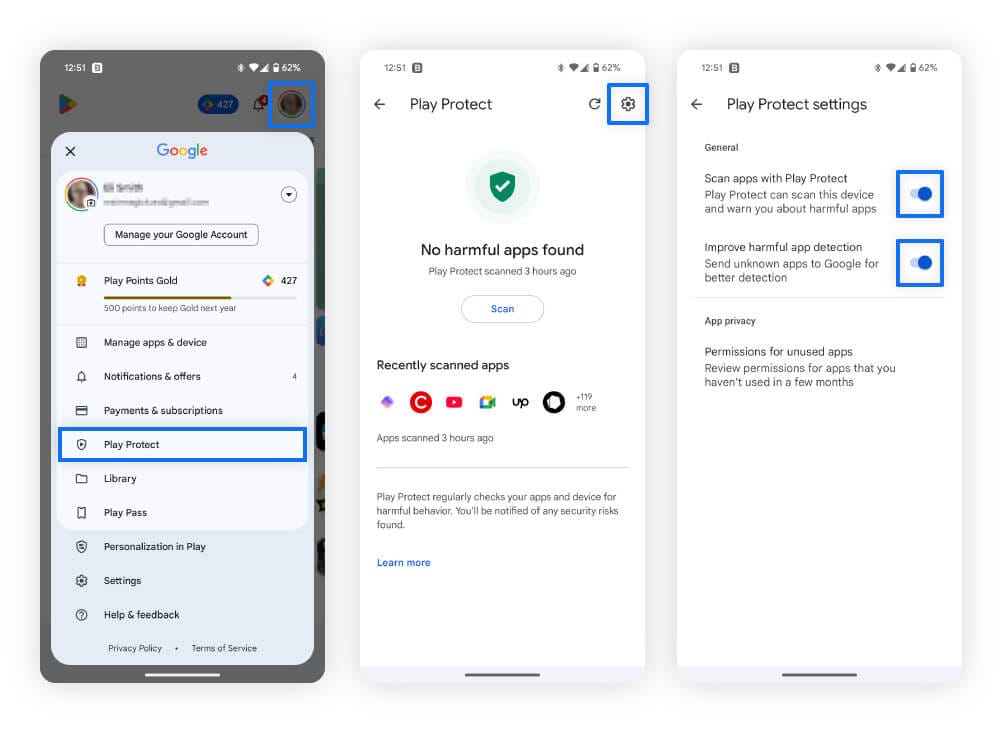
Enabling “Improve harmful app detection” will scan apps downloaded outside the Play Store. Even with this enabled, it’s still important to verify app developers and ensure you’re downloading apps from their official website.
6. Perform a Google account security checkup
A Google account security checkup lets you review your signed-in devices, locations, and third-party app connections, helping you spot suspicious activity. If you notice unfamiliar devices, locations, or access requests, it may be a sign that Android malware has compromised your credentials.
Here’s what you should review during the Google security checkup:
- Saved passwords: If you use Google Password Manager, check for weak or compromised passwords and update them to strong, unique passwords to keep accounts safe.
- Devices logged in: Review the devices connected to your Google account. If you find an unauthorized device, remove it immediately and update your account password.
- Security activity: Check for any unusual activity like login attempts from places you don’t recognize. This could be a sign that your account information has been stolen through malware or a data breach.
- Third-party apps: Review the apps connected to your Google Account and the information they have access to. If you don’t recognize an app or no longer use it, revoke access to prevent unwanted data collection.
7. Factory reset your device (last resort)
If you’ve tried everything and your phone still has malware, factory reset your device. This will erase all of the files and apps on your phone, so don’t forget to back up your photos, videos, apps, and important documents first.
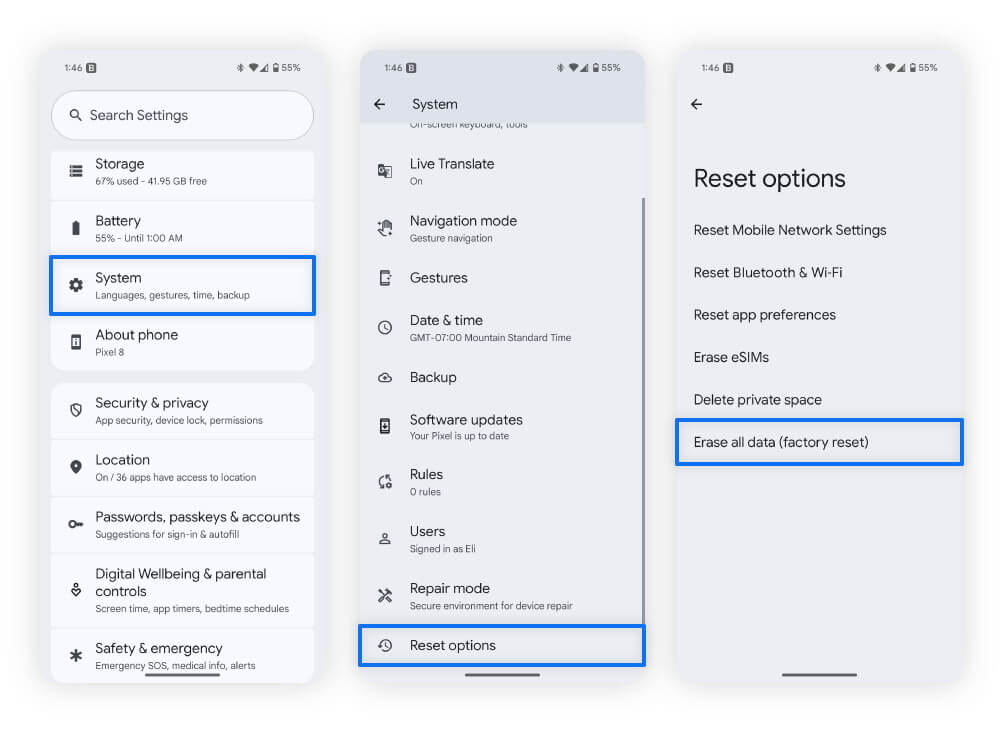
Here’s how to factory reset your Android (Pixel) phone:
- Open Settings, scroll down, and tap System.
- Scroll down to the bottom and select Reset options.
- Select Erase all data (factory reset).
Signs your Android device may have malware
If you notice unrecognized apps, unusually high data usage, odd behavior, or messages you didn’t send, your Android phone may have malware. While these signs don’t always confirm an infection on their own, seeing several at once is a strong reason to act quickly to help protect the sensitive information stored on your device.
Here are some signs to help you check if your Android has a virus or other malware:
- Your device is behaving strangely: Phone slowdowns, overheating, or fast battery draining could signal that malware is putting excessive strain on your device. You’ll want to reset your phone in safe mode to find out if an app is causing this.
- You’re getting more pop-up ads: Frequent pop-up ads may be caused by adware. This type of malware can collect your information, sell it to other companies, and bombard you with annoying advertisements.
- You find unrecognized apps: Review your apps to see if you have any you don’t recall installing yourself. Malware often disguises itself as legitimate software or installs alongside other apps.
- You have unusually high data usage: A sudden spike in data use could be a sign that malware is sending information from your device to cybercriminals. Check your data usage in your phone’s settings or mobile account to spot anything off.
- Your phone is sending messages you didn’t write: Some malware can access your phone’s messaging features to spam or scam your contacts. If you notice texts you didn’t send, they could be part of a smishing scam.
Knowing the signs is the first step to getting rid of malware from your Android device. To be safe, run an antivirus scan right away to detect and delete any threats.
Tips to help protect your Android phone against malware
To help shield your Android device from malware, install a trusted antivirus program. You should also keep software up to date, use strong passwords, and avoid suspicious apps or links.
Here are some tips to protect your Android device:
- Use antivirus software: Reputable antivirus software, such as Norton Mobile Security for Android, can help detect malicious apps, block threats in real time, and remove malware if it’s found.
- Keep software up to date: Outdated apps and operating systems may contain security holes that hackers can exploit. Updating your phone’s software helps you avoid these weaknesses by installing the latest patches.
- Don’t click suspicious links: Malicious links can lead to unsafe websites, which could install malware on your device. Avoid links in unsolicited messages — whether you receive them via text, email, or social media. And if you accidentally click one, here’s what to do.
- Use strong passwords: Create strong passwords for each account to reduce your chances of account takeovers. Make each account password unique, as reusing passwords makes you vulnerable to brute-force attacks.
- Two-factor authentication: Enable two-factor authentication (2FA) to add an extra layer of security and protect your account further against takeovers. This makes it harder for hackers to access your account, even if they have your password.
- Avoid untrustworthy apps: Only install apps from the Google Play Store or directly from a reputable developer’s website.
- Avoid rooting your phone: Rooting removes built-in Android security protections, making your device more vulnerable to malware.
- Avoid unsecure Wi-Fi connections: Public Wi-Fi connections are usually less secure than private networks, making it easier for hackers to execute man-in-the-middle attacks. When using public Wi-Fi, use a VPN to encrypt your connection and protect your in-transit data.
What can viruses and other malware do to your Android phone?
Malware and viruses can infect your Android phone to steal your information, encrypt your files to hold them hostage, and spy on you through your camera and microphone. In extreme cases, malware can even wipe your system, rendering your device unusable.
Here’s a list of some of the different types of malware and what they do:
- Viruses: While a virus is rare on modern Android devices, this type of malware is designed to self-replicate and spread to other devices.
- Trojans: Trojans pose as legitimate apps to deceive you into installing them. For instance, the Antidot Trojan pretends to be a Google Play update, using keylogging techniques to harvest sensitive information.
- Ransomware: Android ransomware may lock your screen, restrict access to your phone, or encrypt files. The attacker behind it will demand a ransom to restore access or files, but may sell any stolen data on the dark web even if you pay.
- Adware: Adware floods your device with unwanted pop-ups and ads while secretly tracking your browsing behavior. This data may be sold to third parties and used to target you with personalized ads, loan offers, and other unsolicited promotions.
- Spyware: Spyware monitors your internet activity and harvests sensitive data like login credentials, which criminals can use to steal your identity.
- Botnets: As part of a wider network, botnets allow attackers to control multiple infected devices. They often use these devices to mine cryptocurrency, which takes up a lot of system resources.
Keep your Android phone safer from malware
Phones are prime targets for malware because they store so much personal data. Just think of all the information you entrust to your phone!
Norton Mobile Security for Android helps protect your phone and valuable data with real-time antivirus protection, alerts about fraudulent websites, warnings about risky apps, and AI-powered scam detection. By taking proactive steps and arming yourself with the right tools, you can keep your Android safer from malicious threats.
FAQs
Can Androids get viruses?
Yes, Android devices can get viruses or other types of malware — often if you click unsafe links, open dangerous email attachments, or interact with malvertisements (malicious advertisements). Like computer viruses, they can steal information or affect your device’s performance.
Are iPhones safer than Androids when it comes to malware?
Some people consider iPhones to be safer than Androids because they use a closed-source operating system. Android’s open-source approach allows for greater flexibility but can create more vulnerabilities, depending on the manufacturer and model. However, no smartphone is immune to threats. iPhones can still get viruses, especially if jailbroken.
How do I get rid of a virus on my phone without an app?
You can get rid of a virus without an app by rebooting your phone in Safe Mode and locating and removing the source of the infection (usually a malicious app). If you can’t find the offending app, you can perform a factory reset for free, which should remove malware, but it will also erase all your data.
Android is a trademark of Google LLC.
Editors’ note: Our articles offer educational information and are written to raise awareness about important topics in Cyber Safety. Norton products and services may not protect against every type of threat, fraud, or crime we write about. For more details about how we research, write, and review our articles, see our Editorial Policy.







Want more?
Follow us for all the latest news, tips, and updates.